
In eight steps
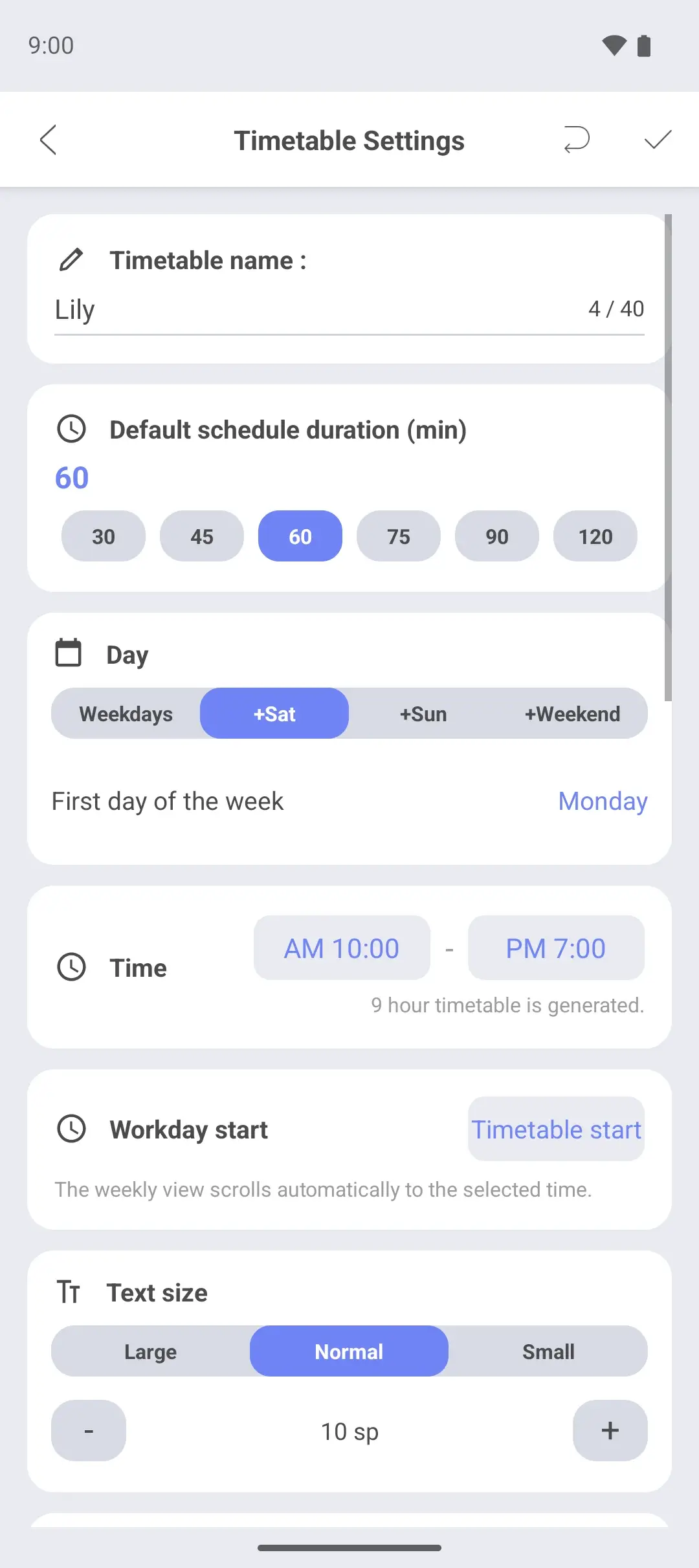
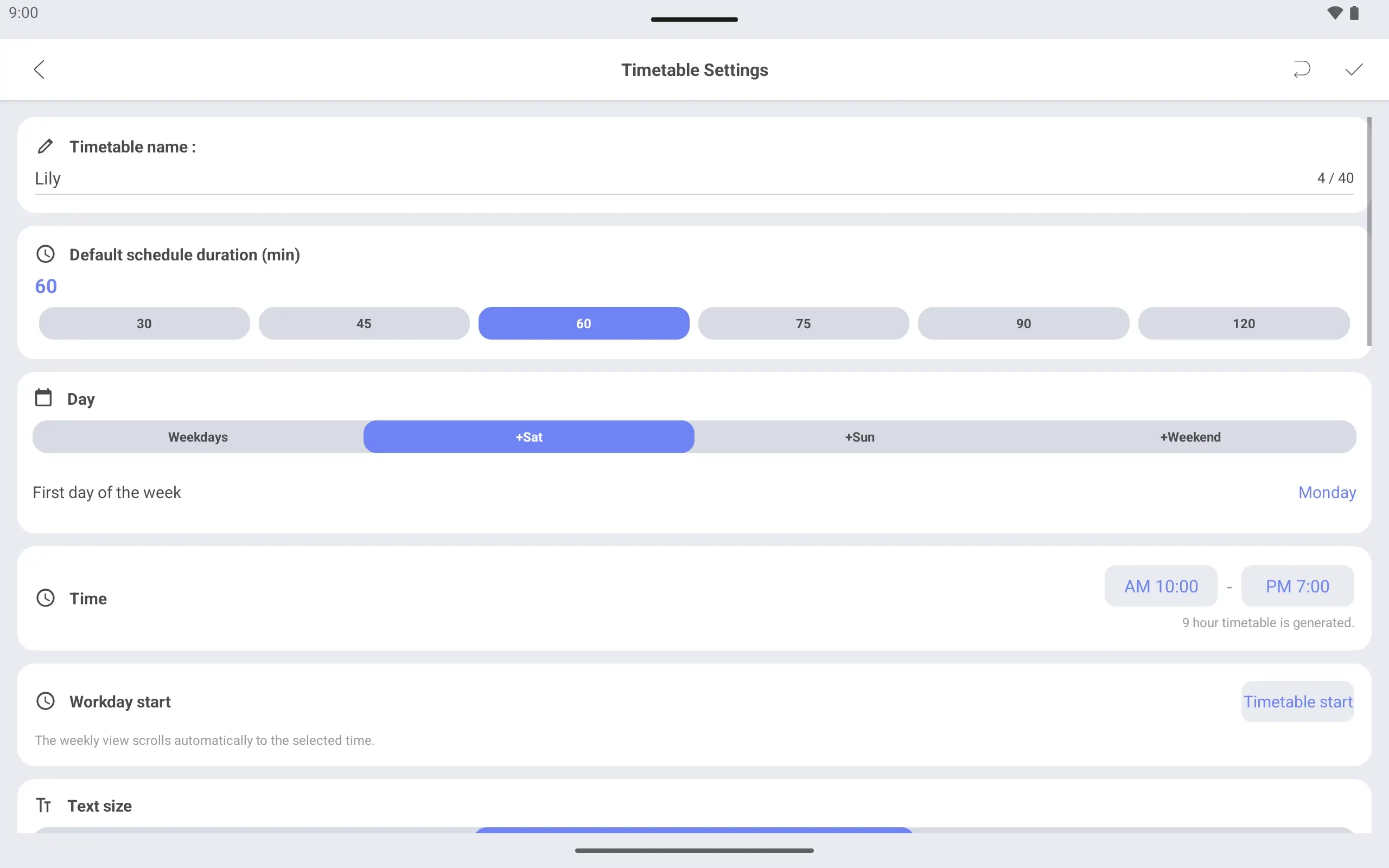
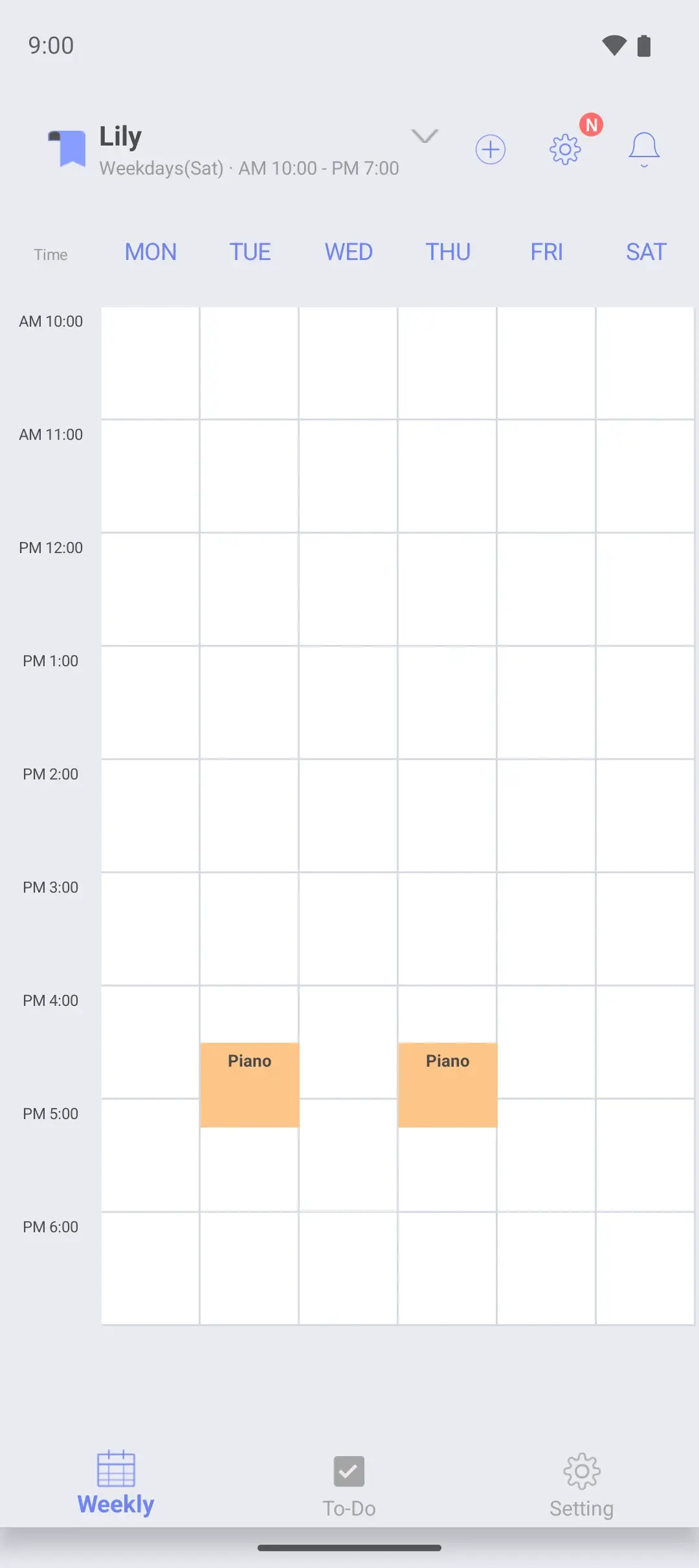
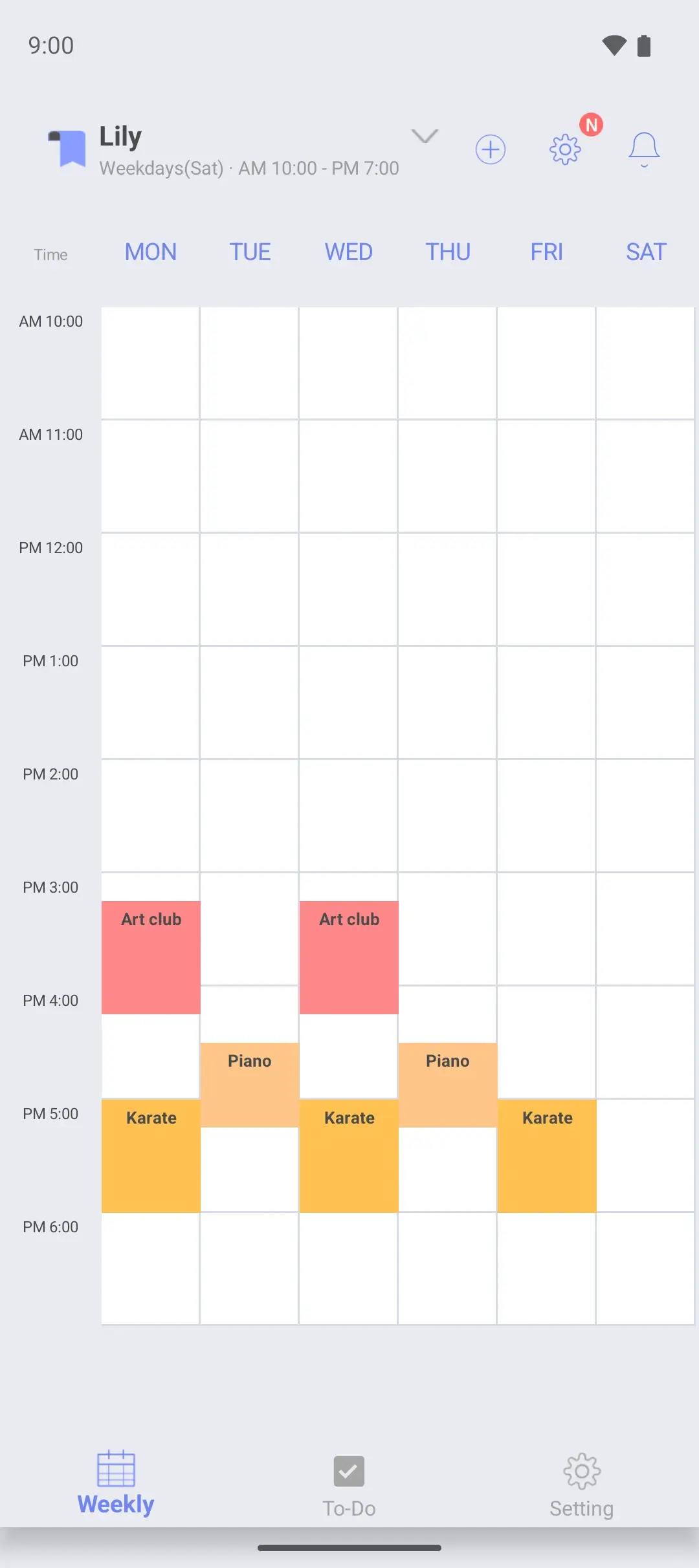
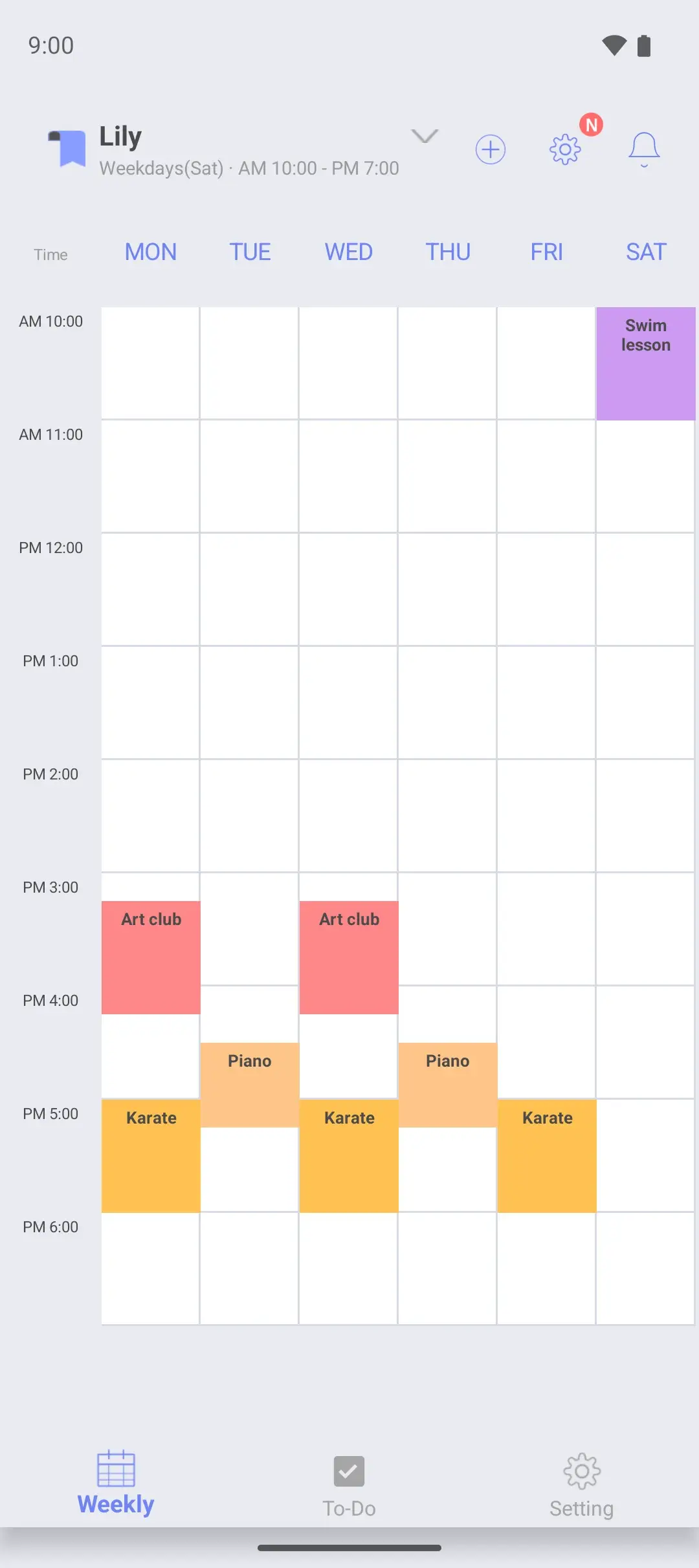
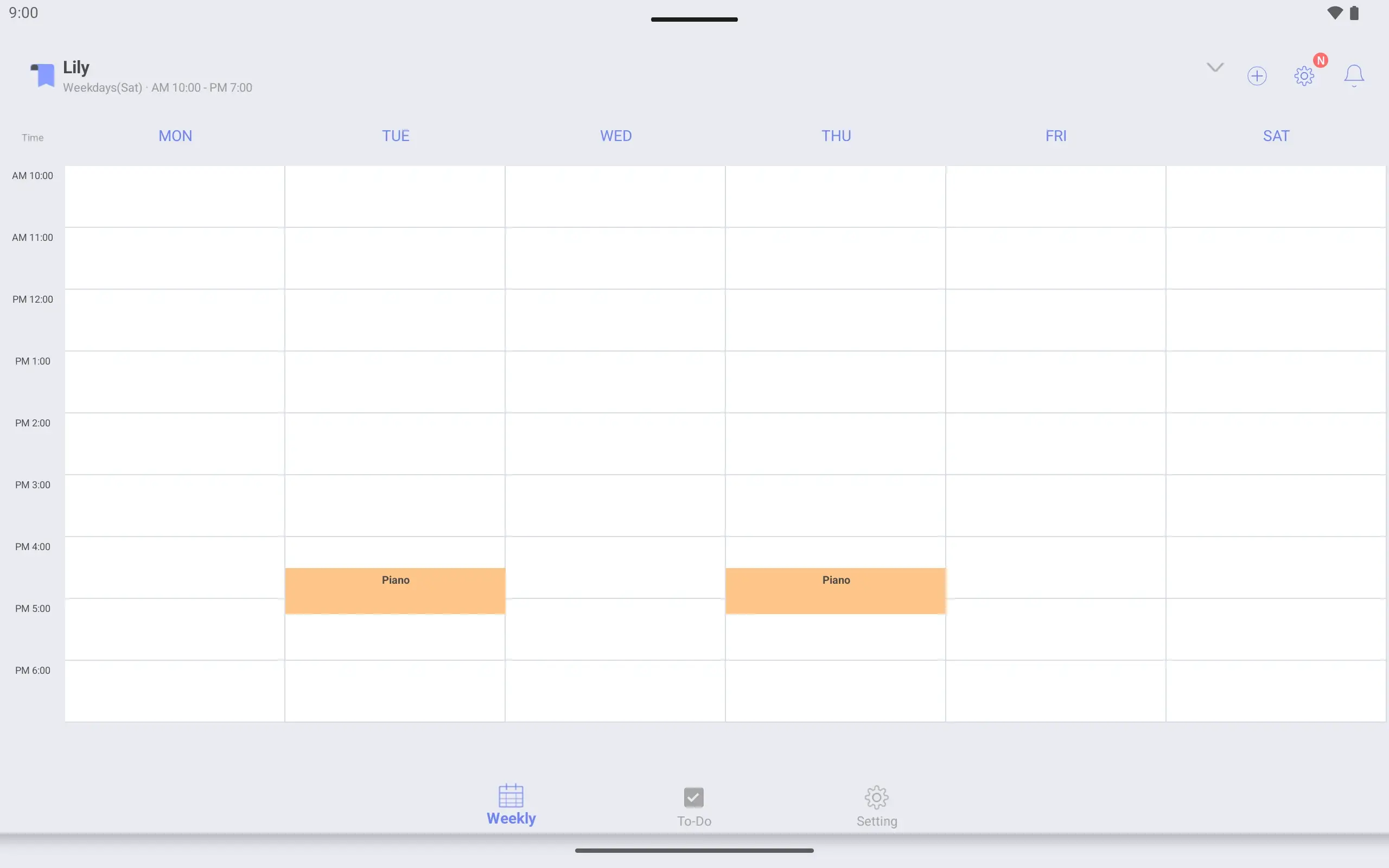
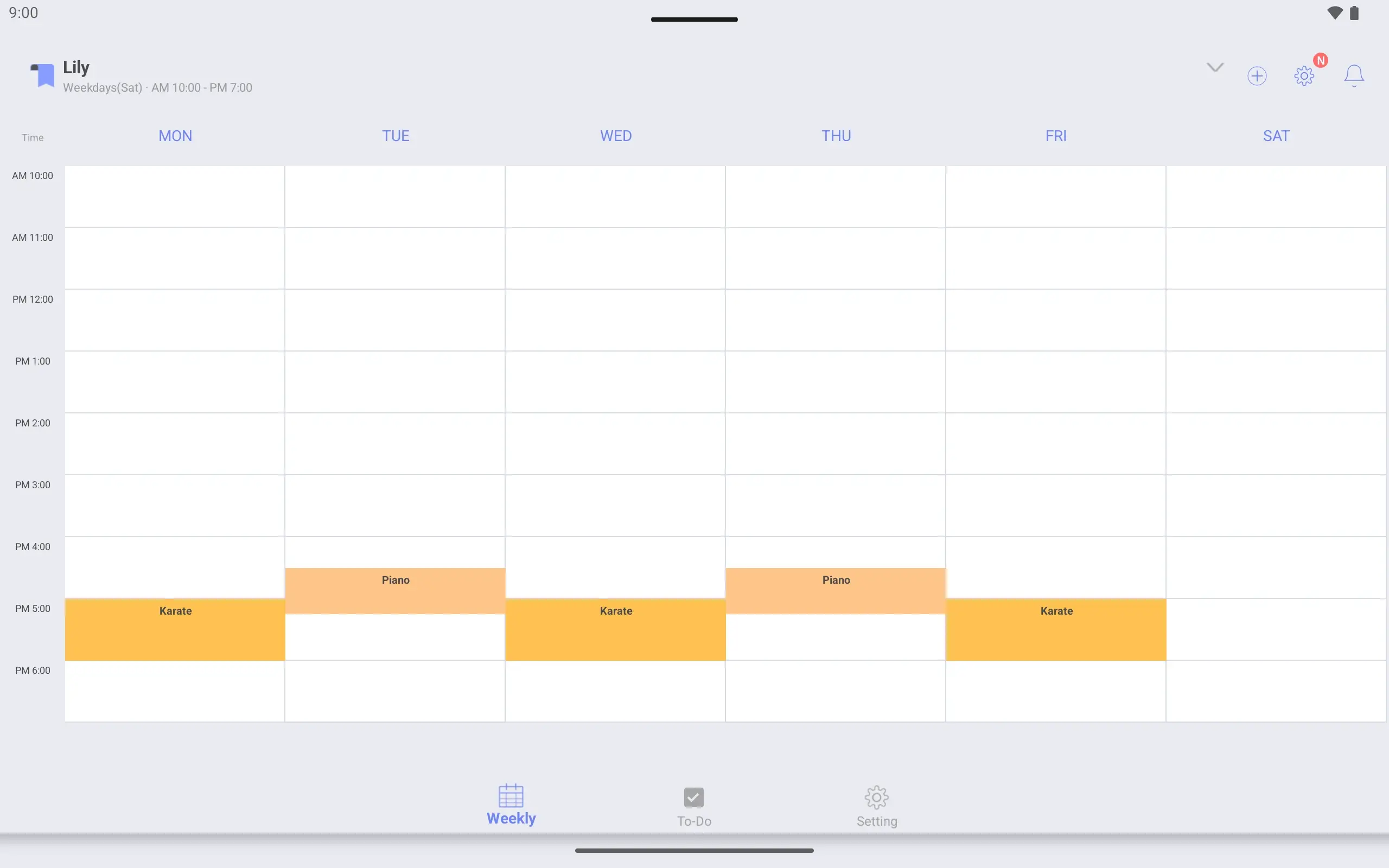
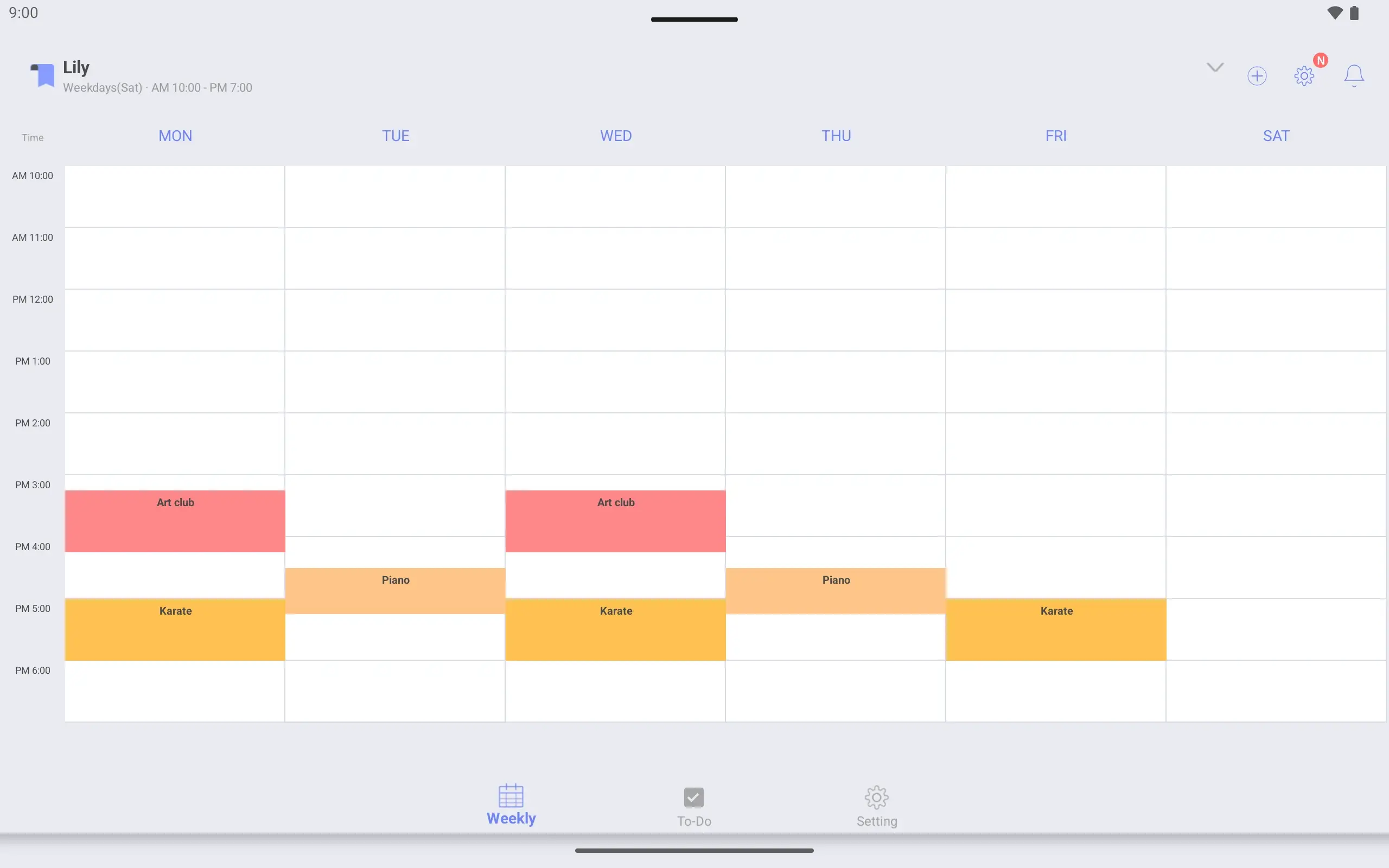
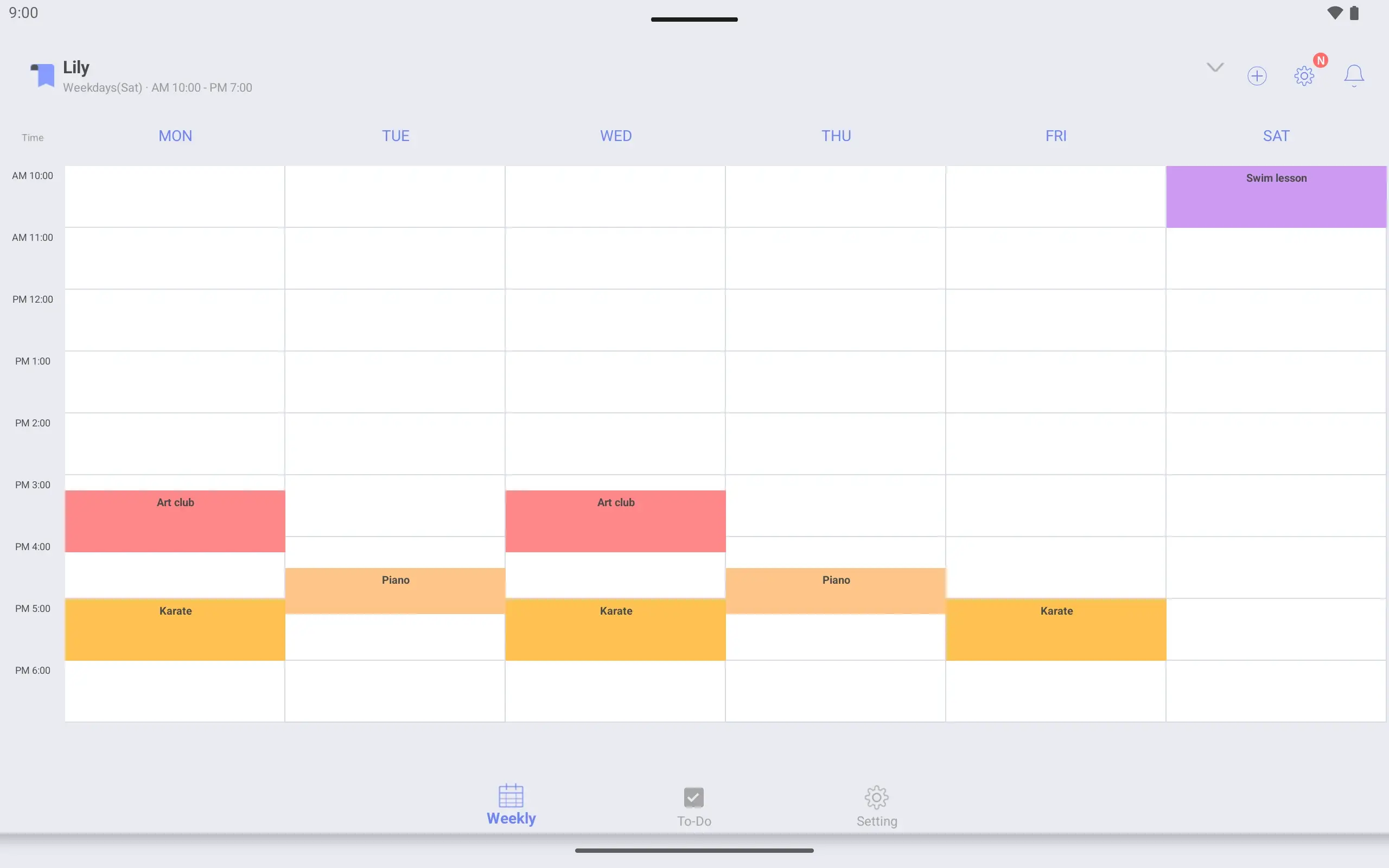
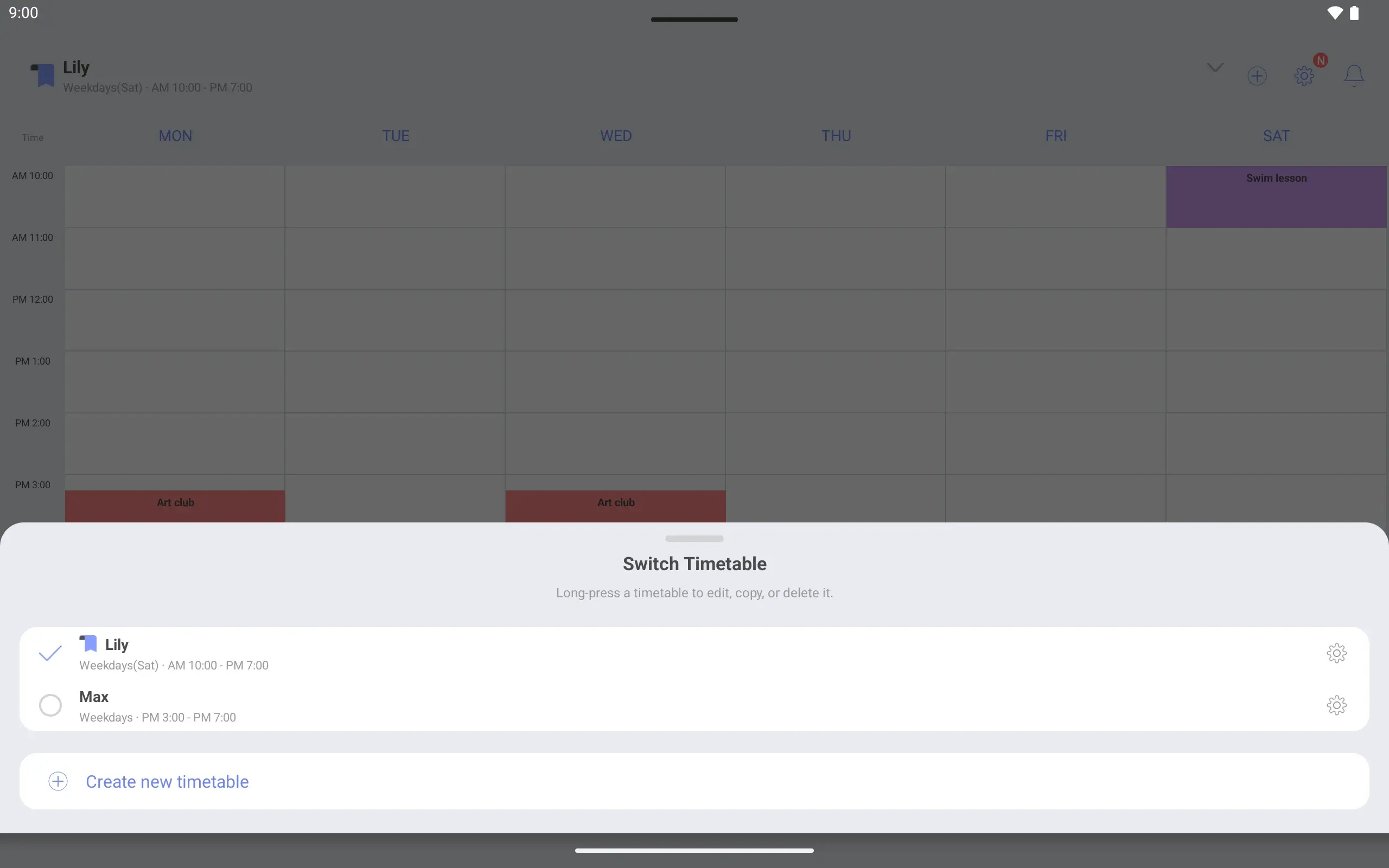
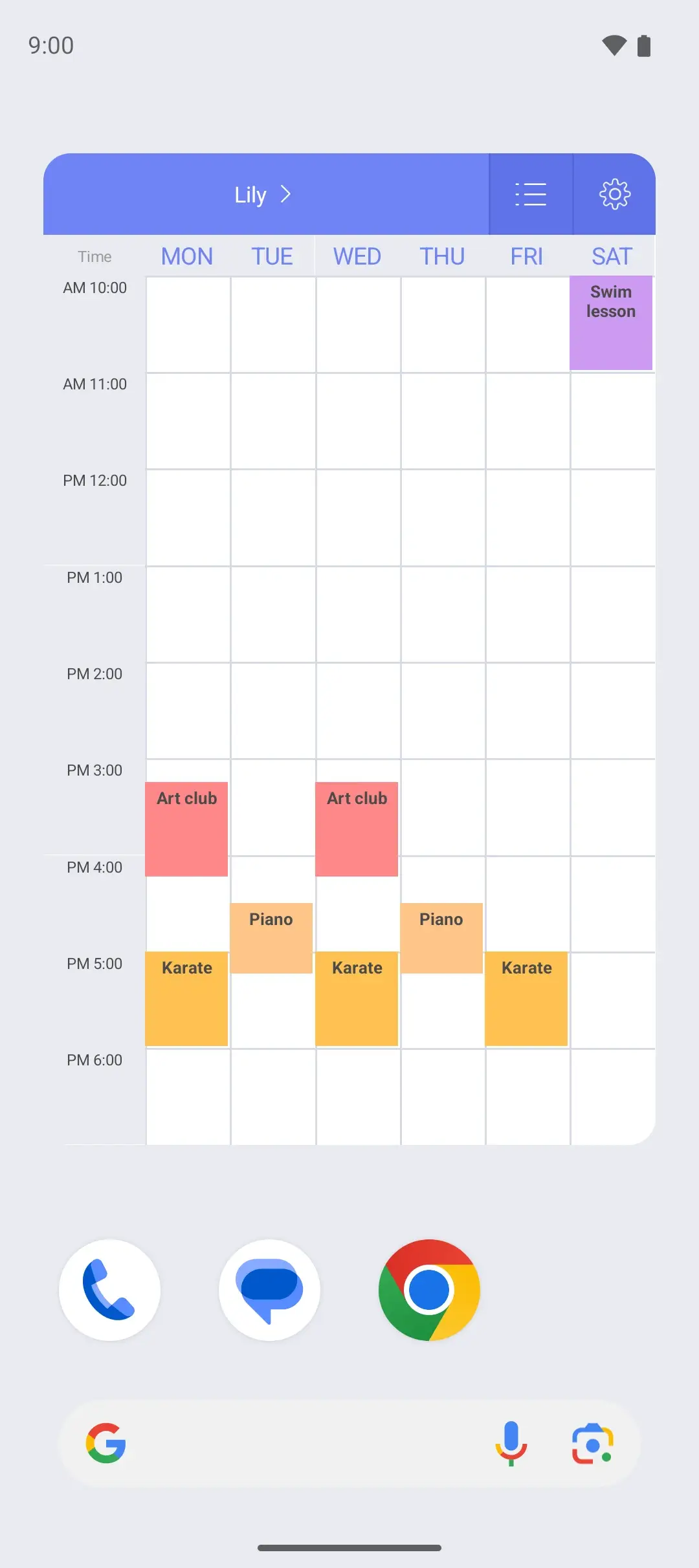
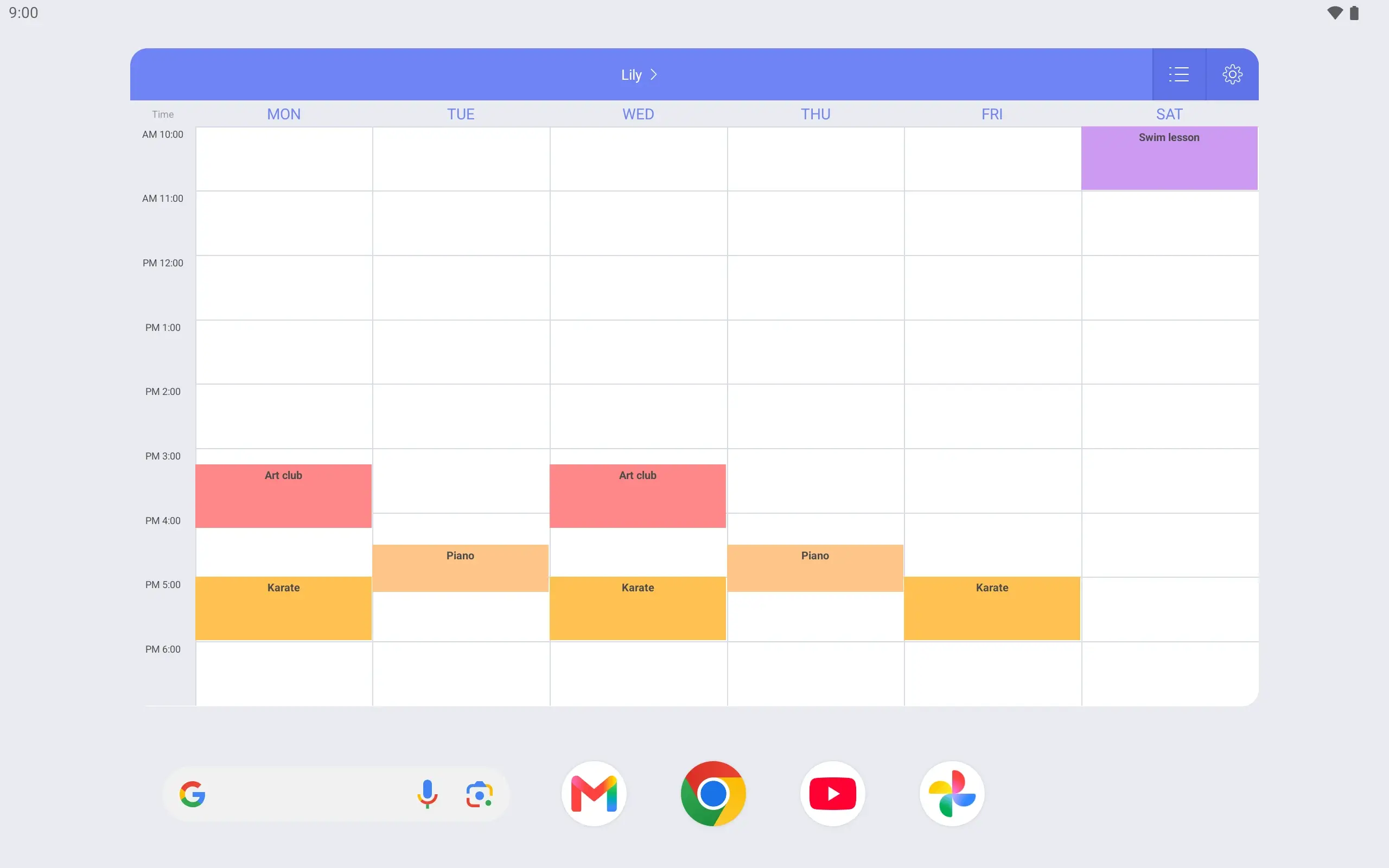
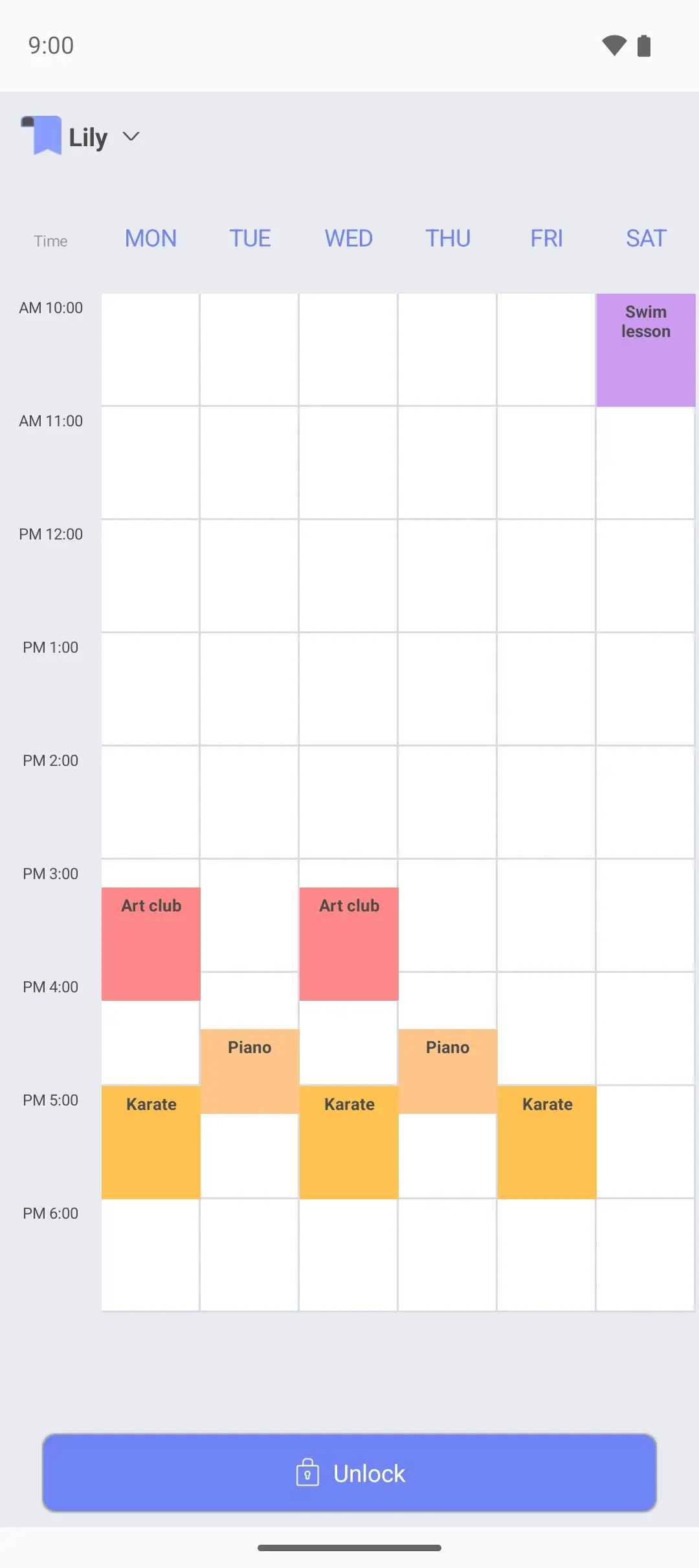
Make a timetable under the child’s name and choose its days and hours. Lily has activities after school and a swim lesson on Saturday morning, so hers shows Monday to Saturday.
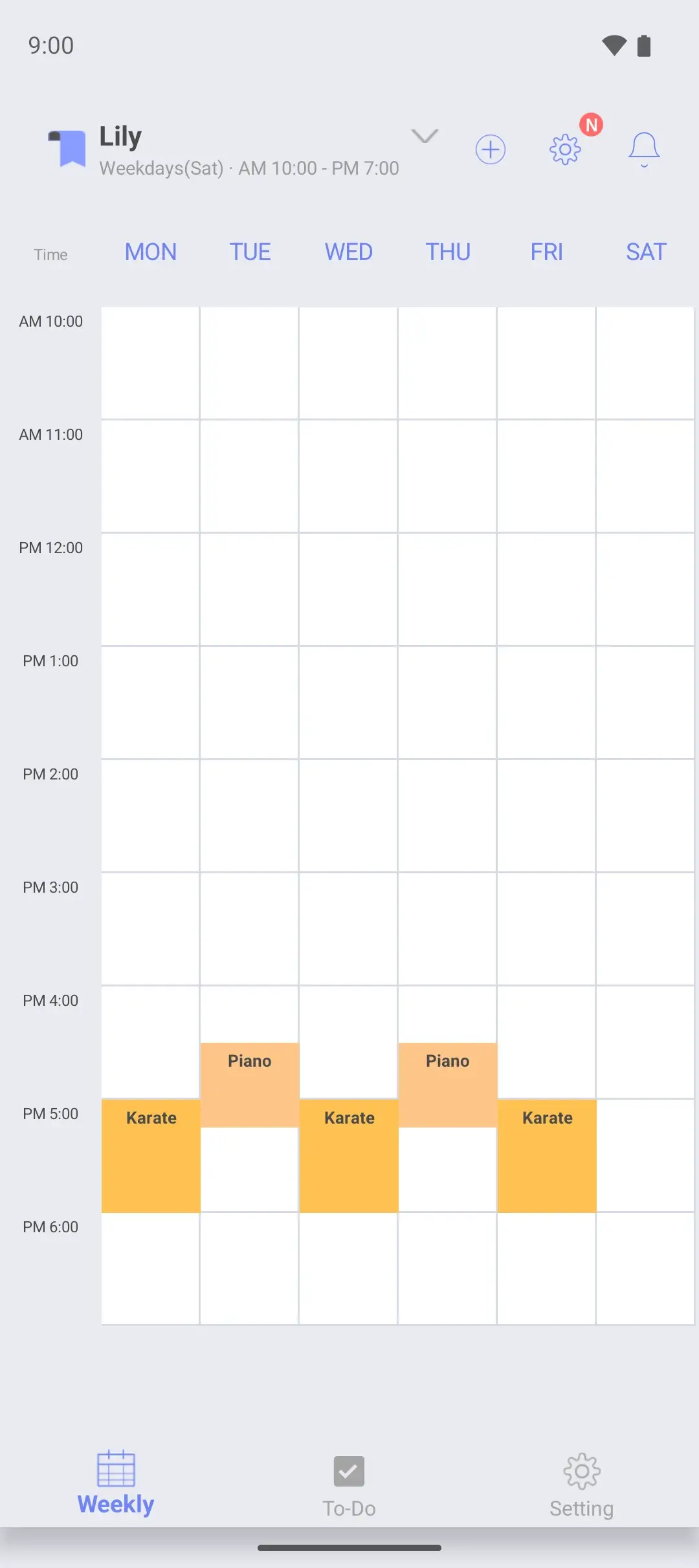
Start and end times for each activity are set to the minute. Art club on Monday and Wednesday 3:15–4:15 and the Saturday swim lesson 10:00–11:00 are in too. Each activity has its own color, so it is clear at a glance where to go today.
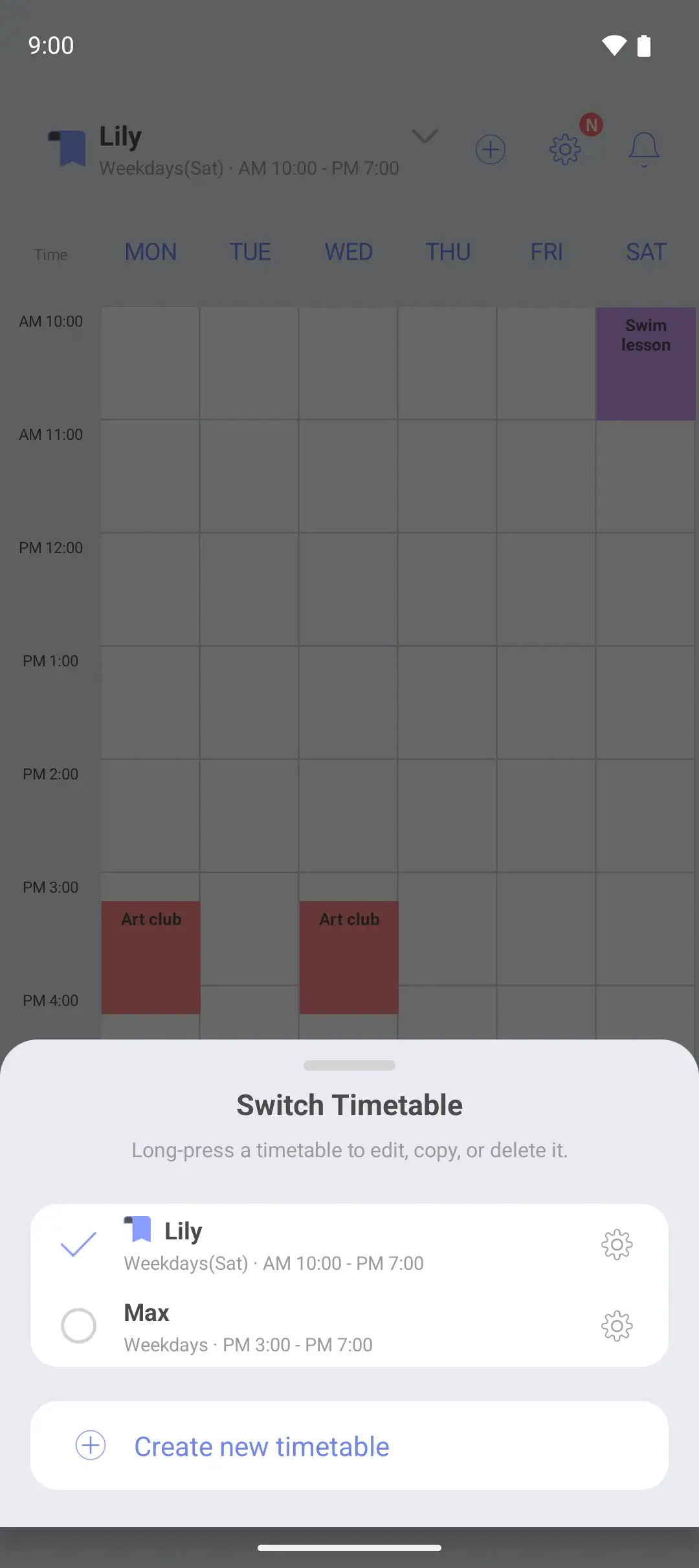
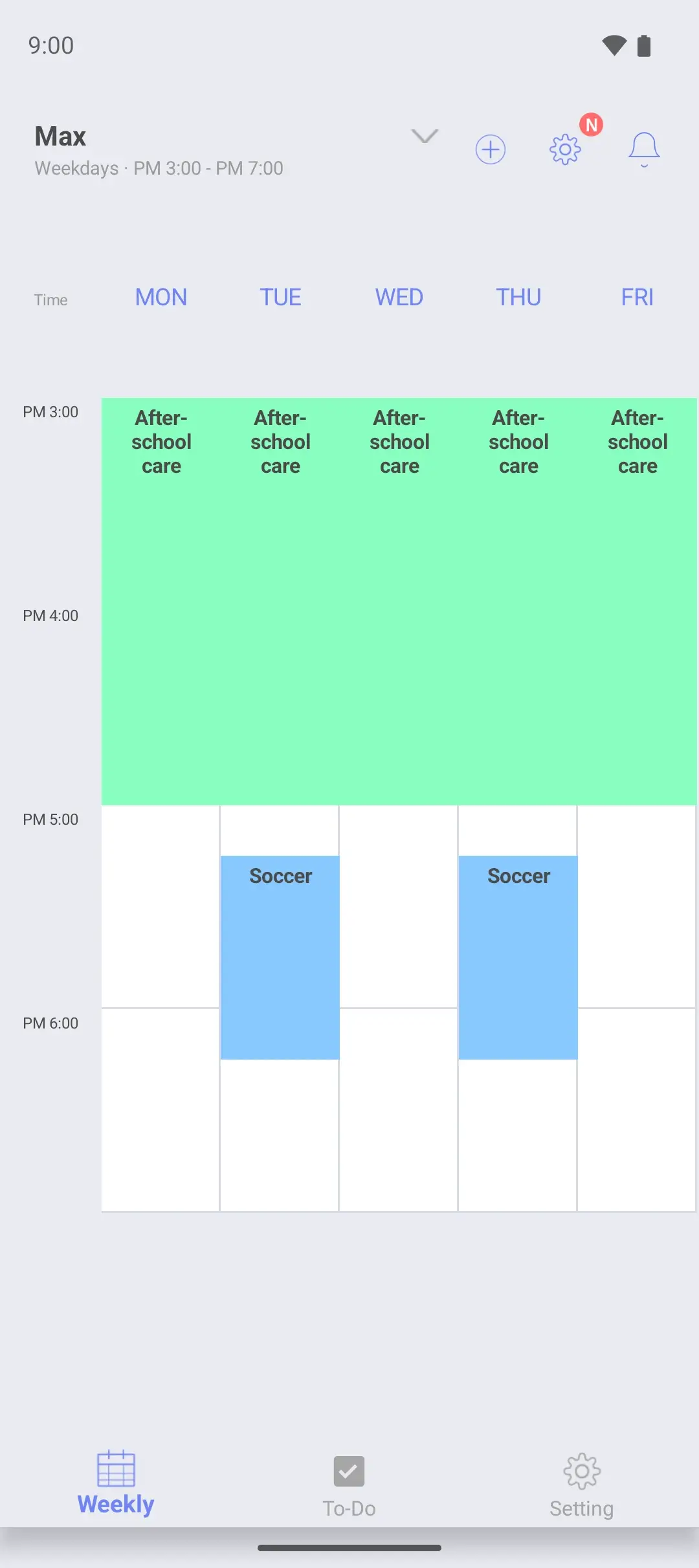
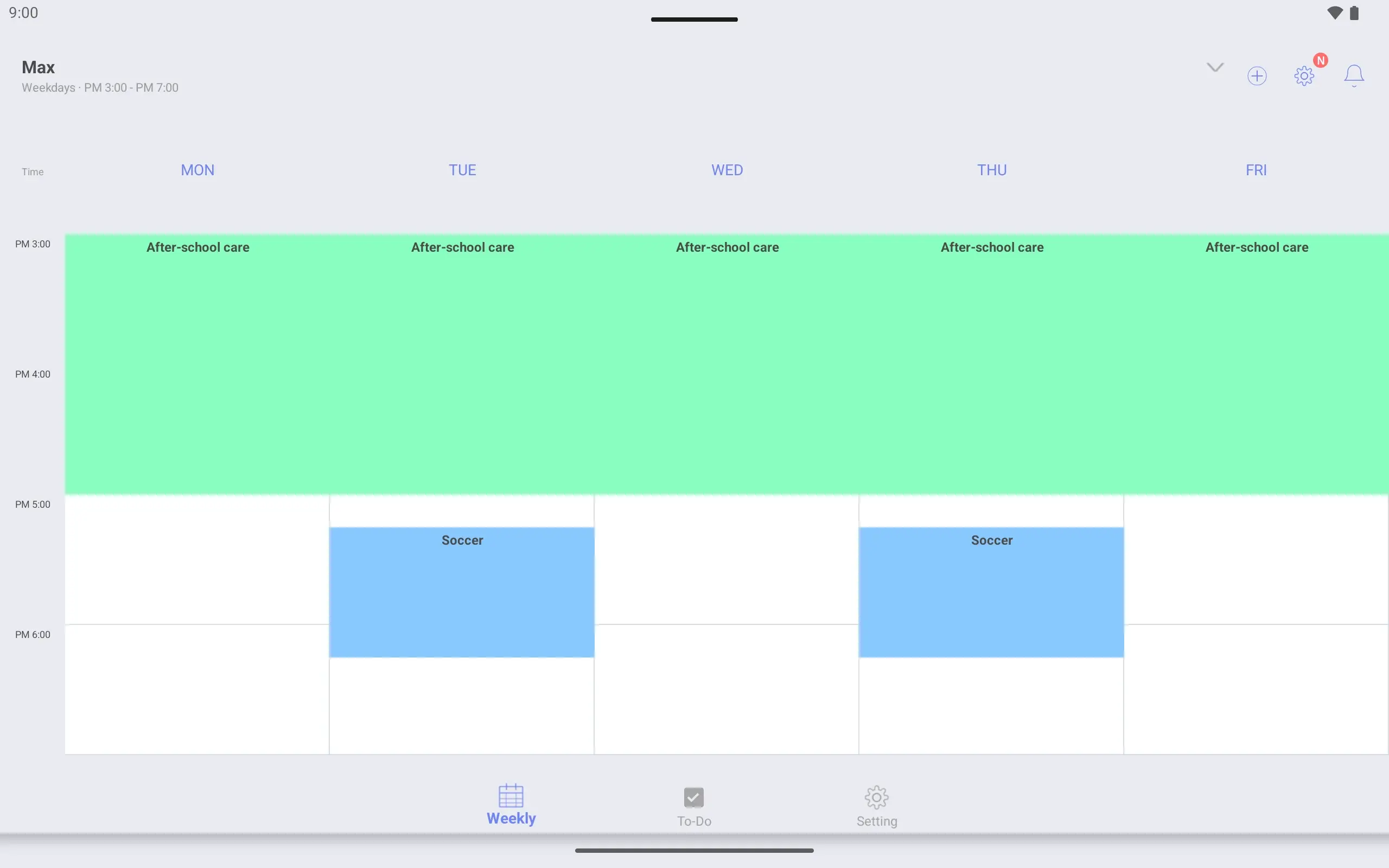
You can have several timetables. Max has after-school care Monday to Friday 3:00–5:00 and soccer on Tuesday and Thursday 5:15–6:15. Switch timetables to see each child on their own page.
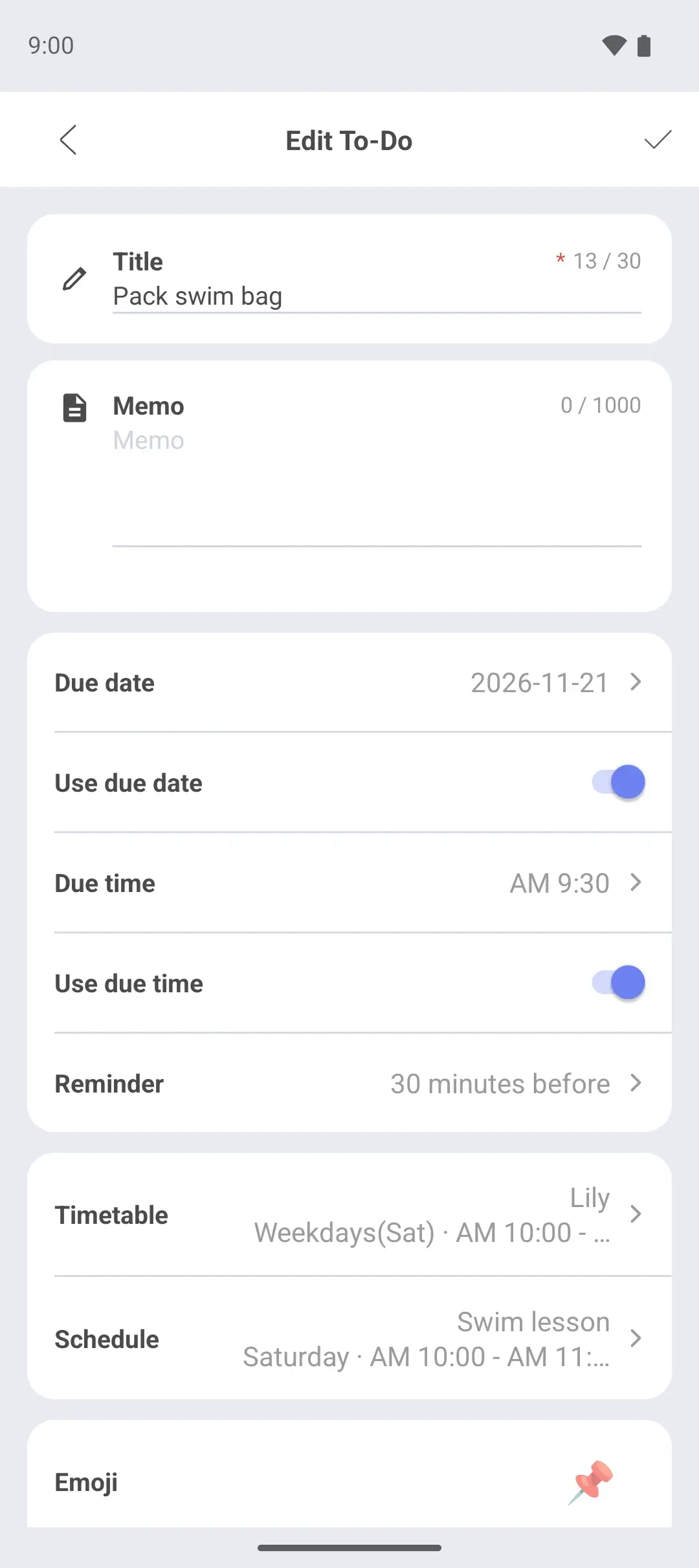
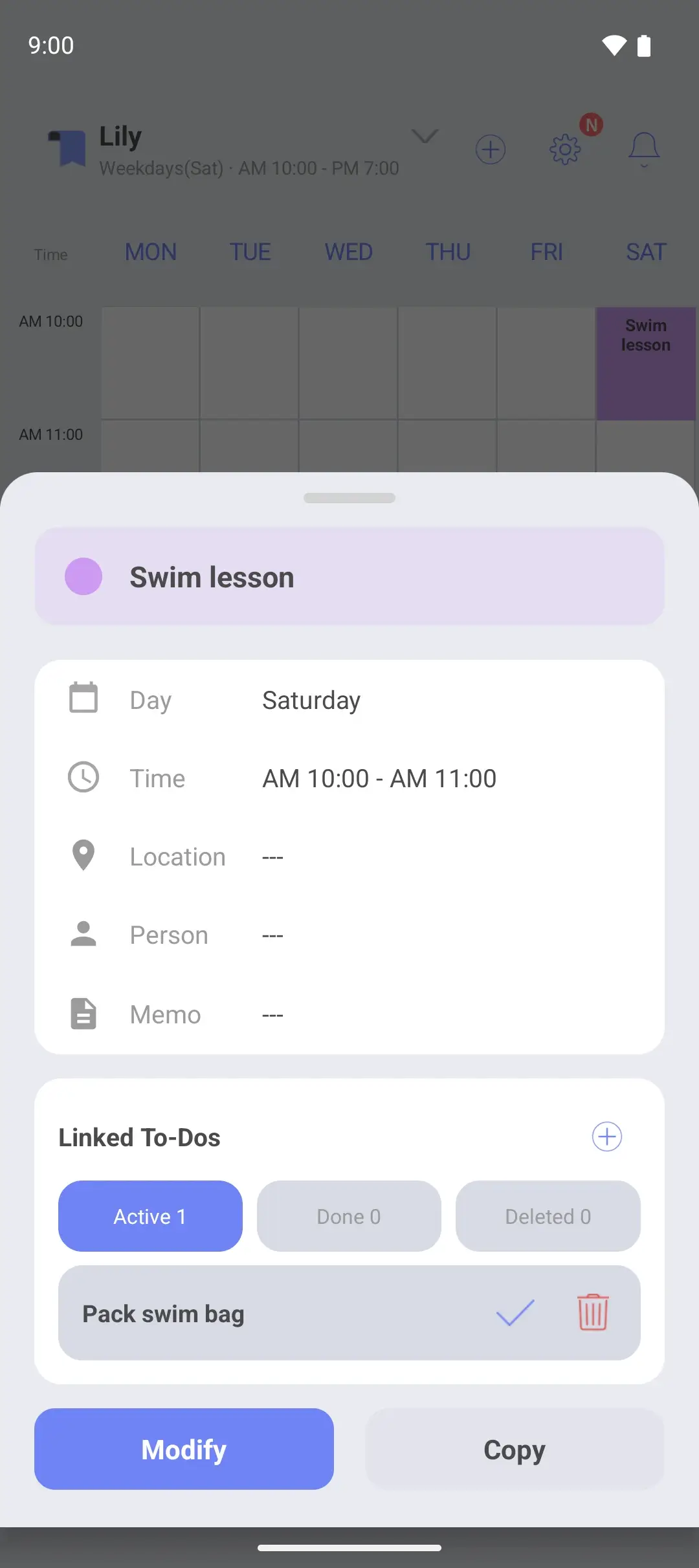
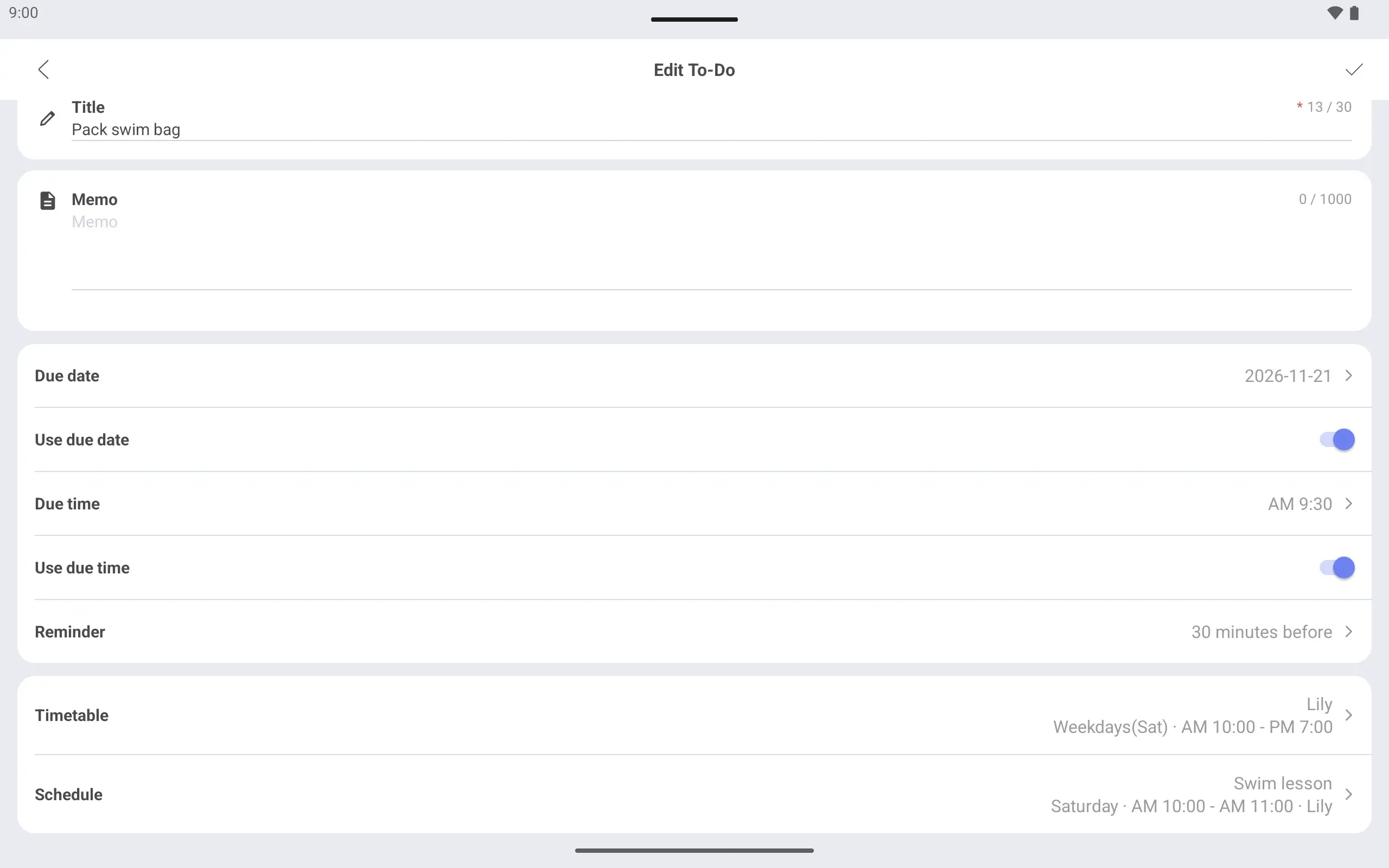
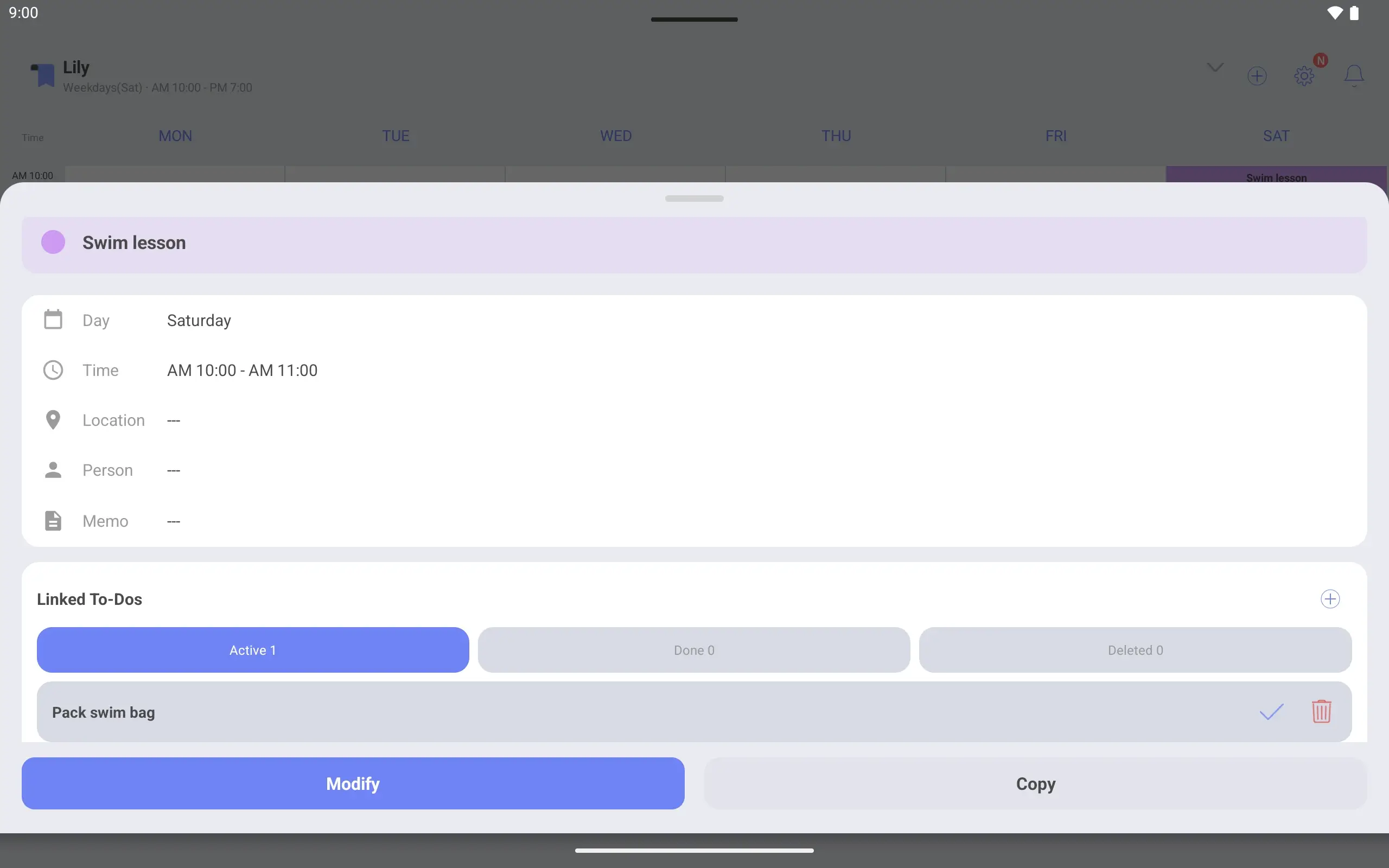
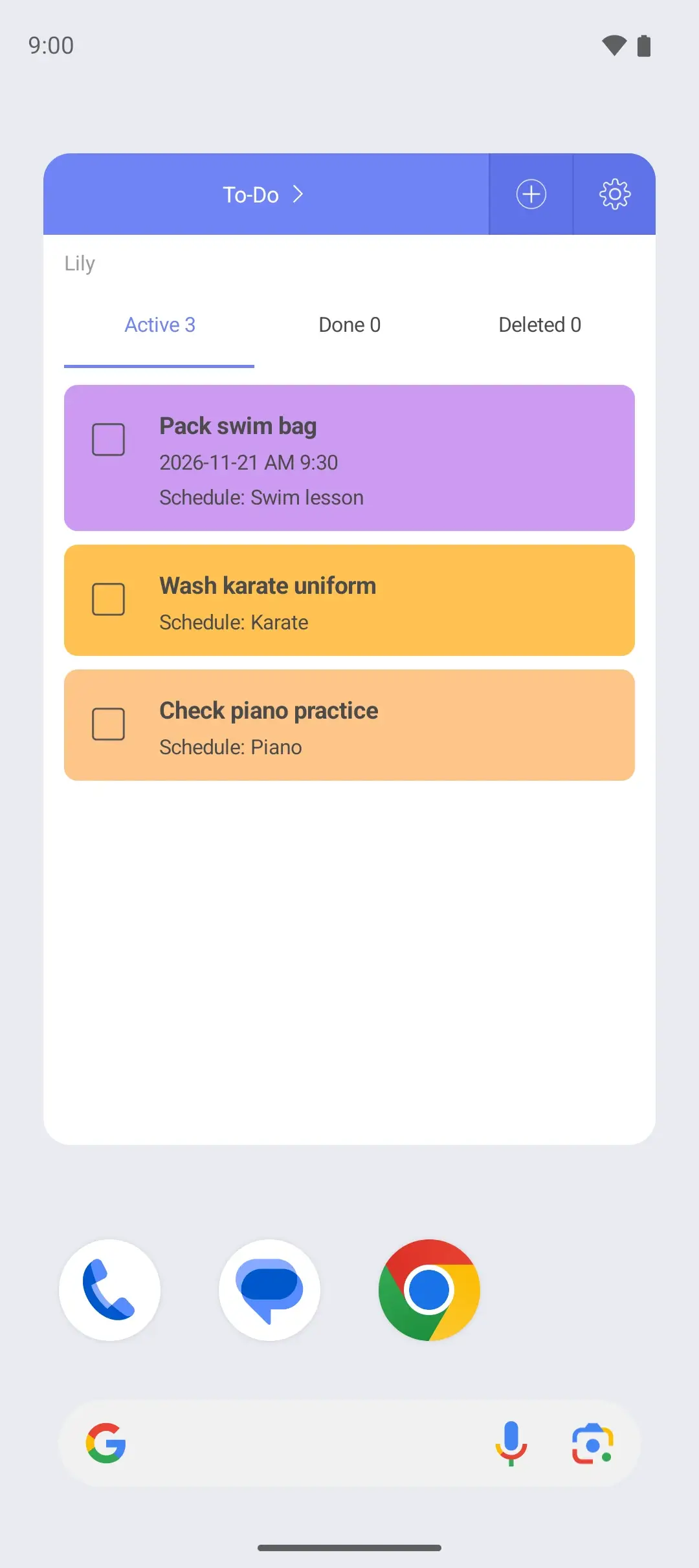
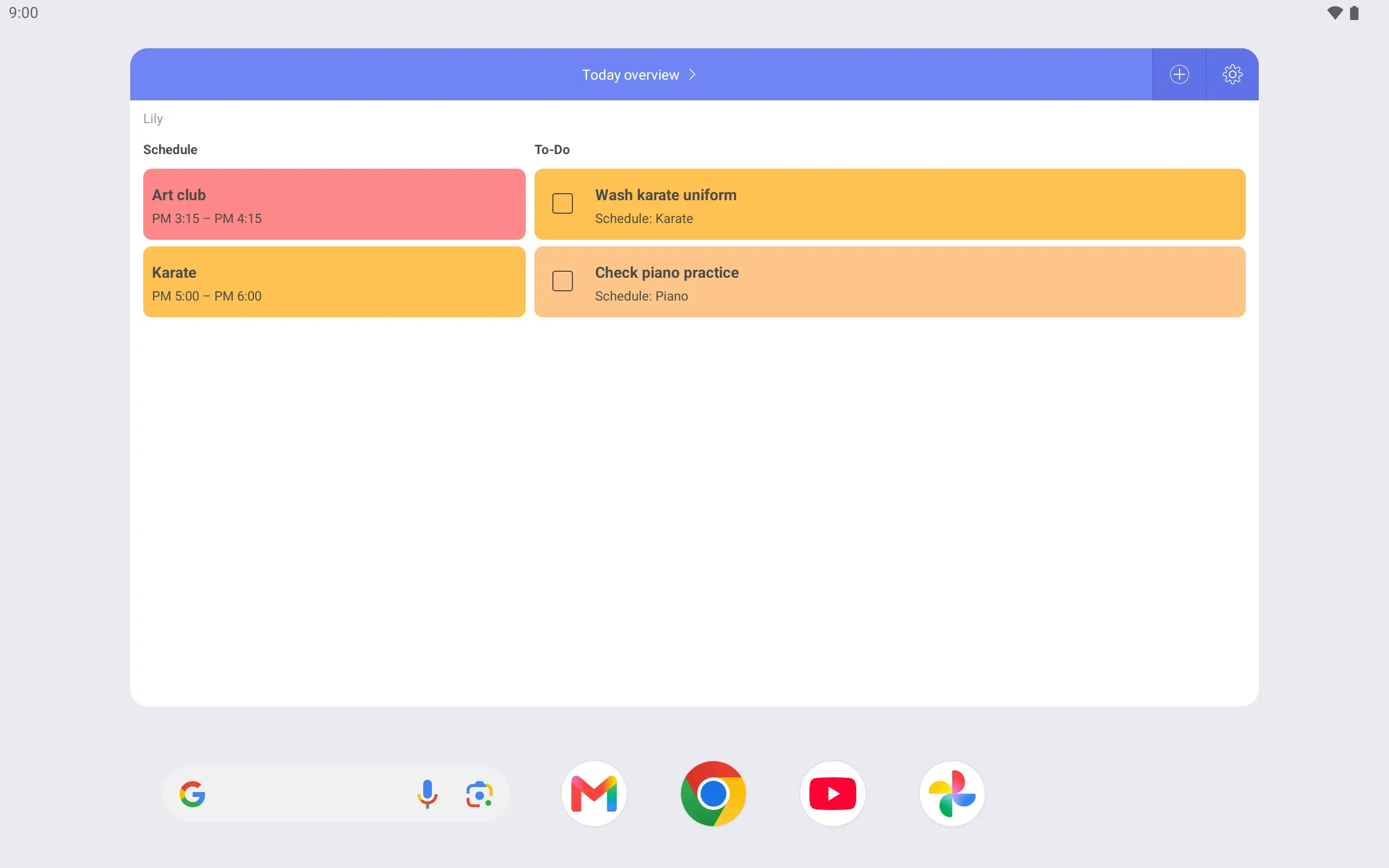
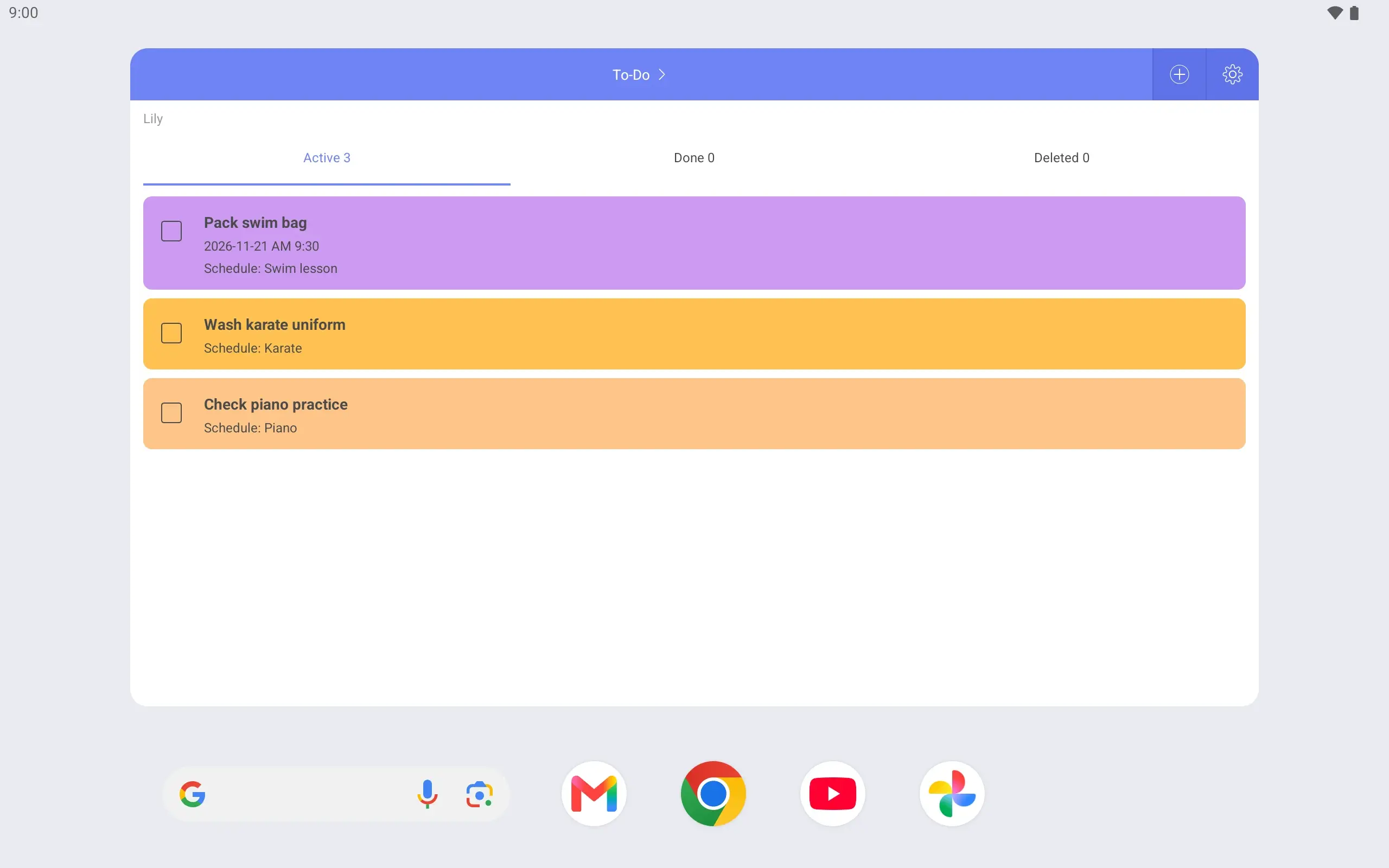
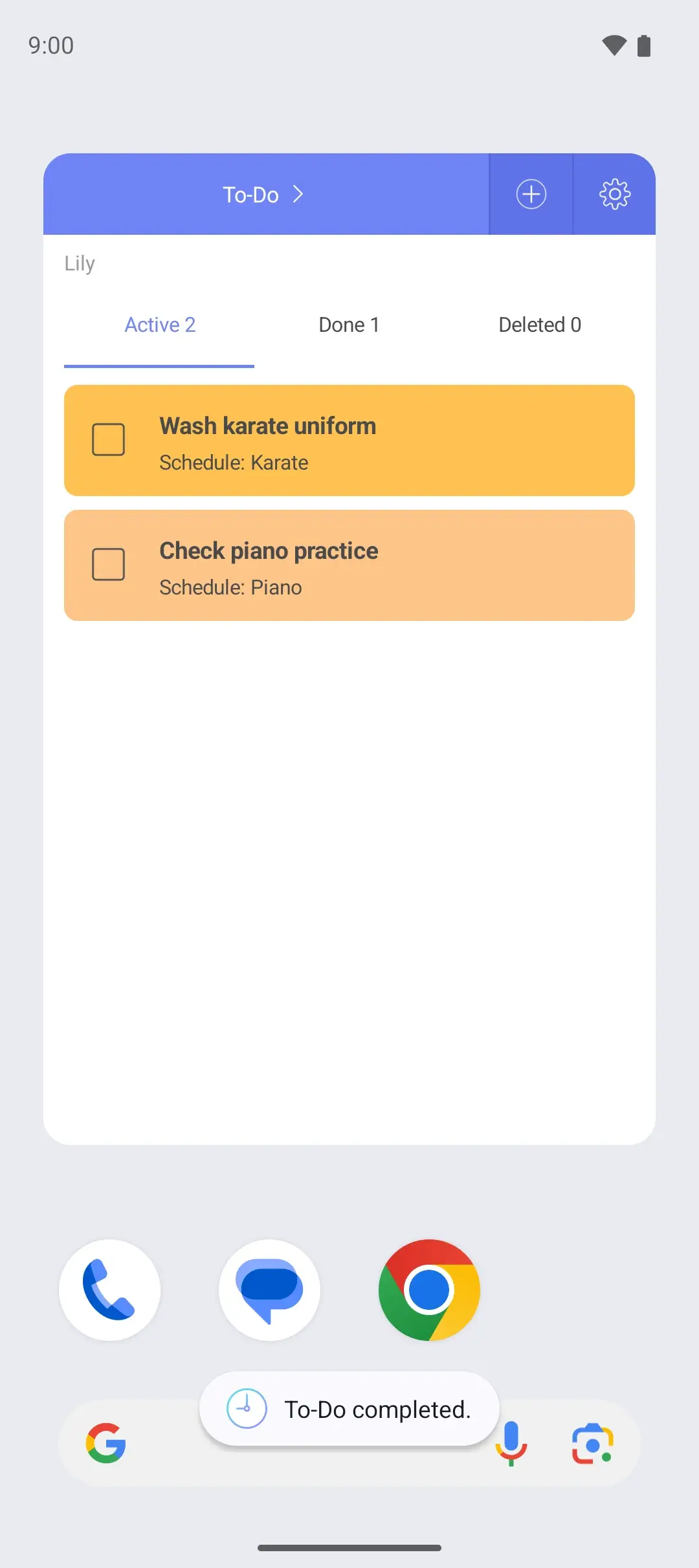
When you add a To-Do you choose the activity it belongs to. Tap the swim lesson on the timetable and “Pack swim bag” shows with it. There is no need to write which activity it is for.
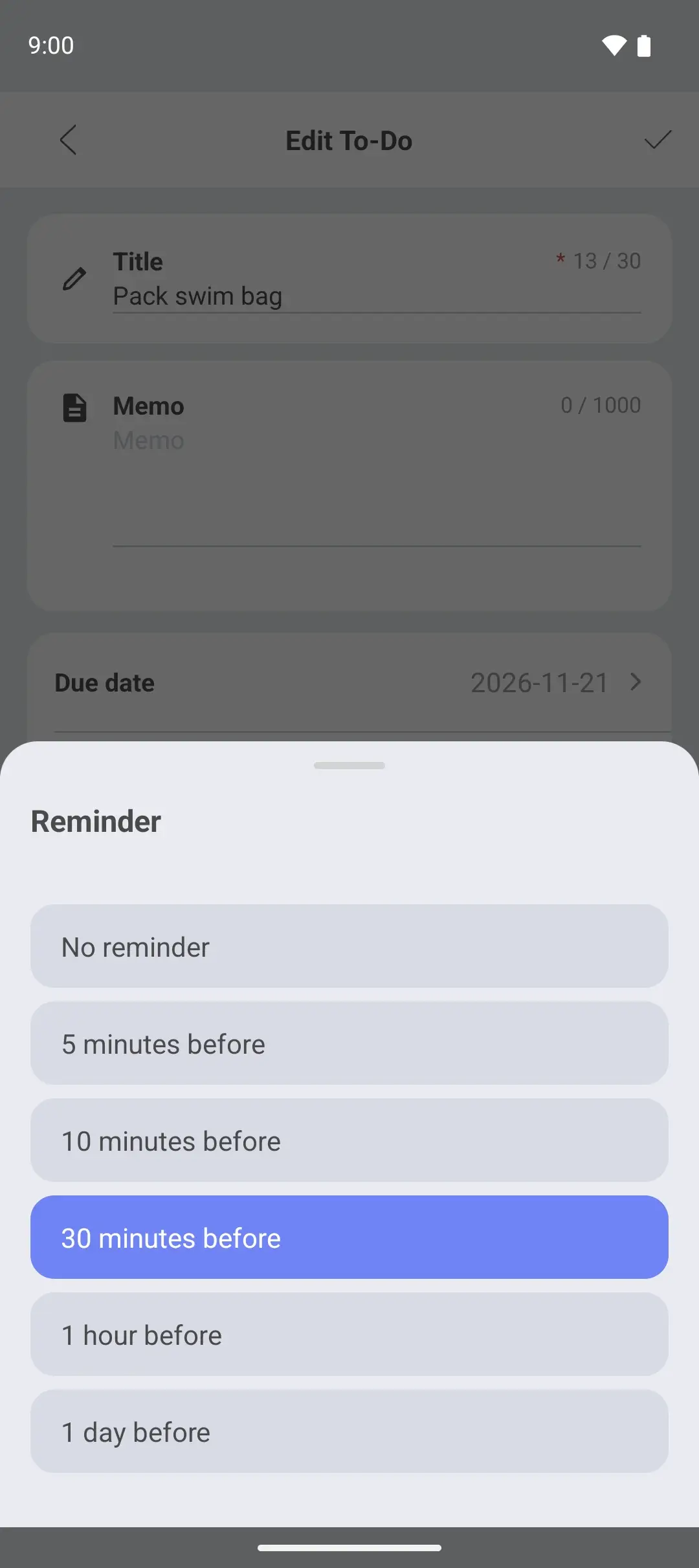
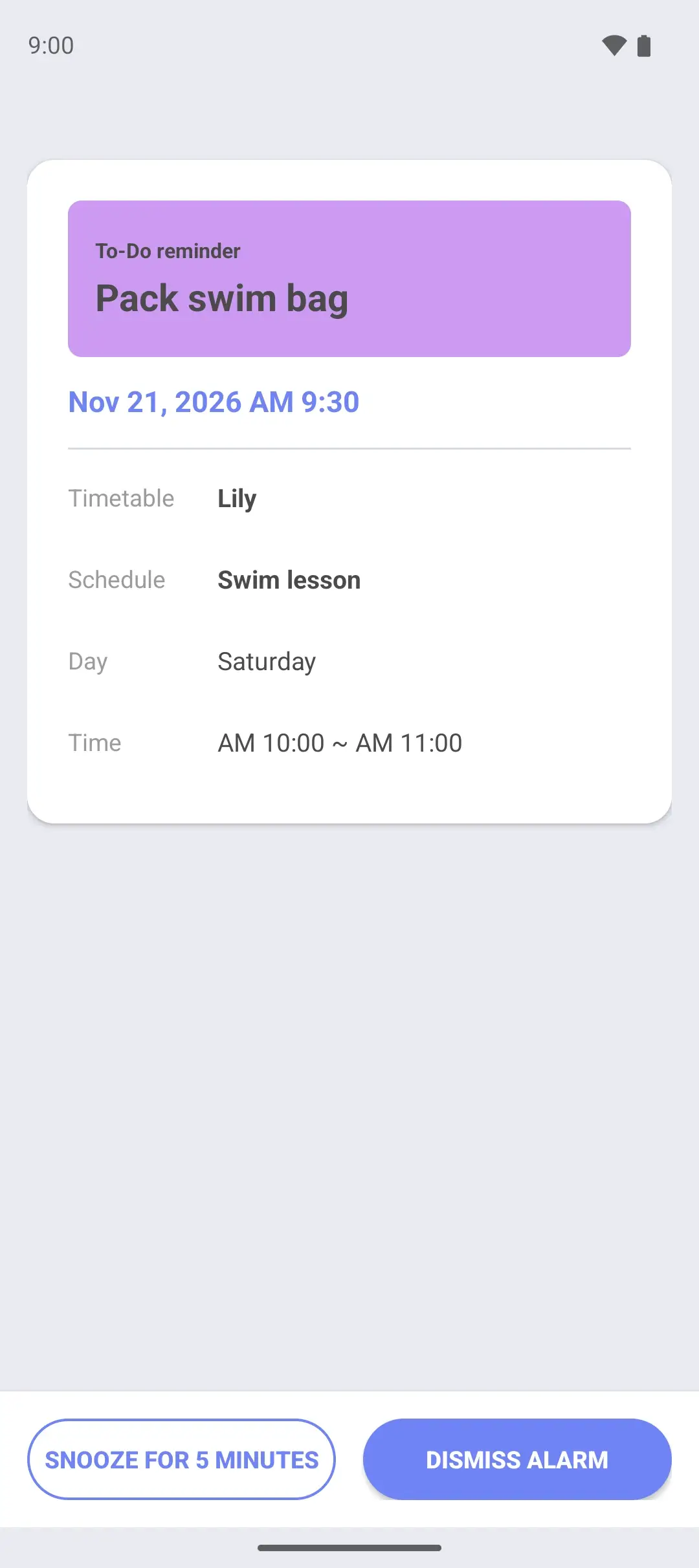
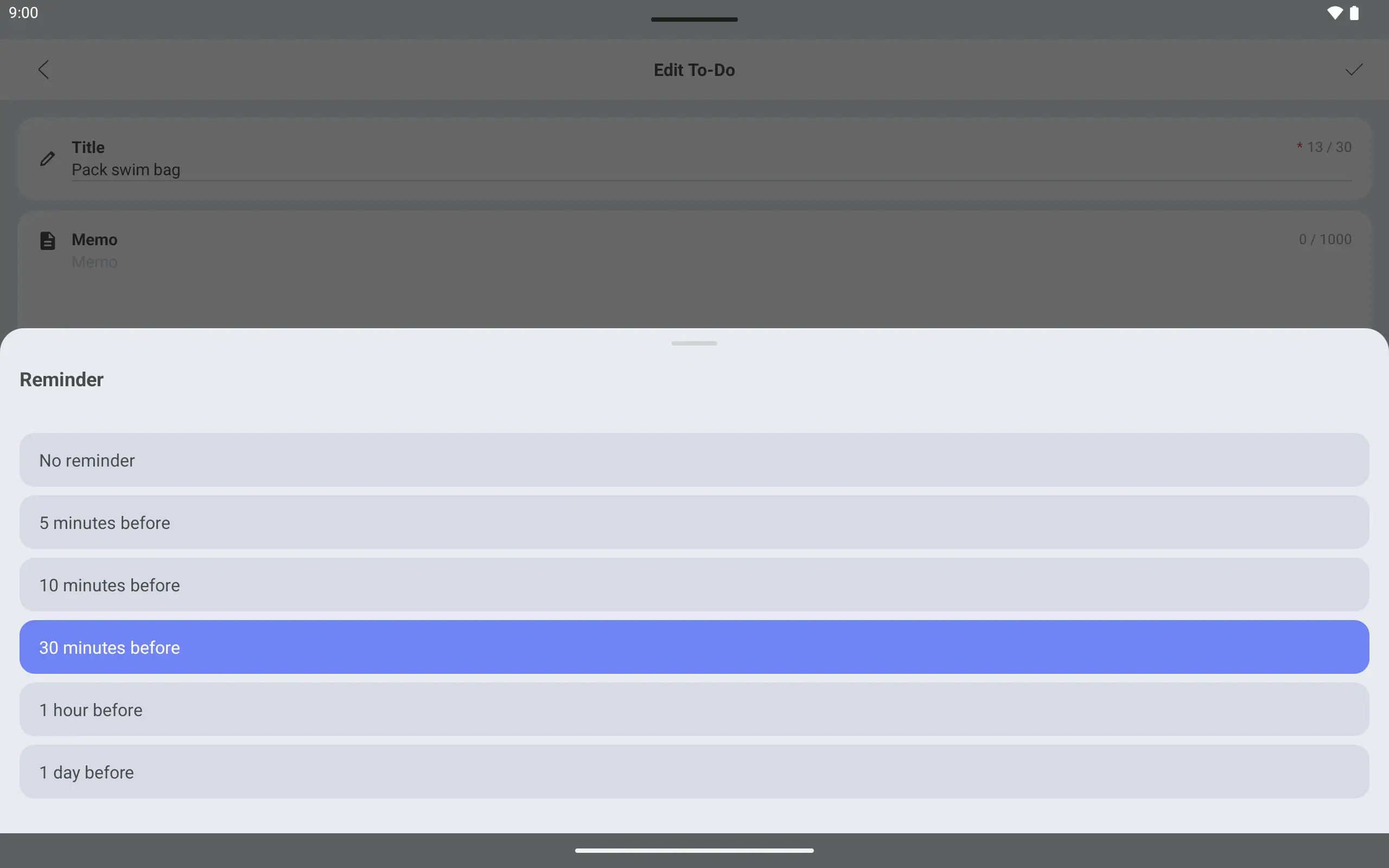
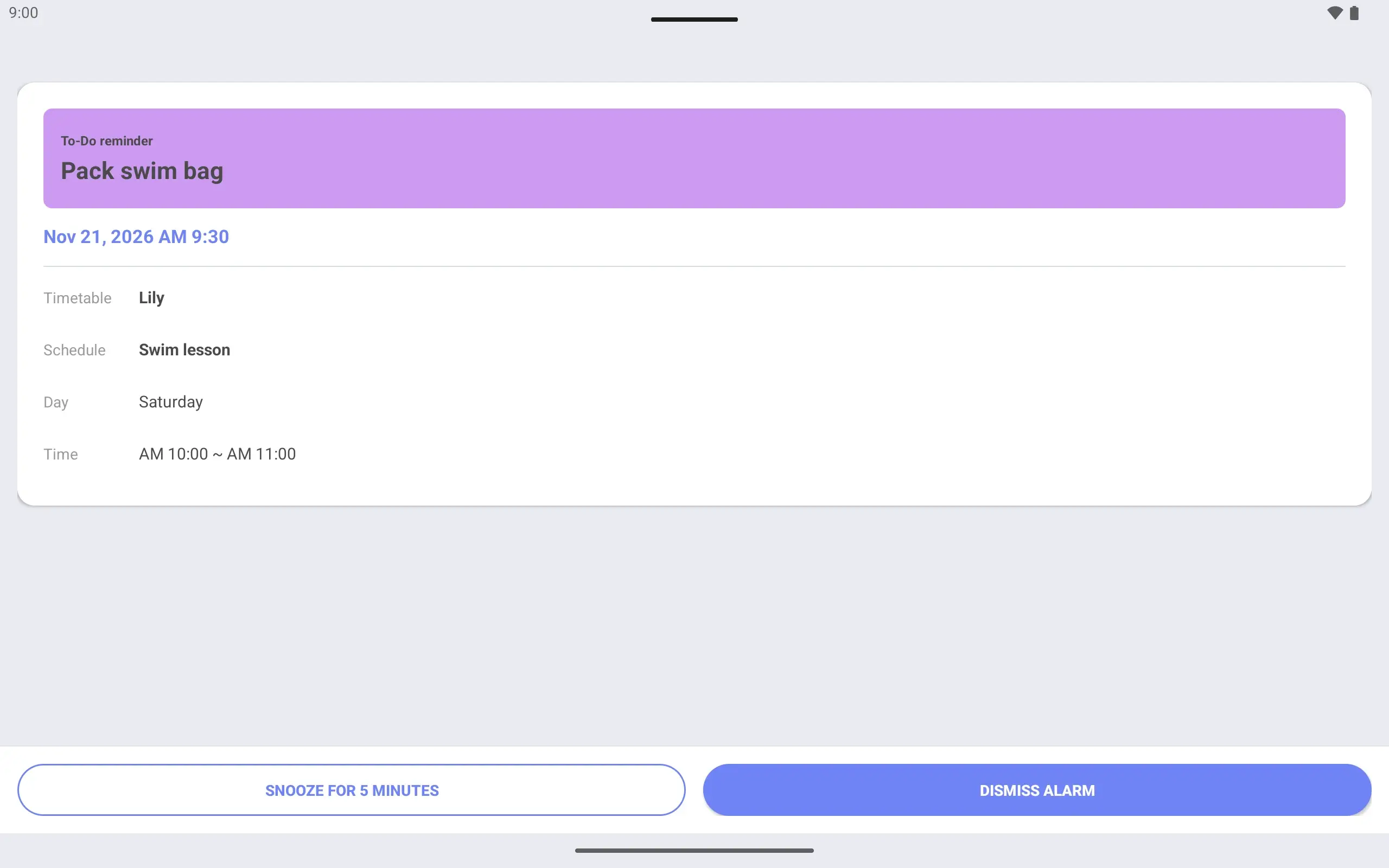
The due time is when you leave for the swim lesson, with a “30 minutes before” reminder. The alarm screen opens half an hour before you go, which leaves time to pack the bag.
Each time you place a weekly widget you choose the timetable it shows. That way Lily’s week and Max’s week can each have a widget on the home screen.
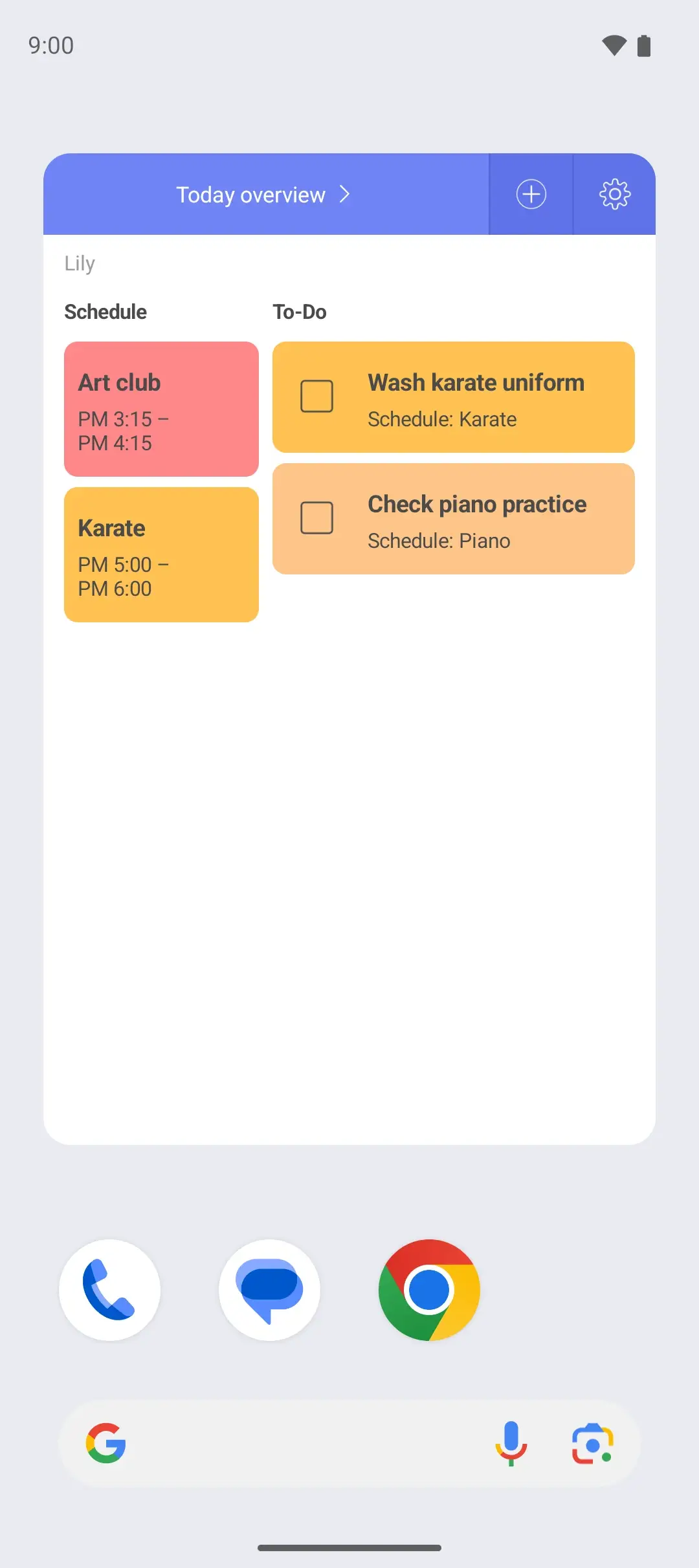
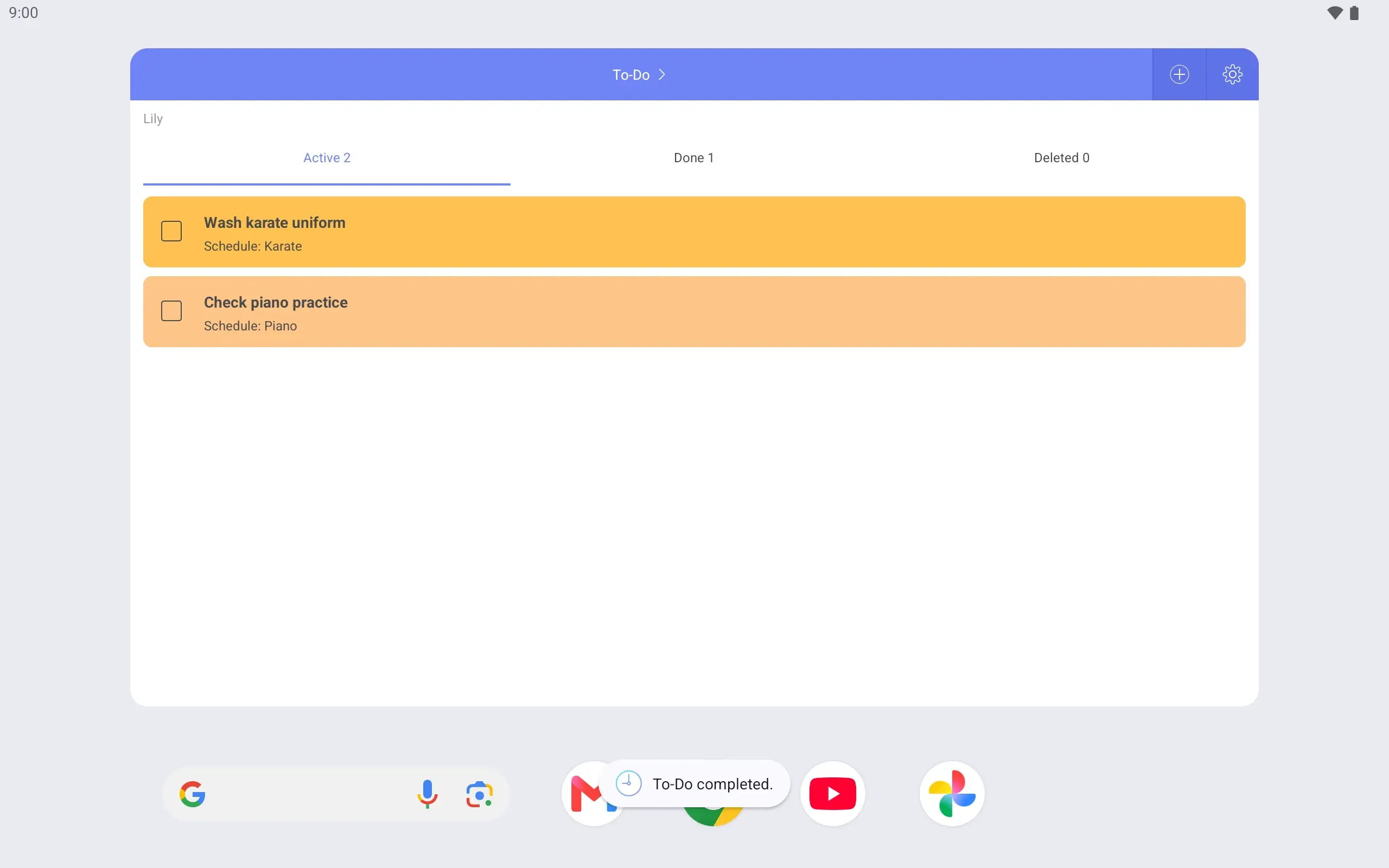
Once the swim bag is packed, tap complete in the widget. It can be done on the way out the door, without opening the app.
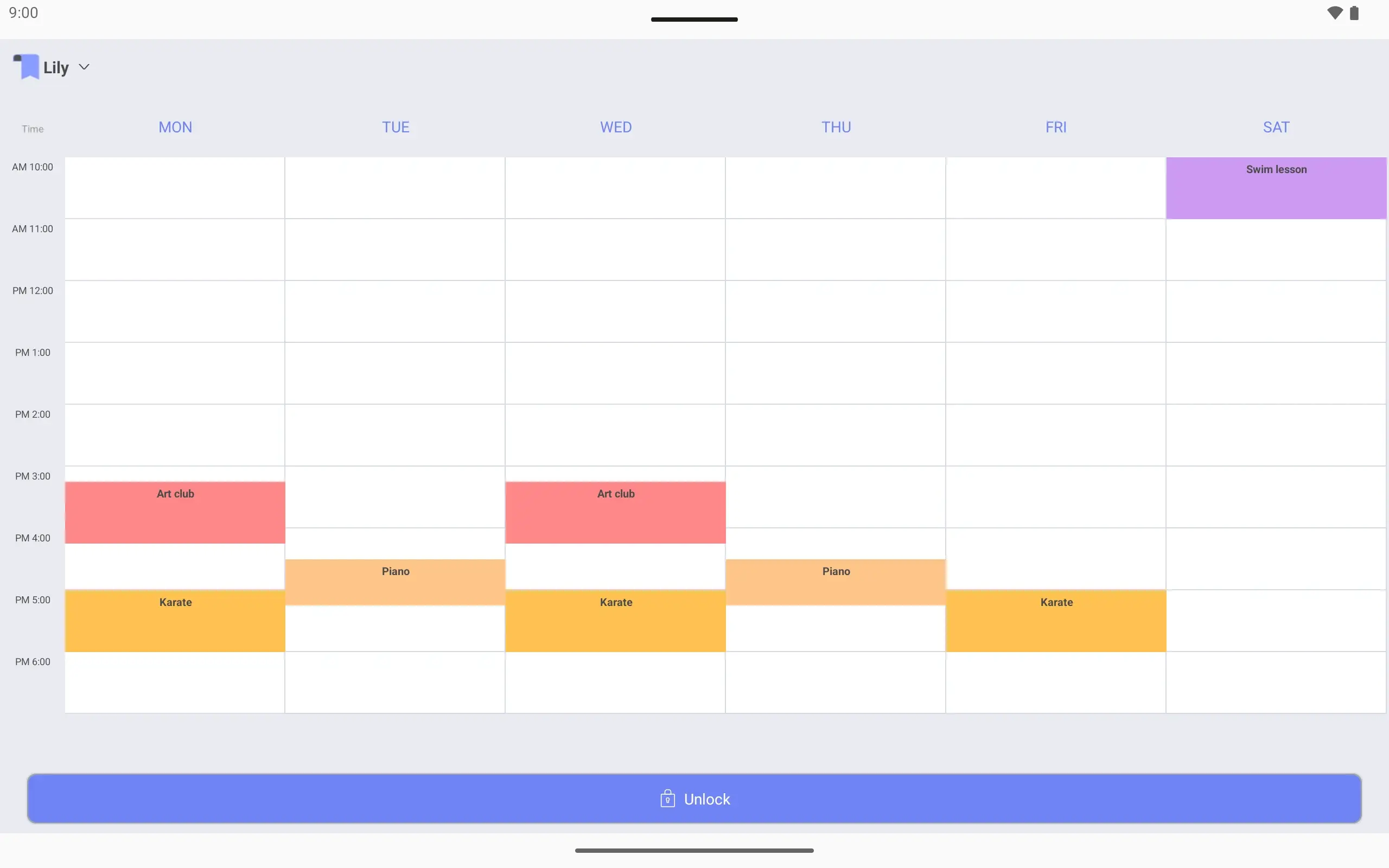
Before leaving to pick up the children, wake the phone and the timetable is there. The lock screen timetable is turned on and off in settings, and nothing can be changed while the phone is locked.