Elementary school timetable Your child’s school day, to the minute

An example of a parent making a timetable for a fourth grader. Classes go in with their real start and end times, and things to pack are linked to the class that needs them.

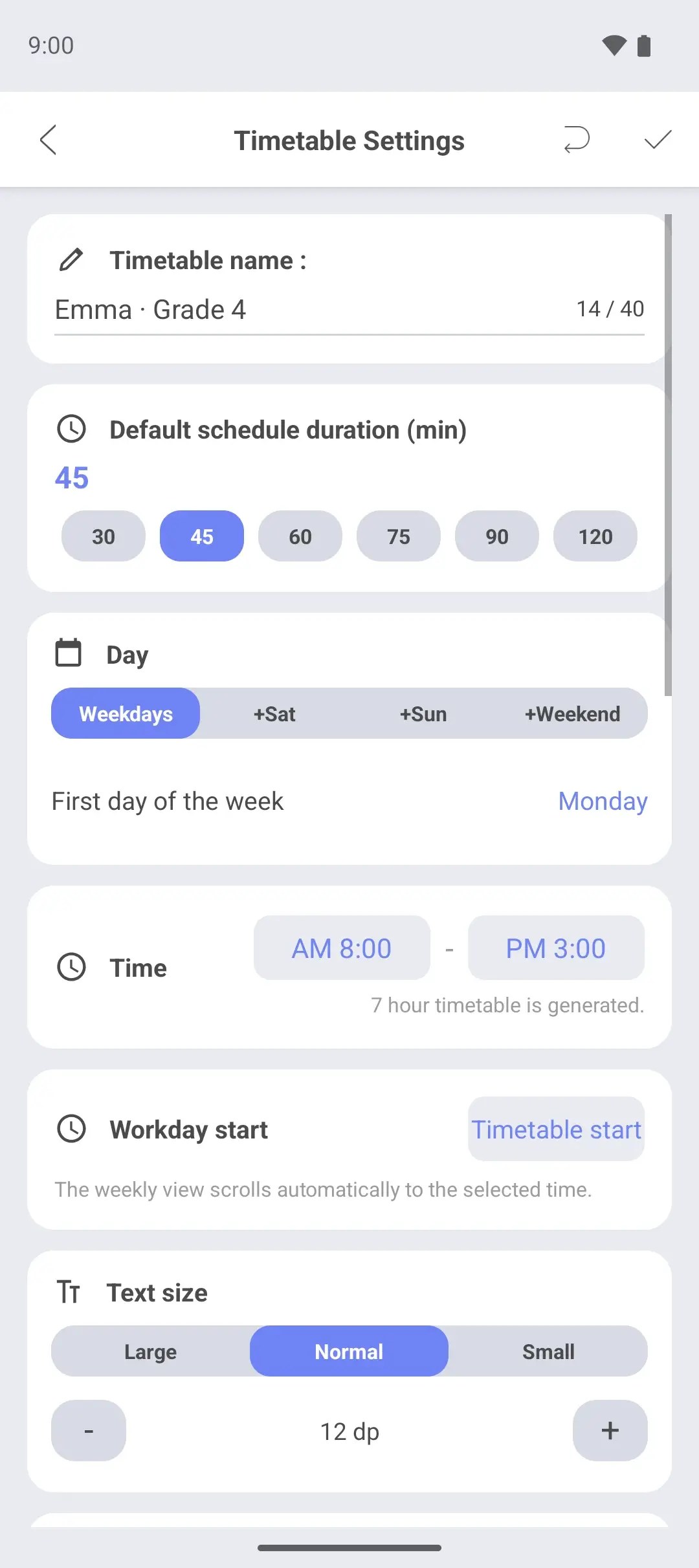
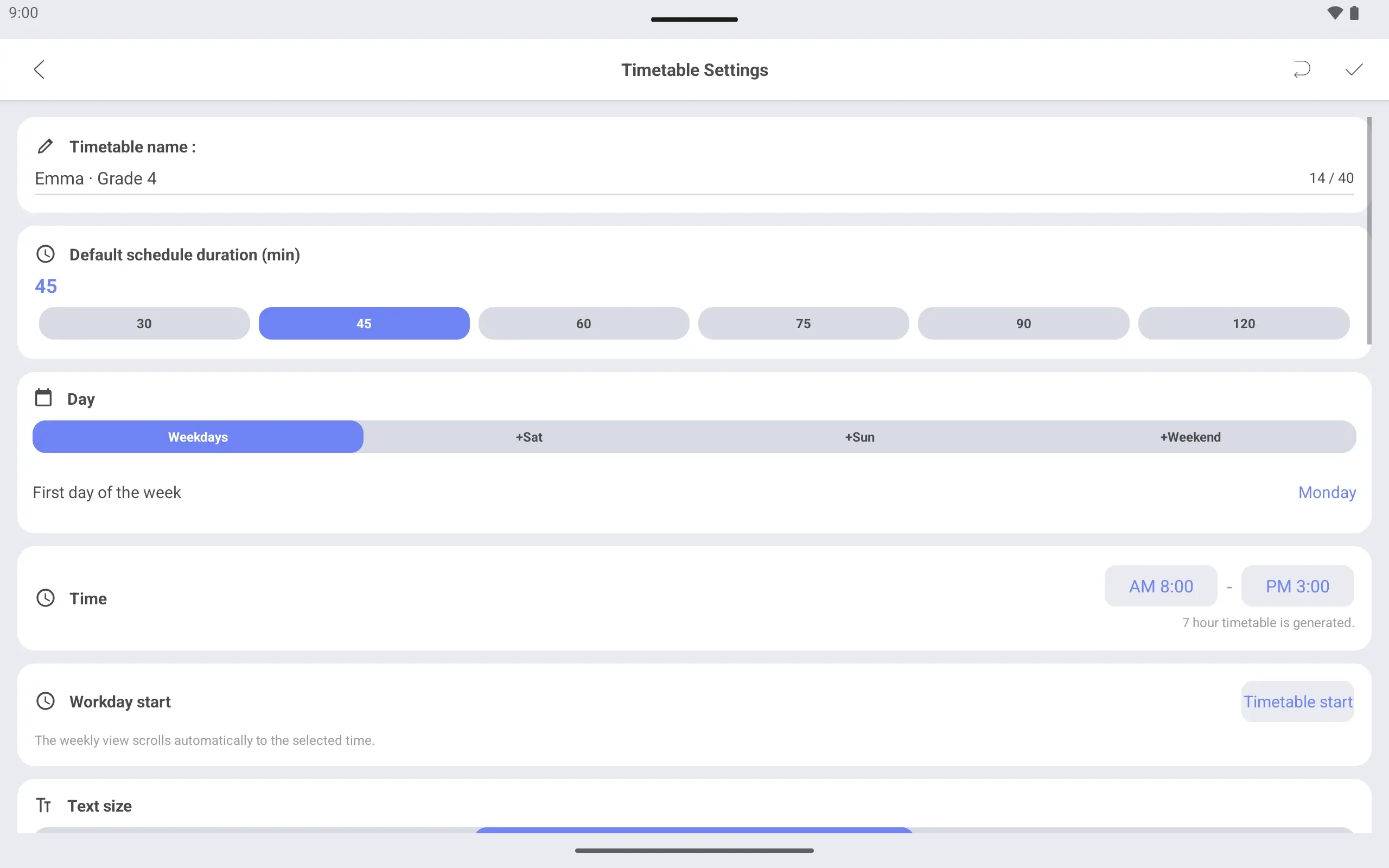
Timetable settings screen. The name is Emma · Grade 4, the days are Monday to Friday and the hours are 8 am to 3 pm.
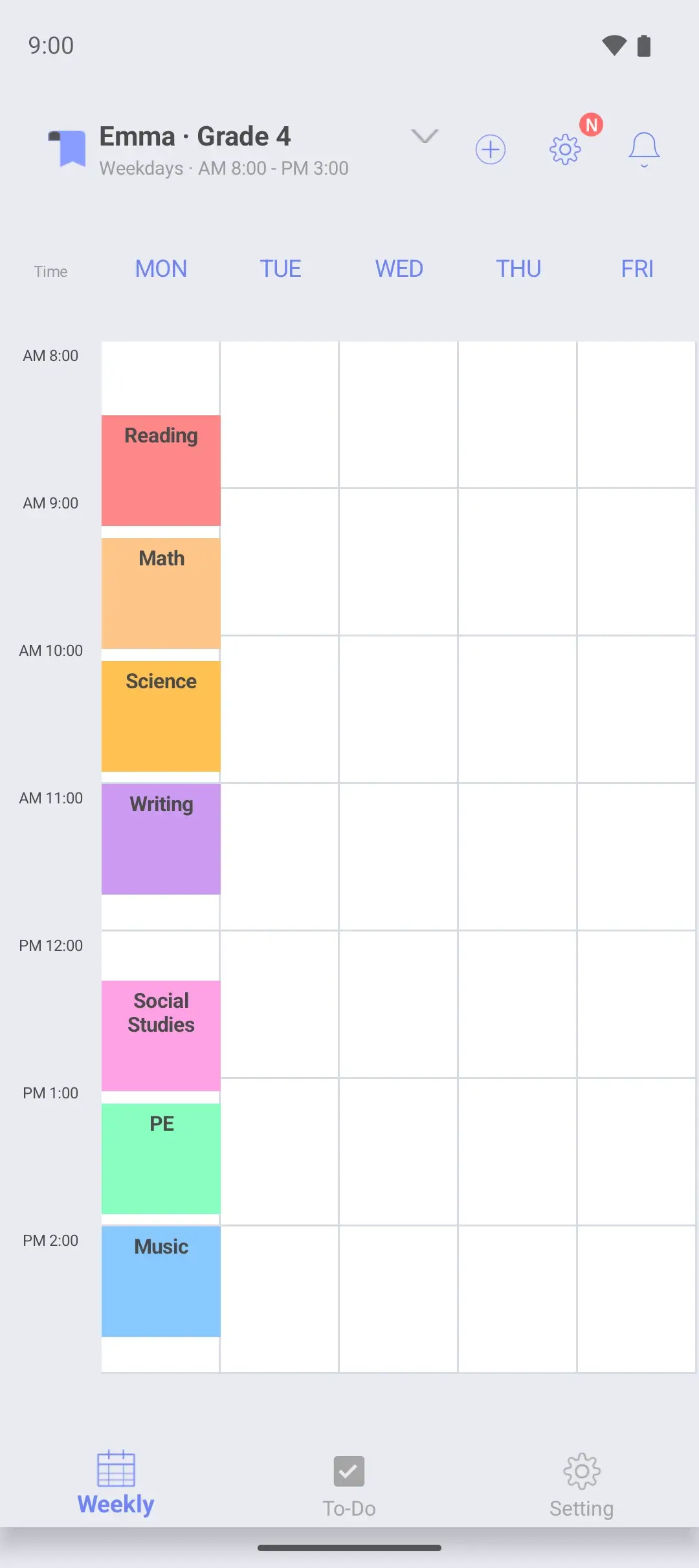
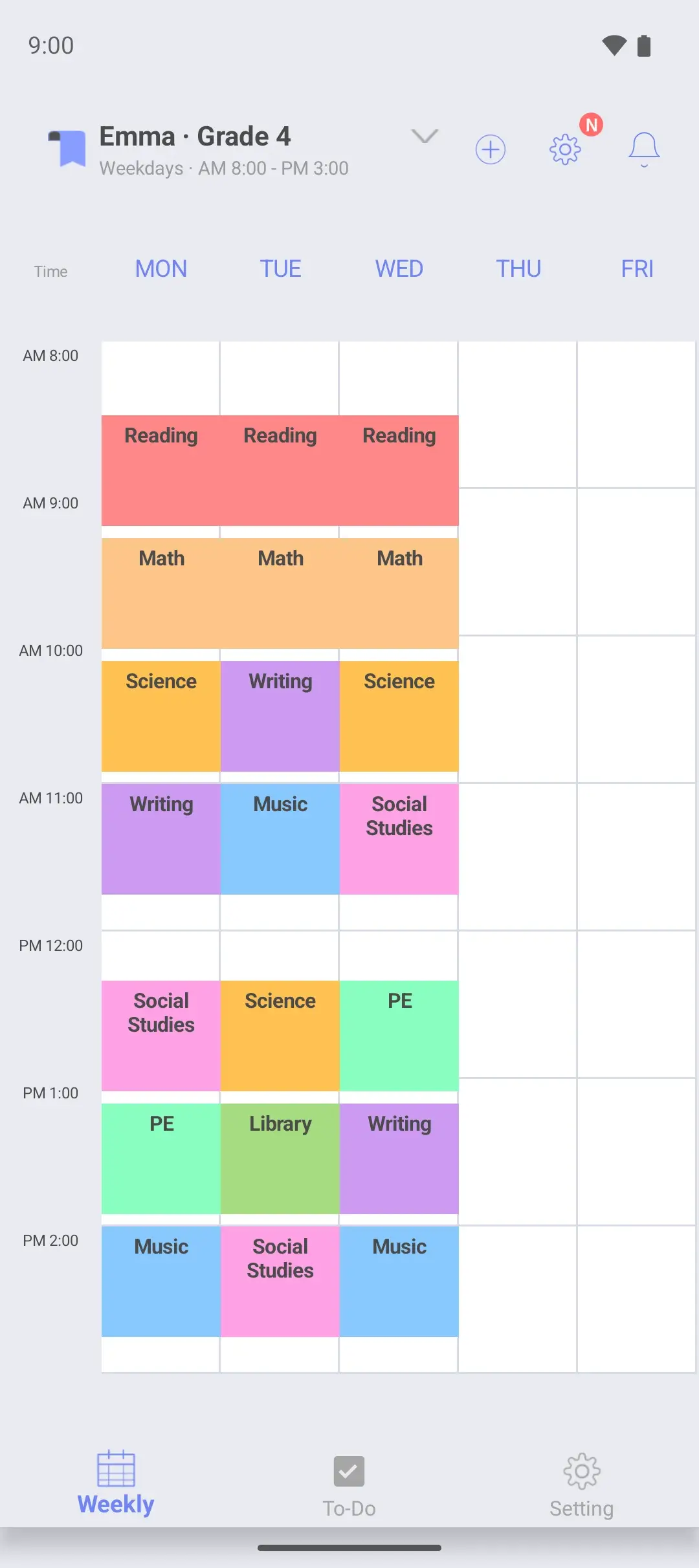
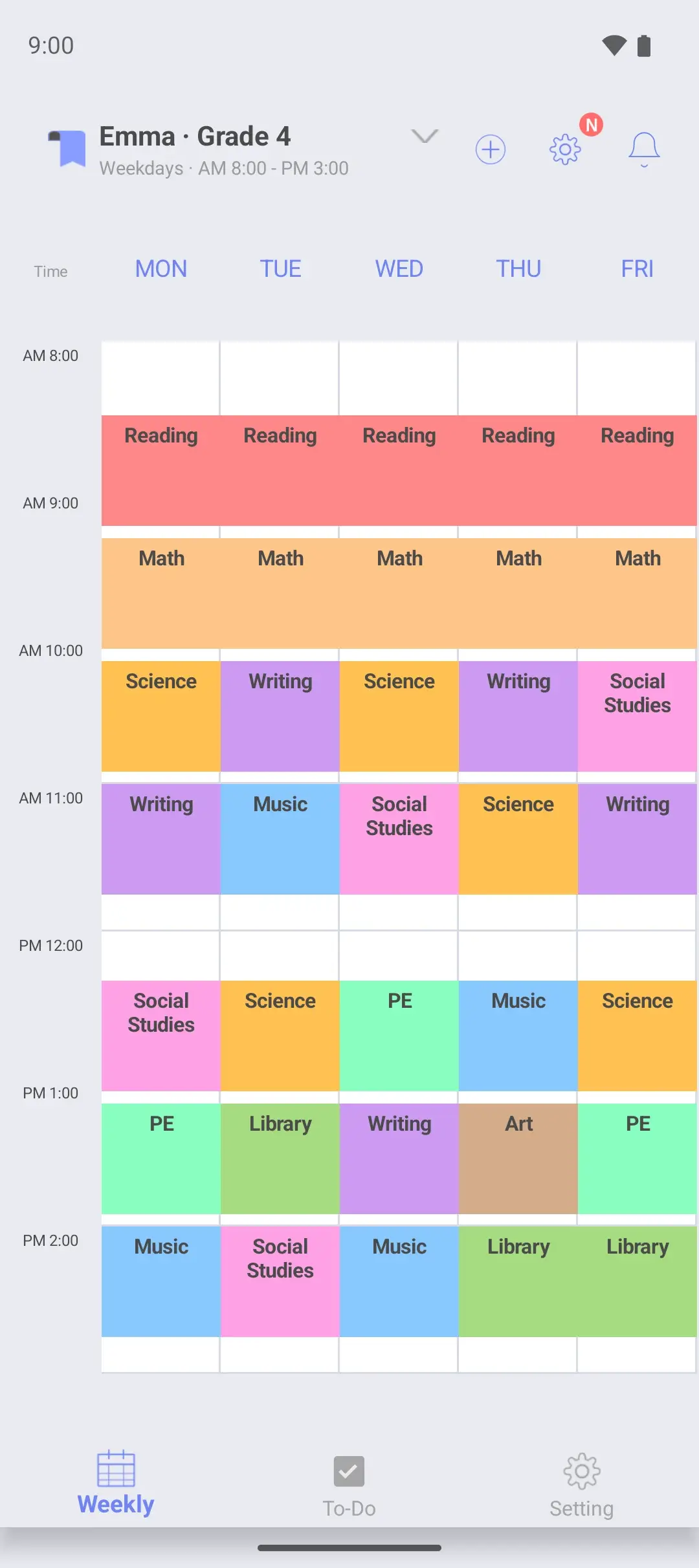
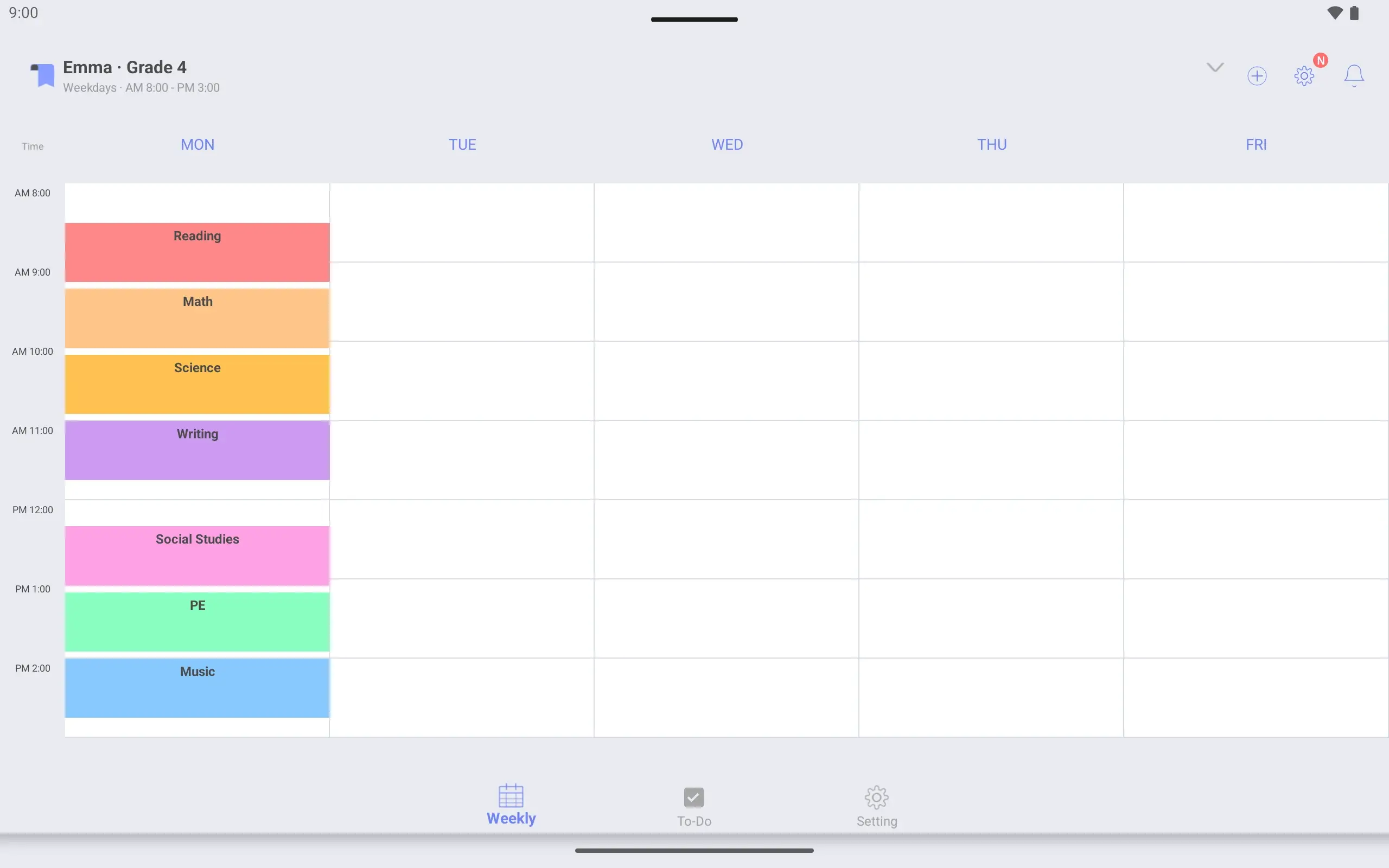
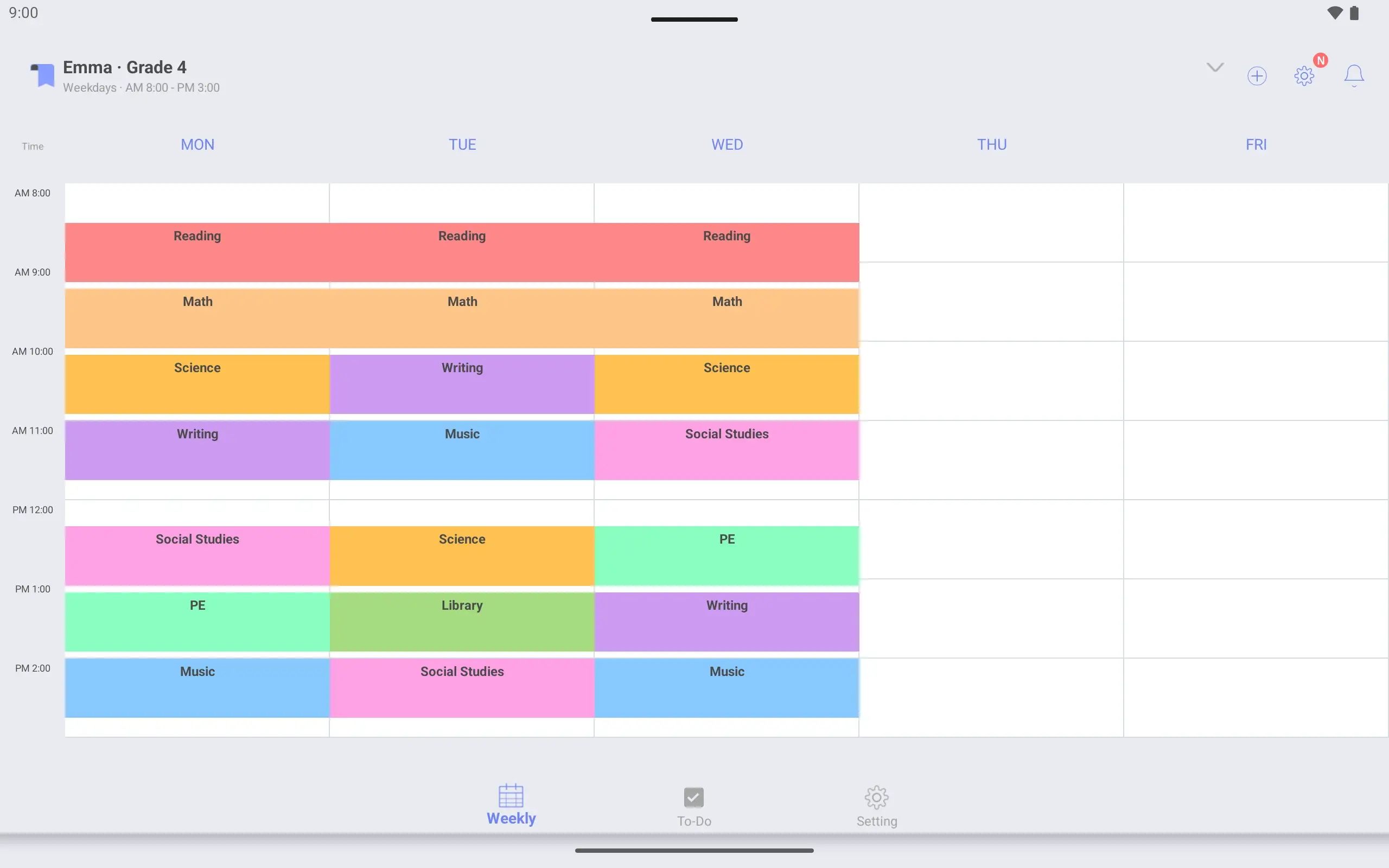
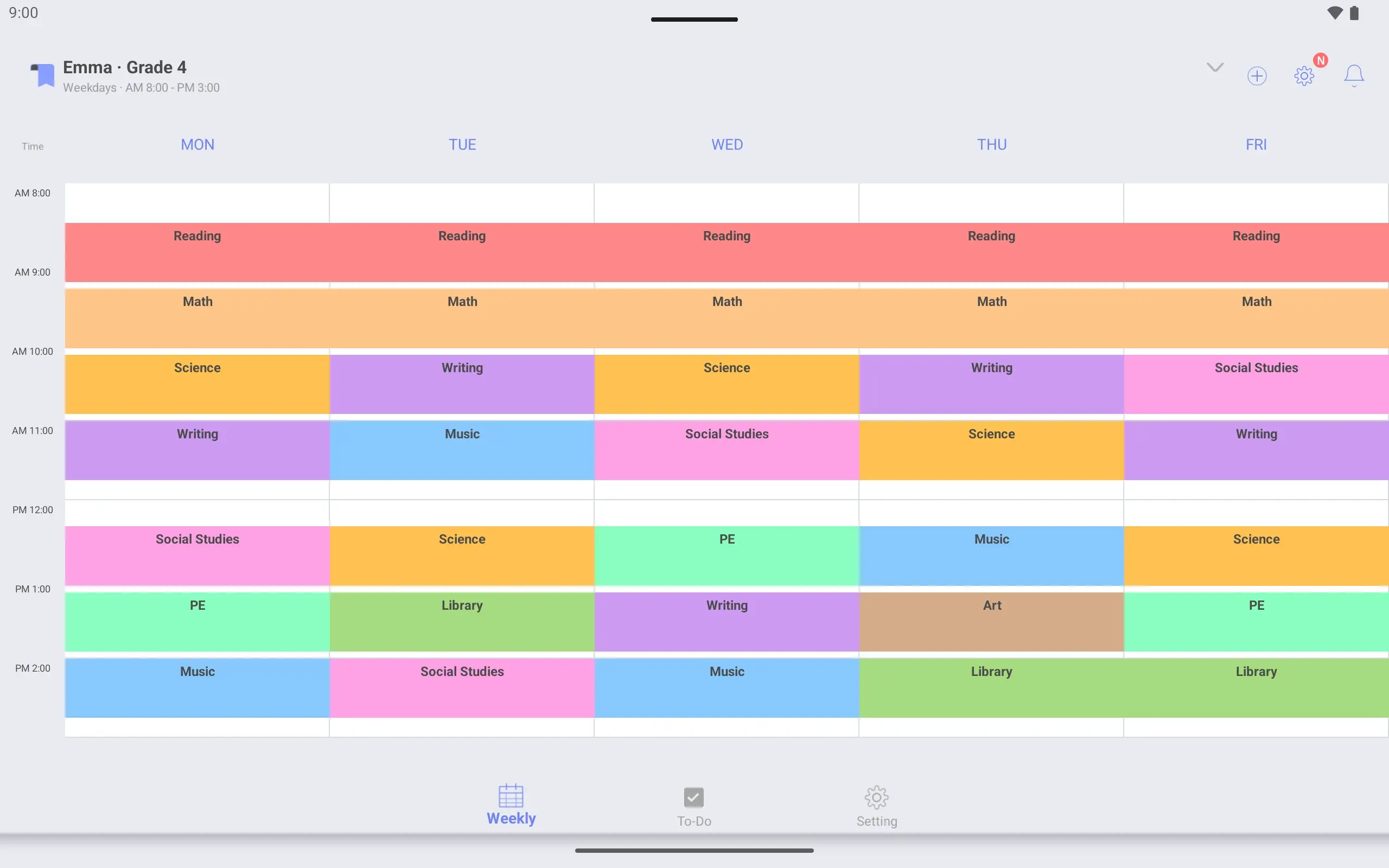
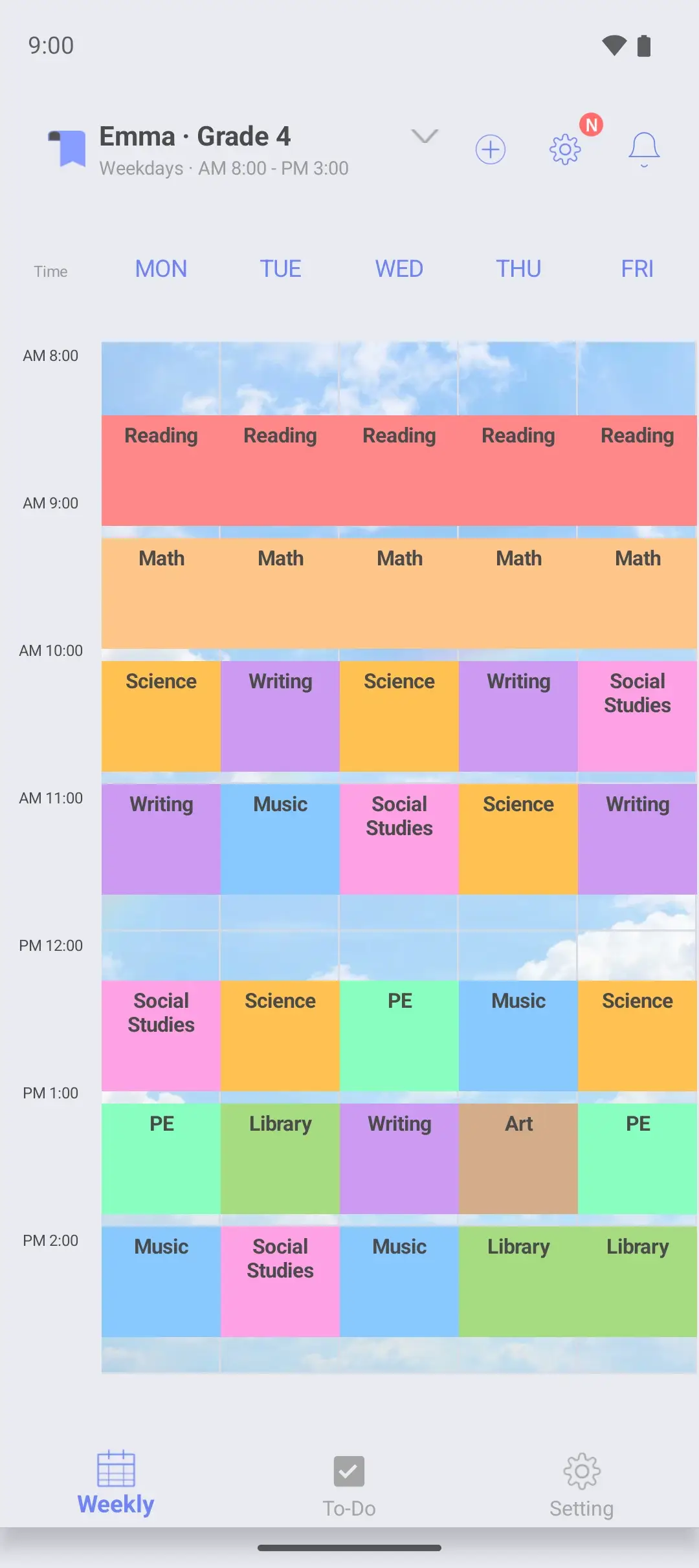
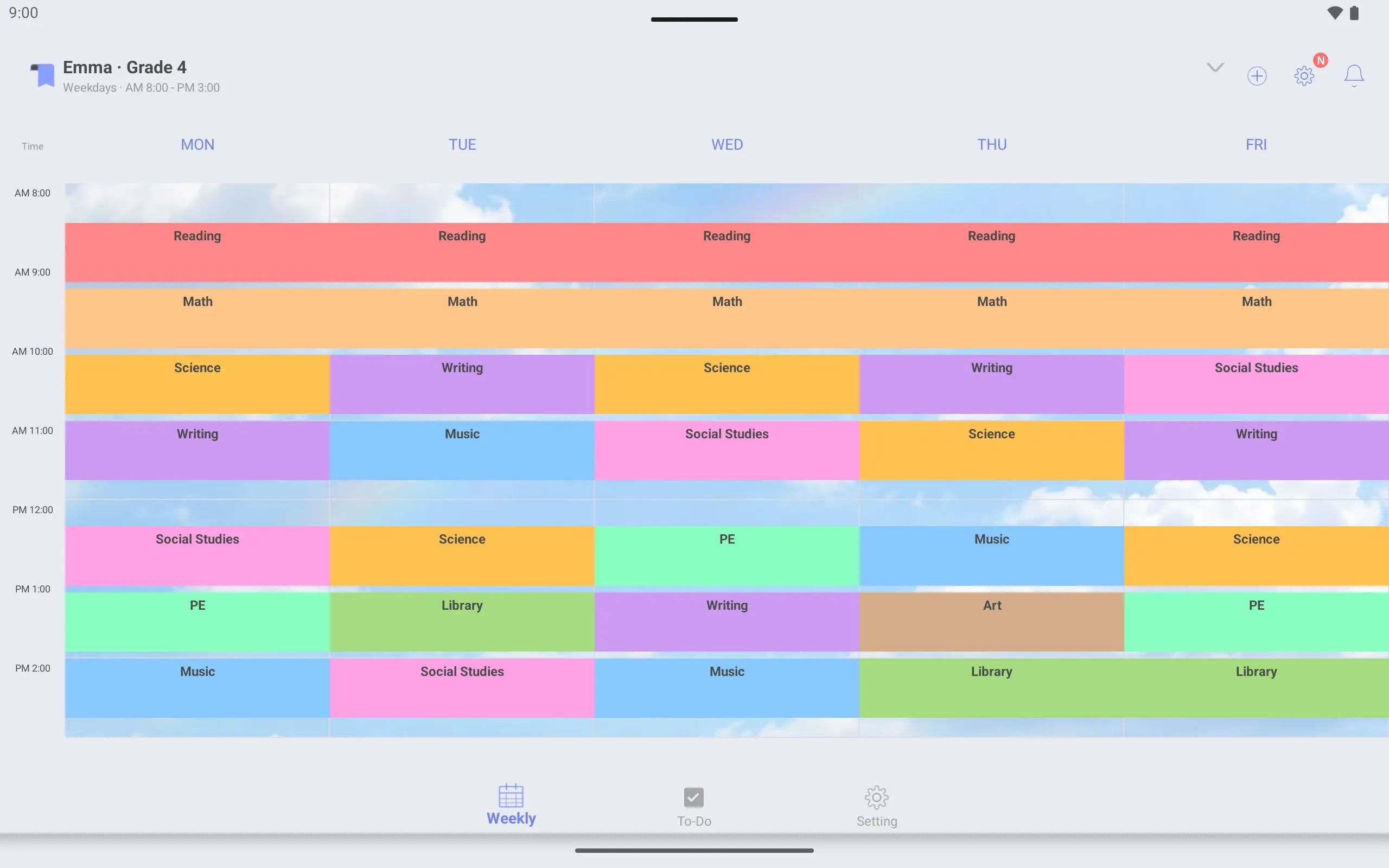
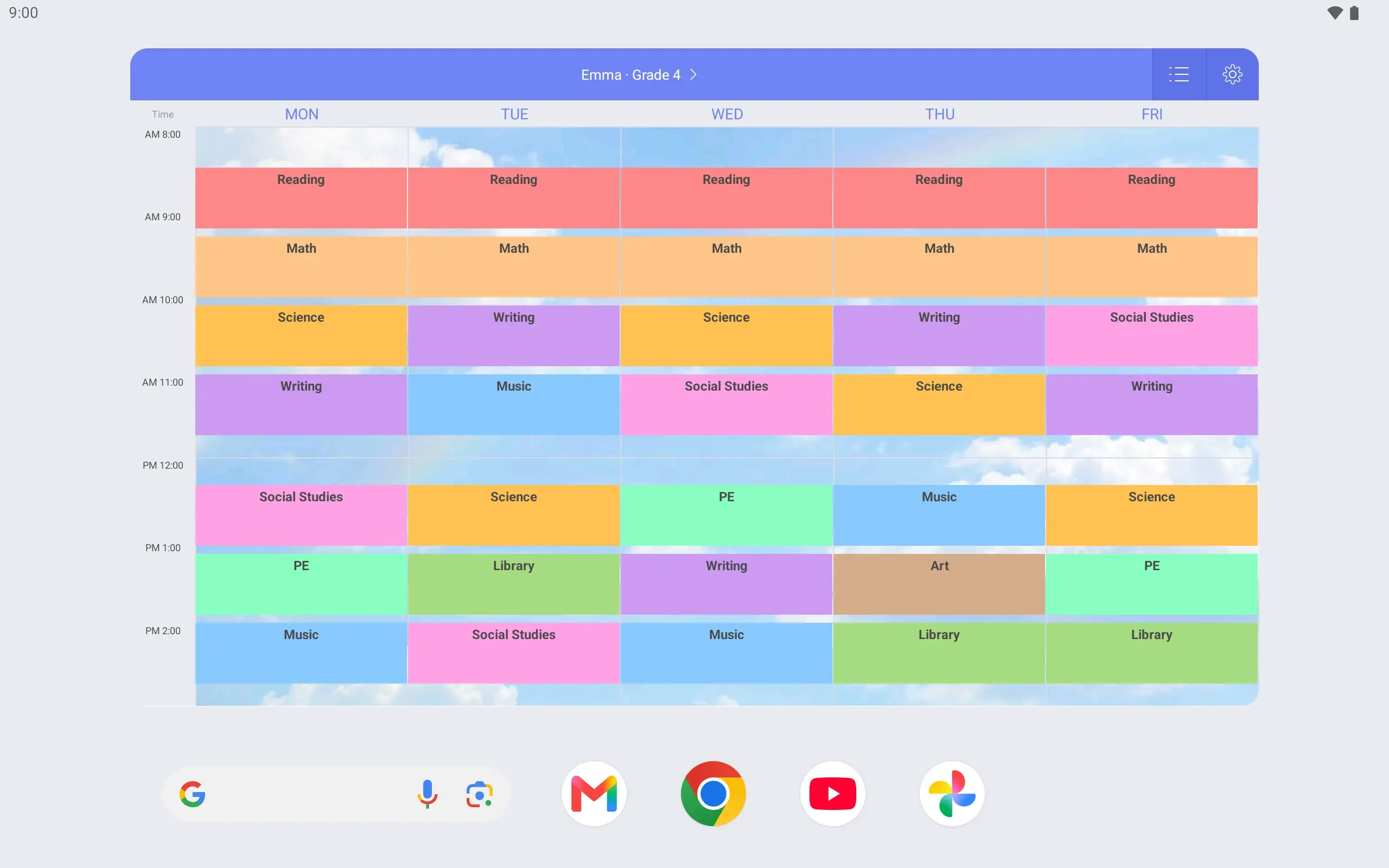
Weekly timetable for Emma · Grade 4 with only Monday filled in. Reading runs 8:30 to 9:15, then Math 9:20 to 10:05 after a 5-minute break.Weekly timetable for Emma · Grade 4 with 45-minute classes from Monday to Wednesday.Weekly timetable for Emma · Grade 4. Monday to Friday is filled with 45-minute classes, each subject in its own color.
Emma · Grade 4 weekly timetable with a photo as its background. Classes show on top of the photo in color.
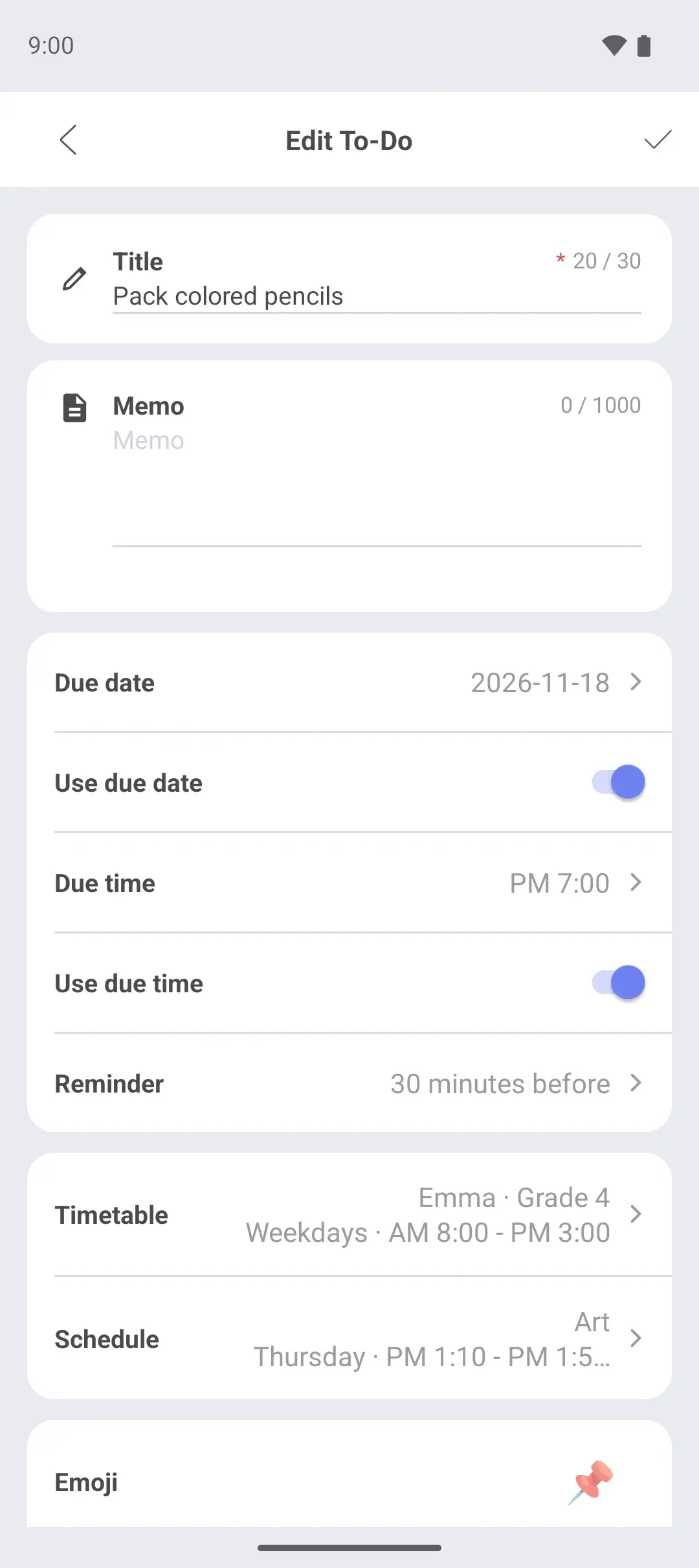
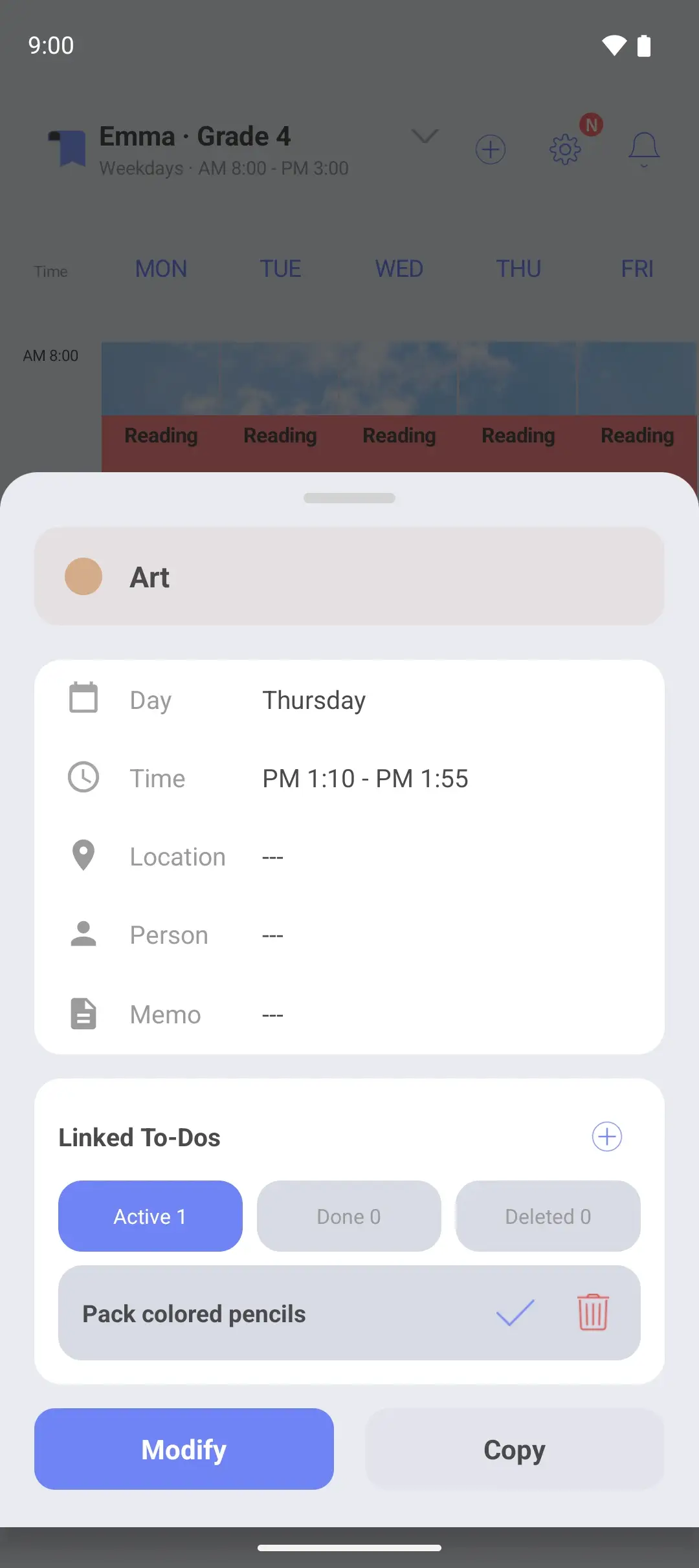
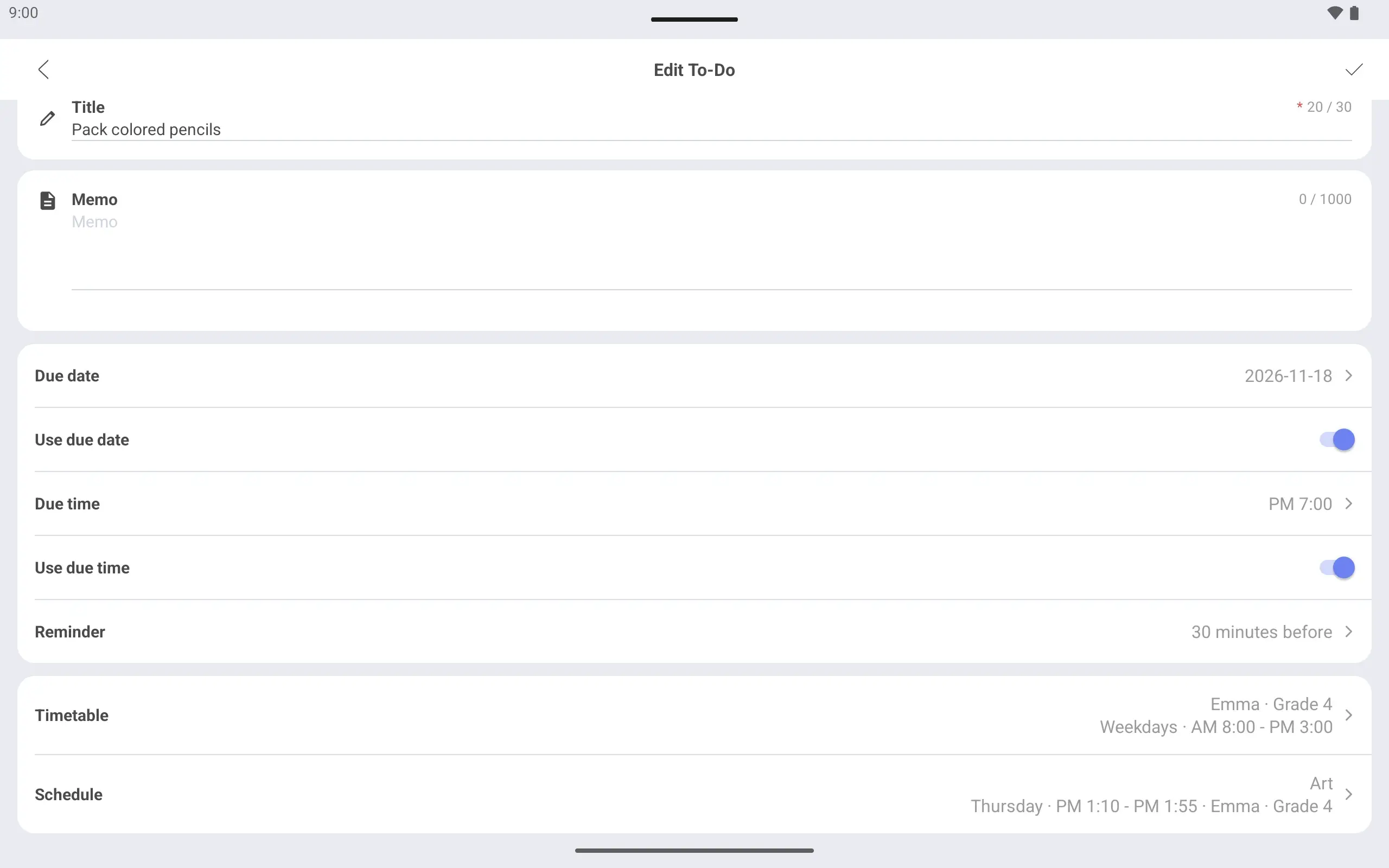
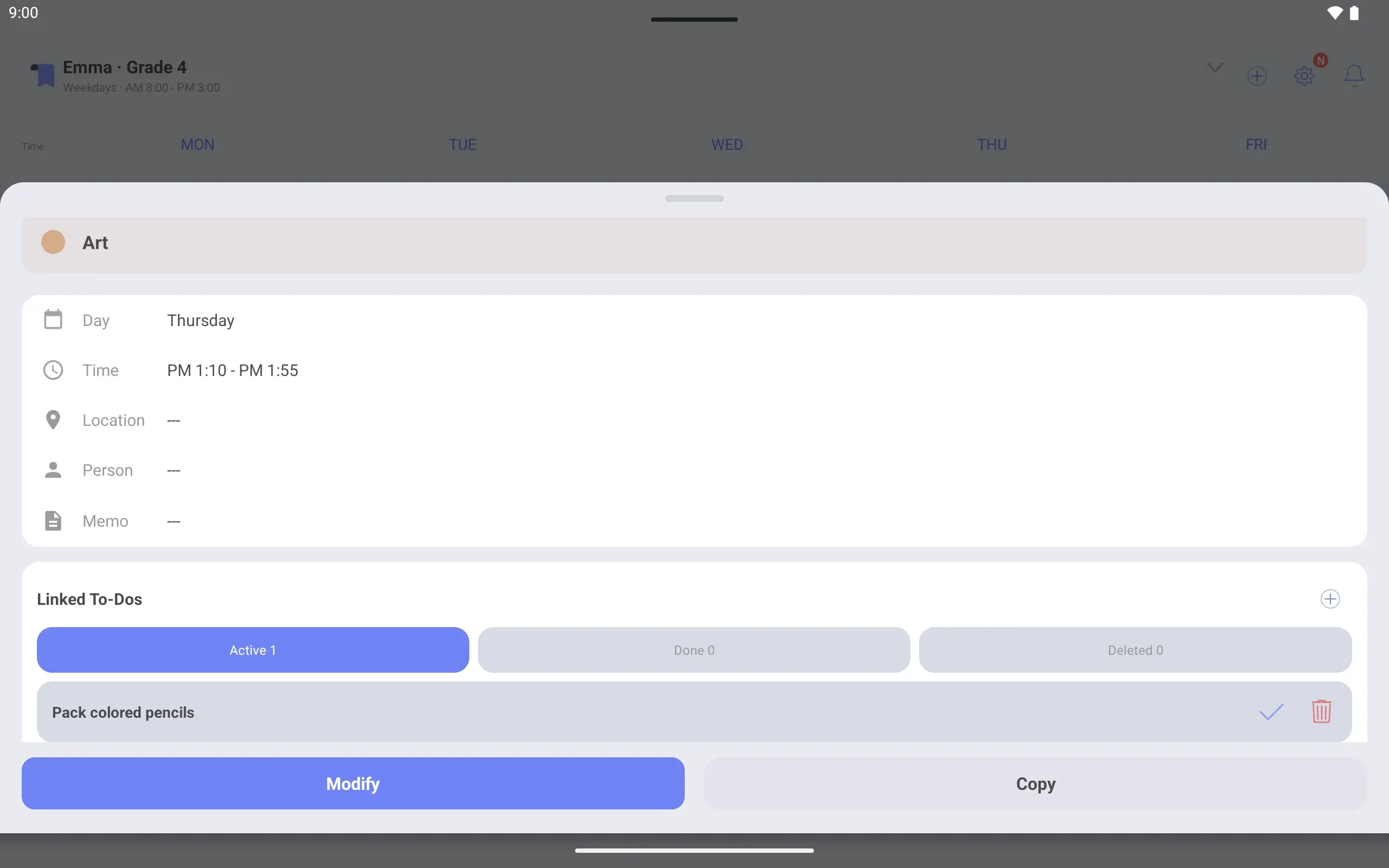
To-Do editing screen. The title is Pack colored pencils and it is linked to Thursday's Art class.Screen after tapping Thursday's Art class on the timetable, with Pack colored pencils among its linked To-Dos.
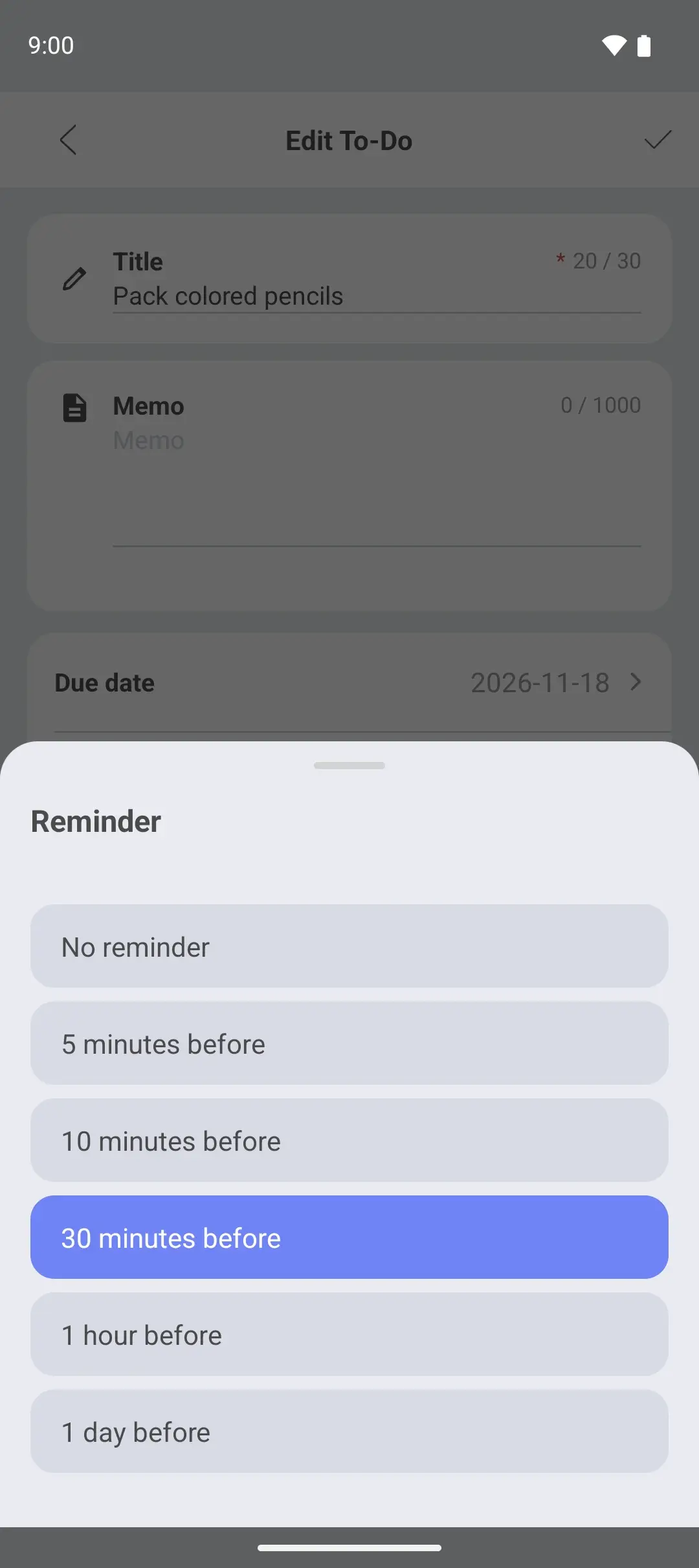
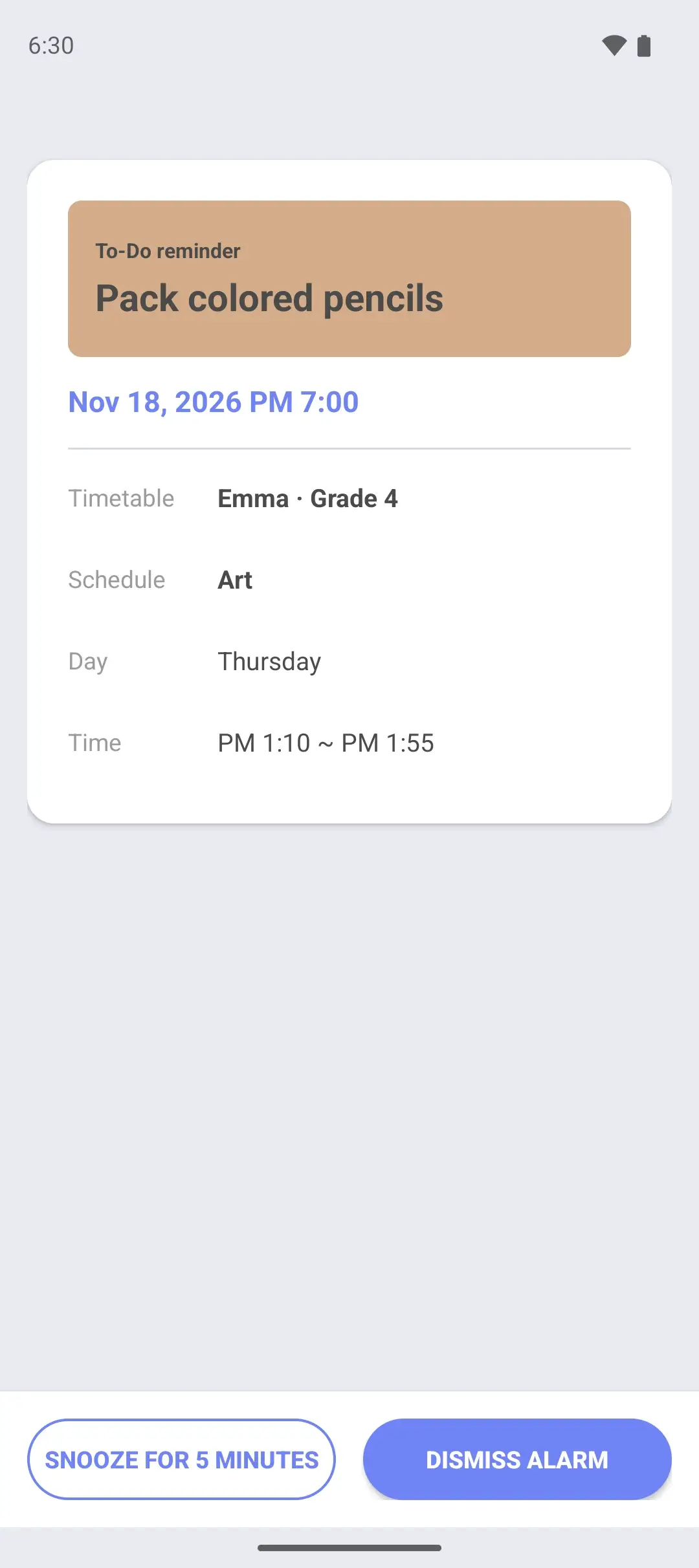
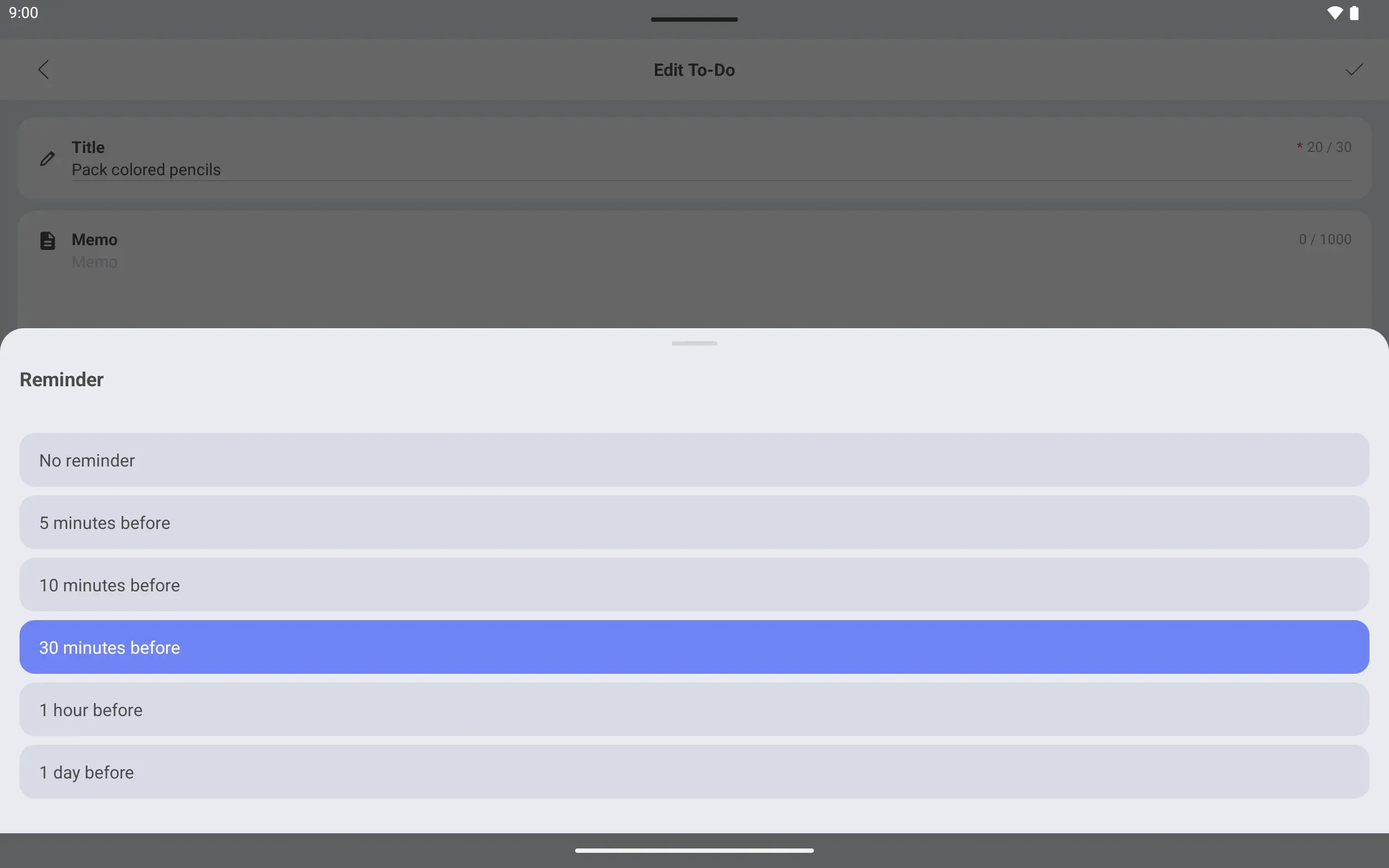
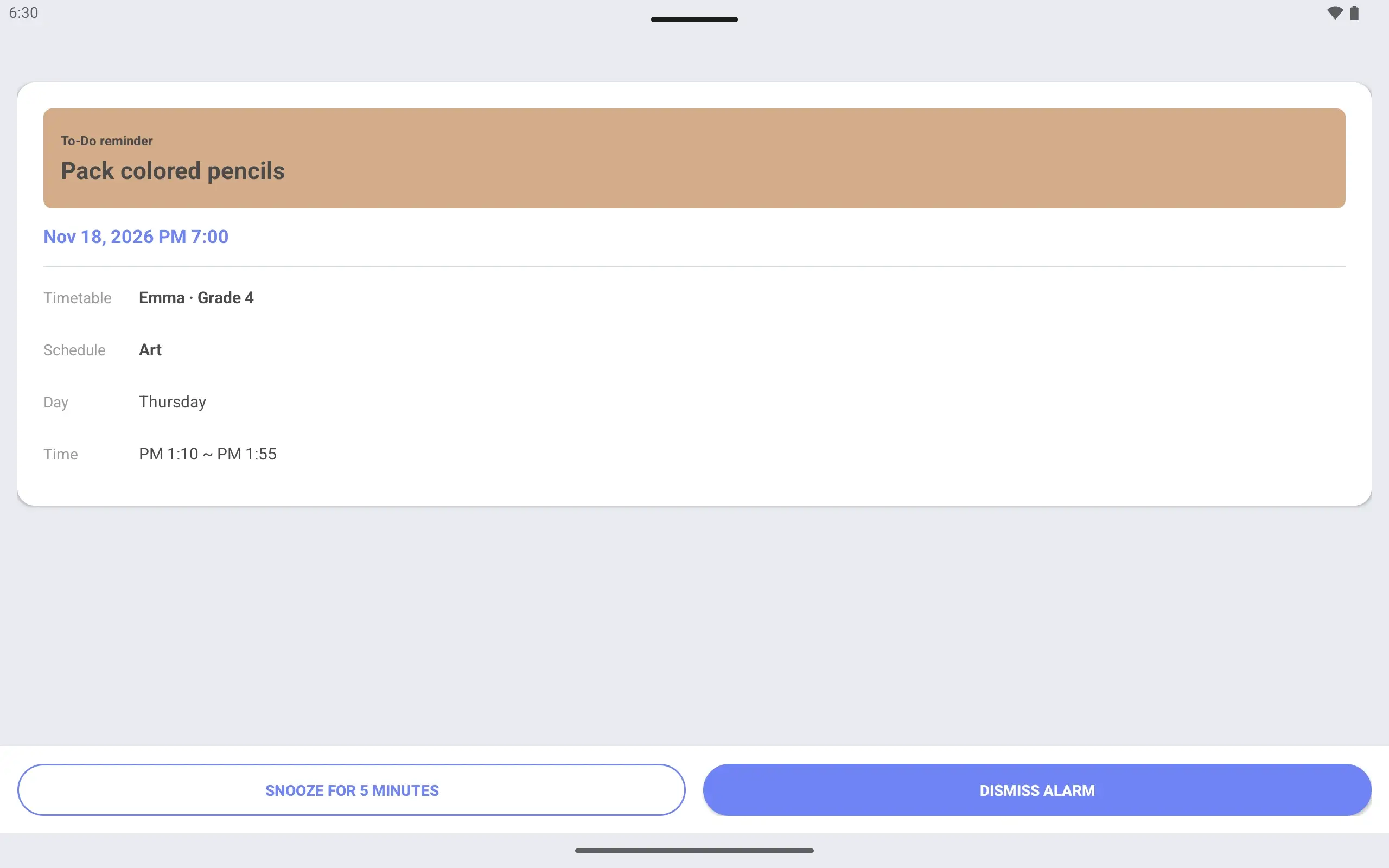
Screen for choosing when to be reminded, with five choices from 5 minutes to 1 day before.Alarm screen that opened at the reminder time, showing Pack colored pencils with snooze and dismiss buttons.
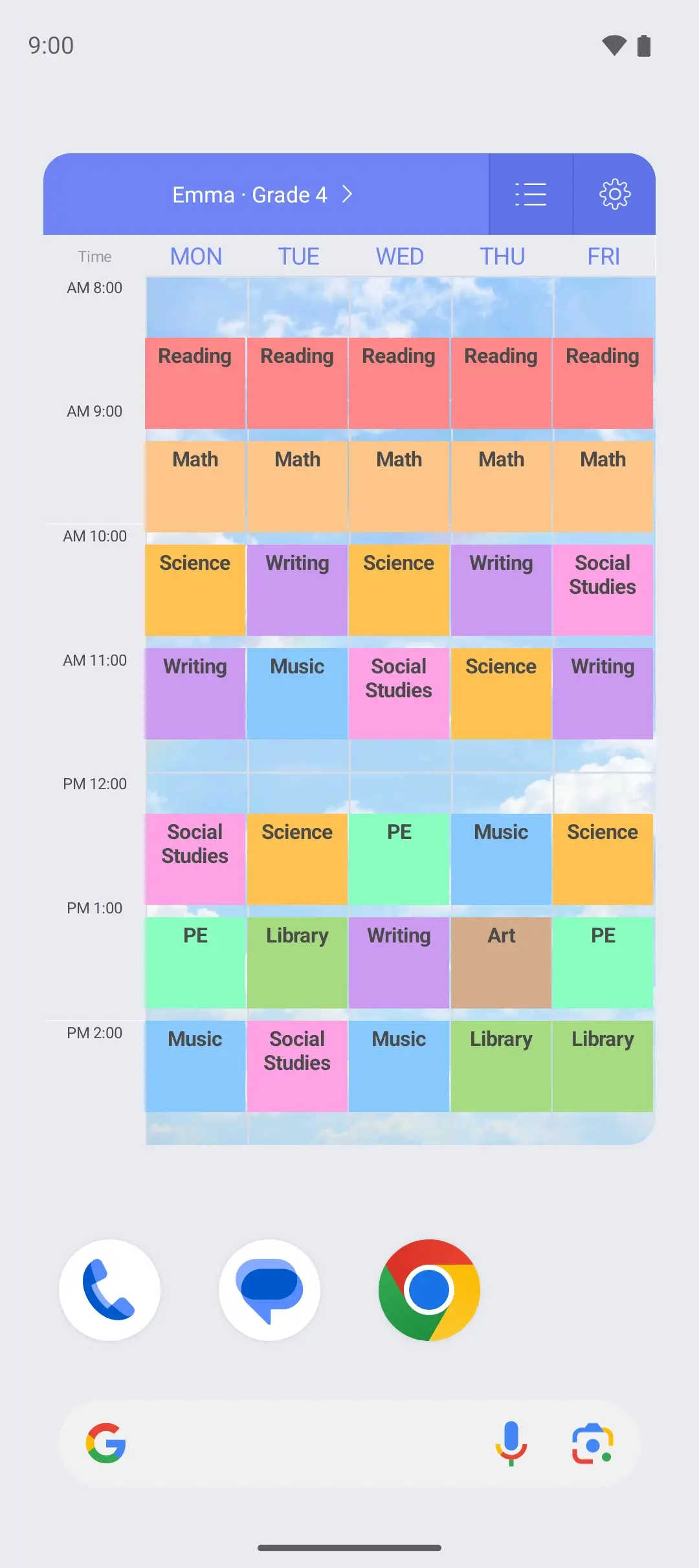
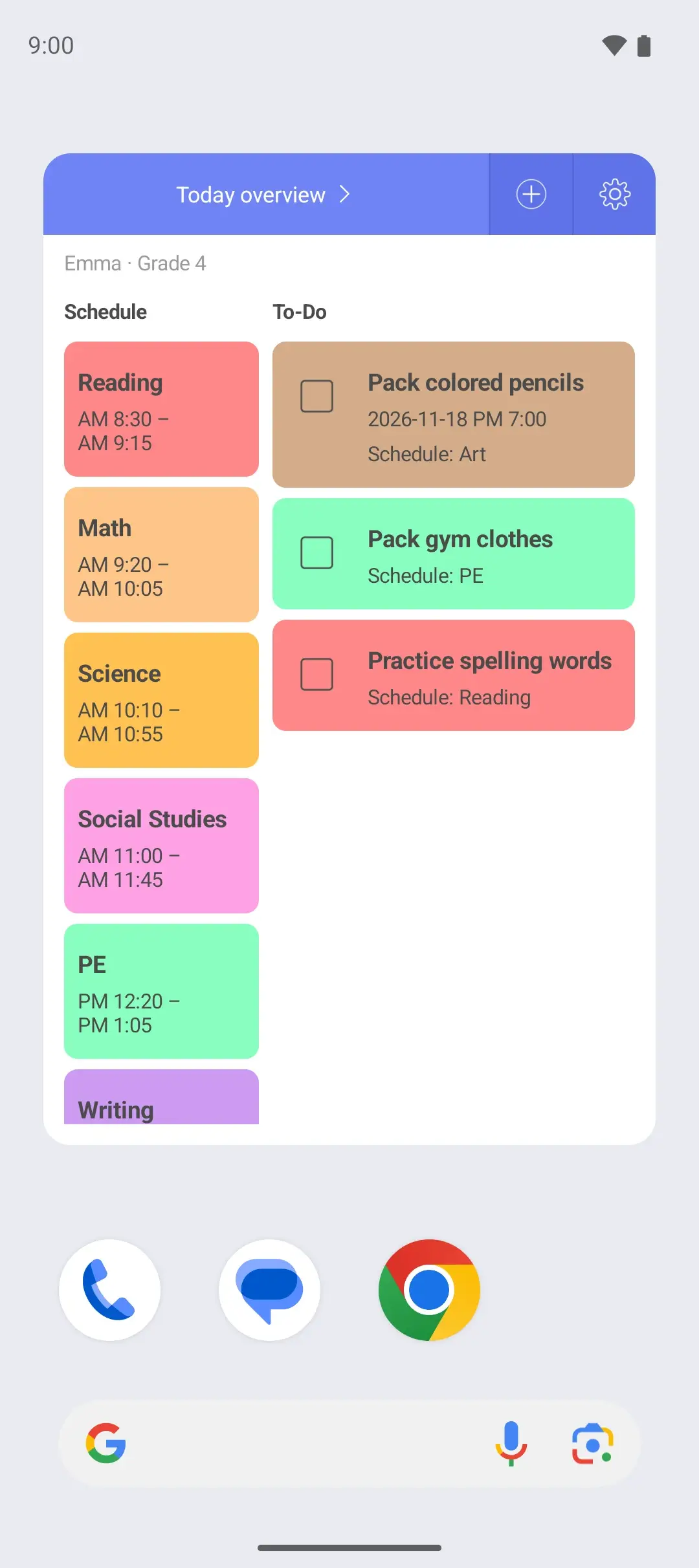
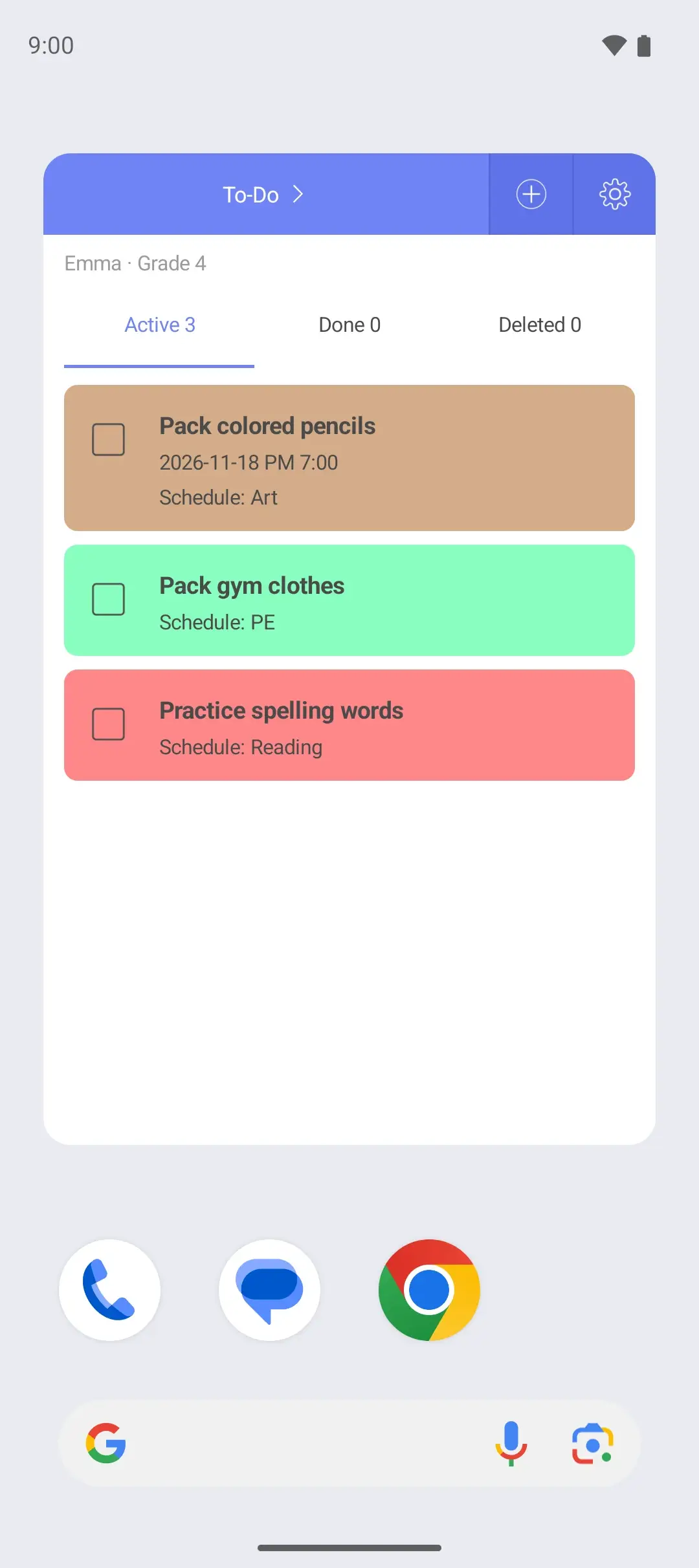
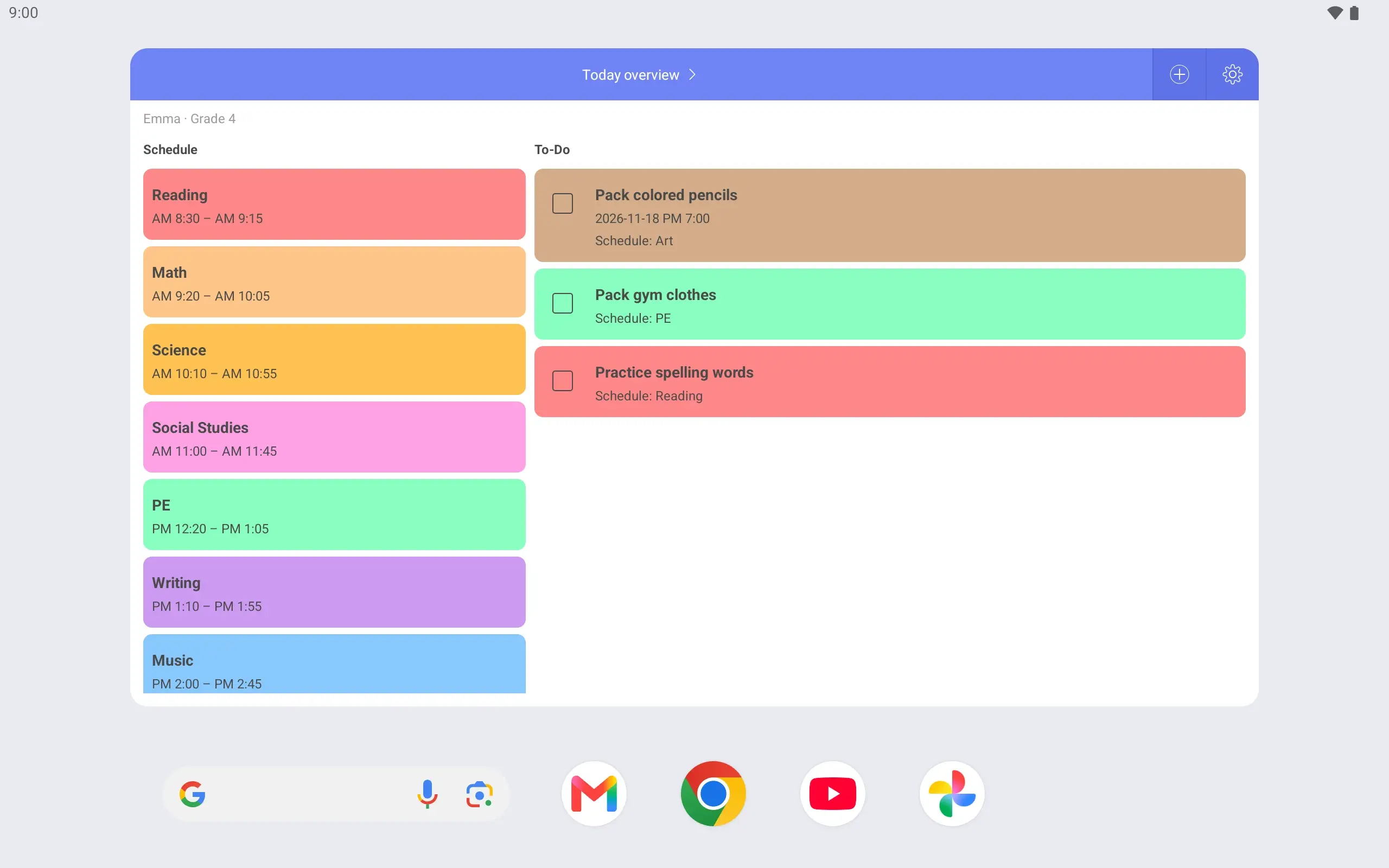
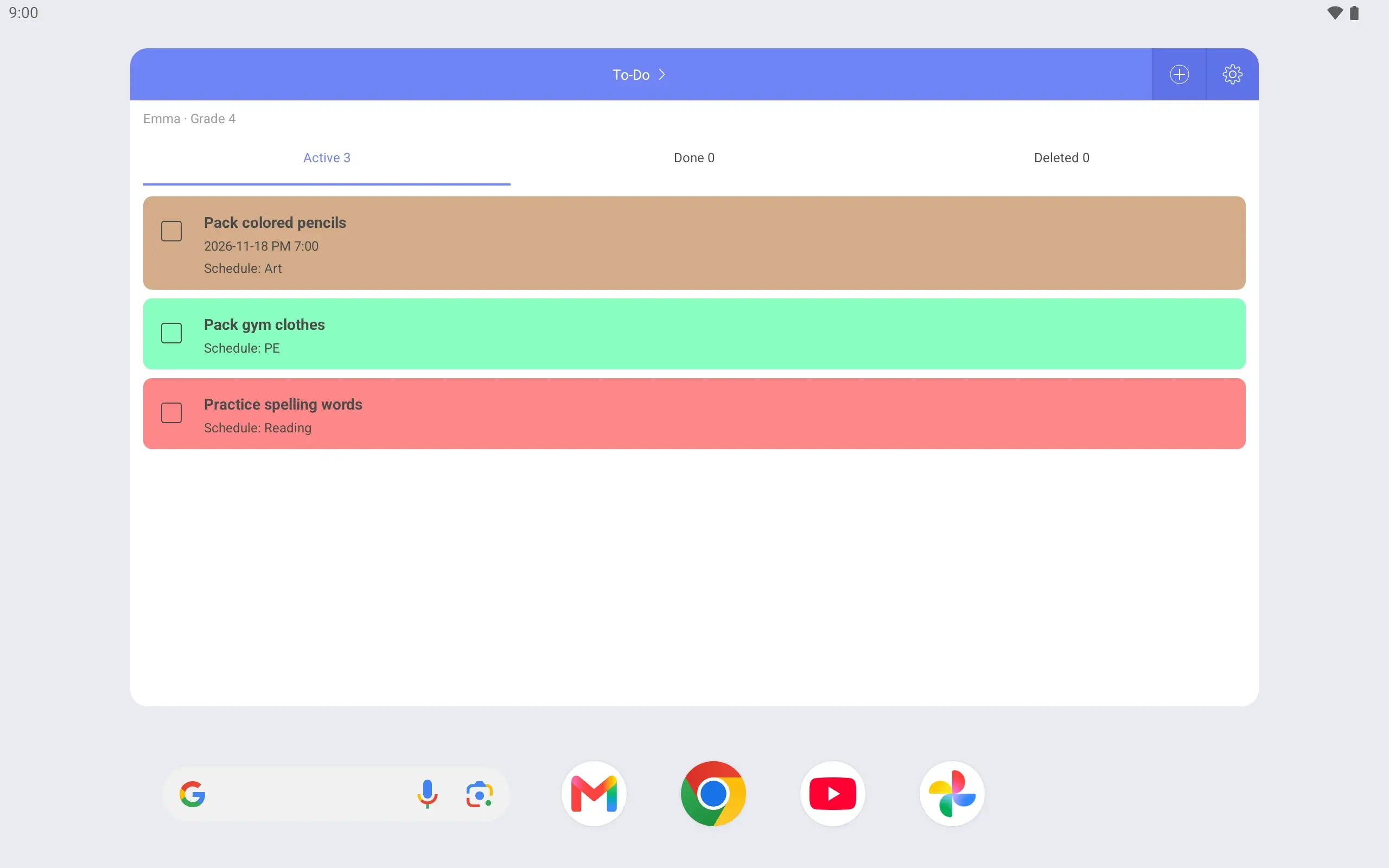
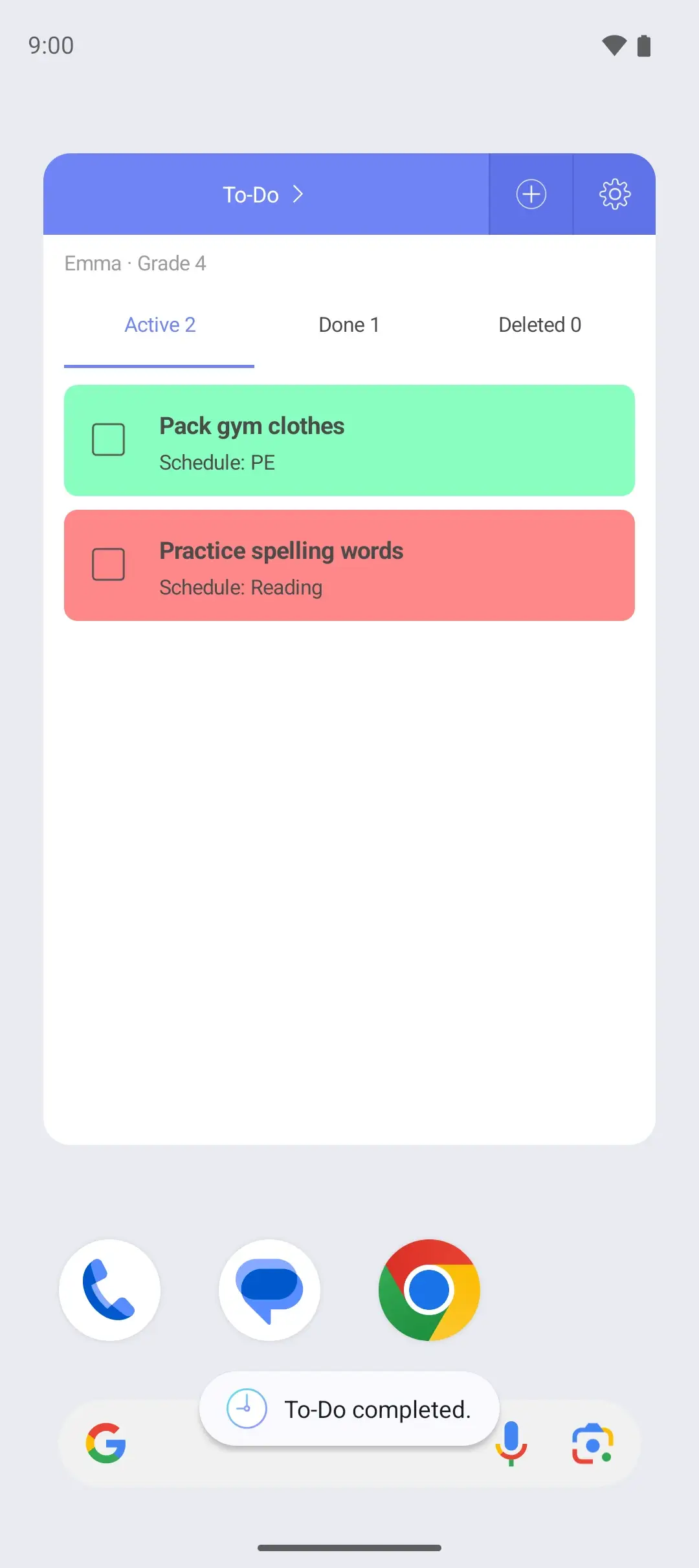
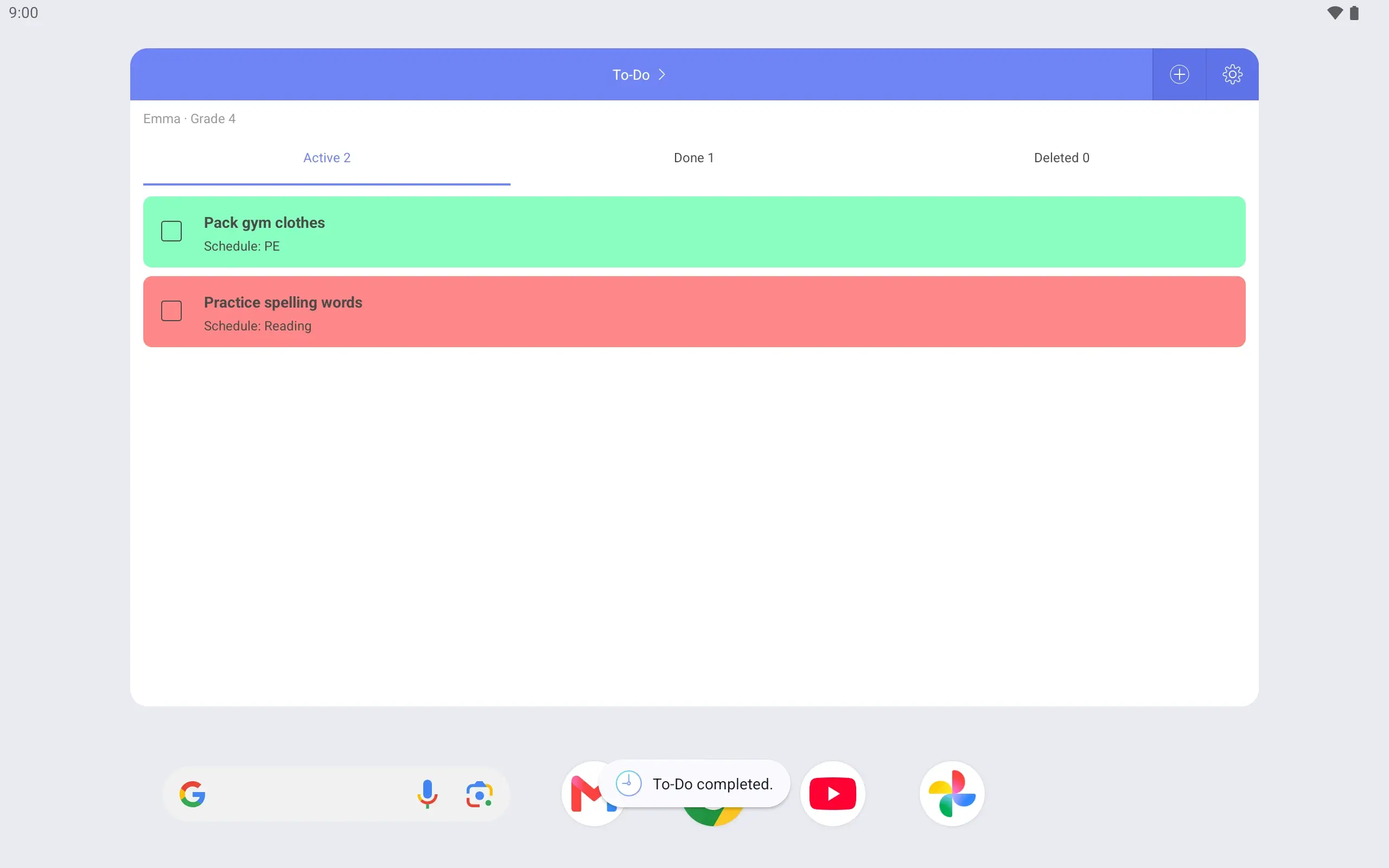
Weekly widget on the home screen showing the week of the Emma · Grade 4 timetable.Today overview widget on the home screen, with today's schedule and tasks side by side.To-Do widget on the home screen listing tasks, including Pack colored pencils.
Marking Pack colored pencils as complete in the To-Do widget on the home screen.
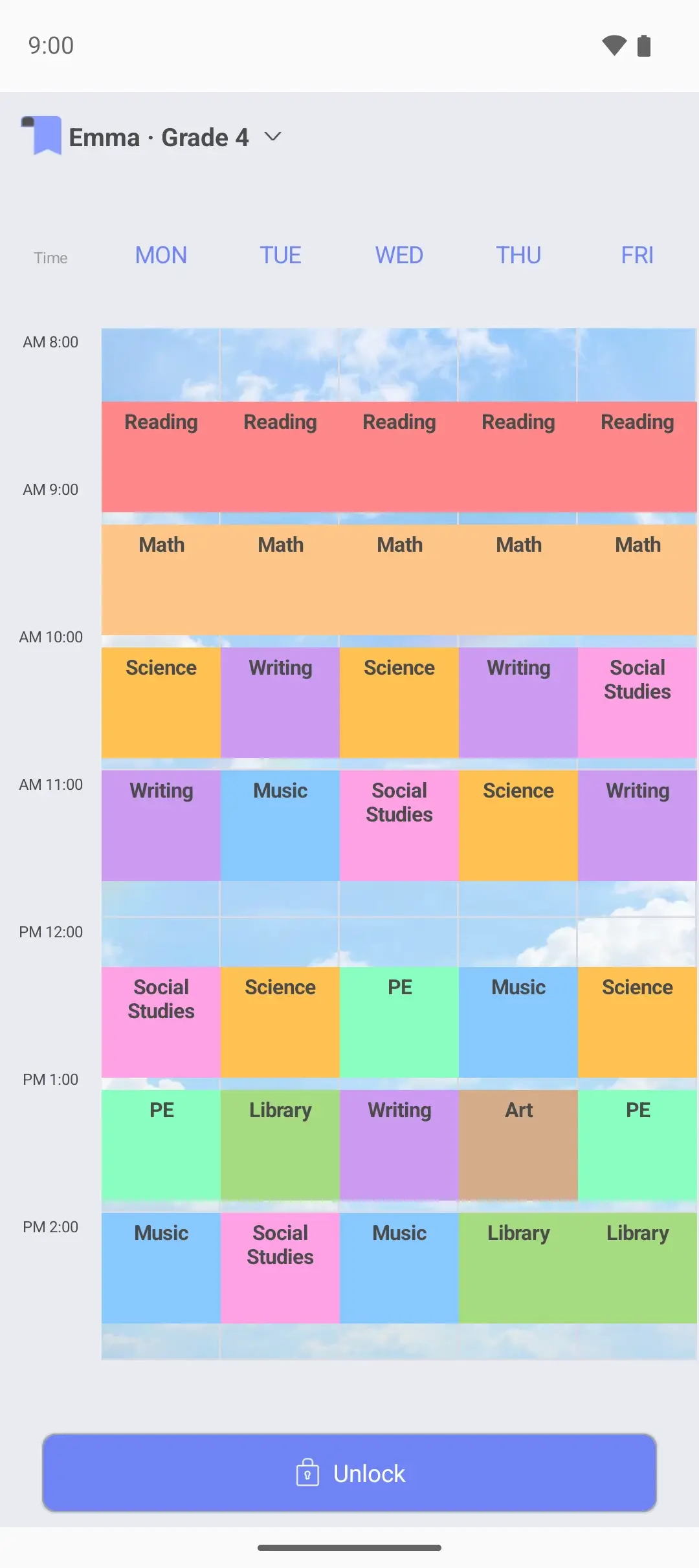
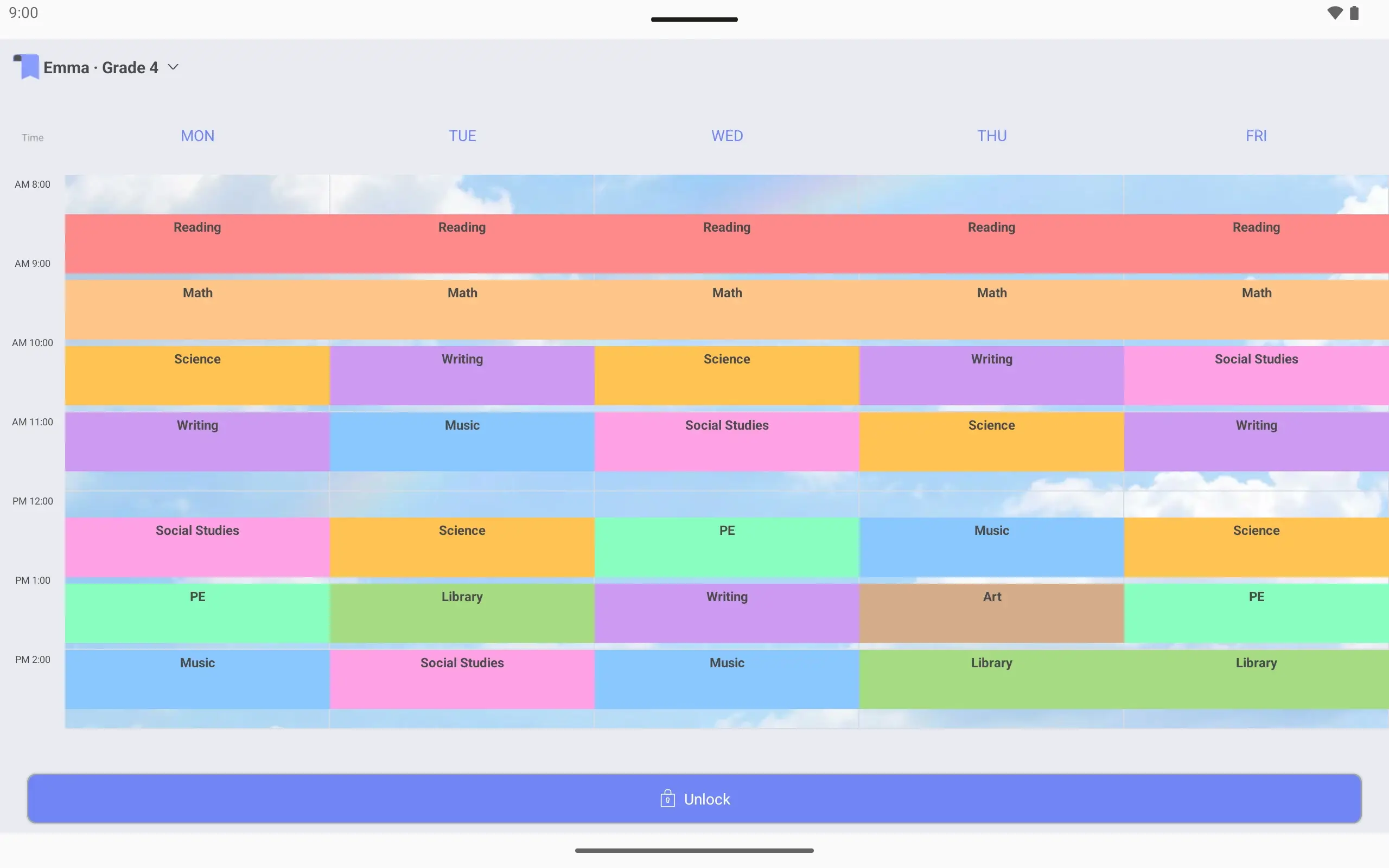
Lock screen showing the Emma · Grade 4 weekly timetable, with an unlock button below it.

In eight steps

  1. Each timetable has its own name, days and hours. Emma goes to school Monday to Friday and is done at 2:45 pm, so this one shows 8 am to 3 pm only.

  2. Class times are set to the minute, so a 45-minute class and a 5-minute break go in exactly as the school has them. Reading, Math, Science and Art each get their own color. Lunch from 11:45 to 12:20 is left empty.

  3. Choose a background photo in the timetable settings and crop it to fit. Classes stay on top as colored blocks, so the timetable is still easy to read.

  4. Write what to pack as a To-Do and link it to the class that needs it. Link “Pack colored pencils” to Thursday’s Art class and it appears when you tap that class on the timetable. There is no need to write which class it is for.

  5. The due time is the evening before Art, with a “30 minutes before” reminder. When the time comes an alarm screen opens on the phone, in time to pack the pencils.

  6. The weekly widget shows Emma’s week, and the Today overview widget shows today’s classes together with what to pack. The To-Do widget lists only the tasks. On a parent’s phone they show a child’s day at a glance.

  7. Put the pencils in the bag, mark the task complete in the widget, and it is done. Open the app later and the To-Do list shows it as complete too.

  8. The lock screen timetable is view-only. Nothing can be edited or deleted while the phone is locked. In the morning, today’s classes are right there when the phone wakes.

1 / 8

Screens are from the Android app

A fuller version of the iPhone app is on the way.

Elementary school timetable: common questions

Can I enter classes that are 40 or 45 minutes long?
Yes. Start and end times are set to the minute, so 40-minute or 45-minute classes and short breaks go in exactly as the school has them.
Can I use it if my child has no phone?
Yes. Make your child’s timetable on your own phone and check it in a widget or on the lock screen. There is no sign-up, so your child does not need an account.
Do I have to start over every school year?
No. You can keep several timetables and copy an existing one, with or without its classes. Copy last year’s timetable and change only what is different.
See all questions

See also

Get SimpleScheduler

A fuller version of the iPhone app is on the way.