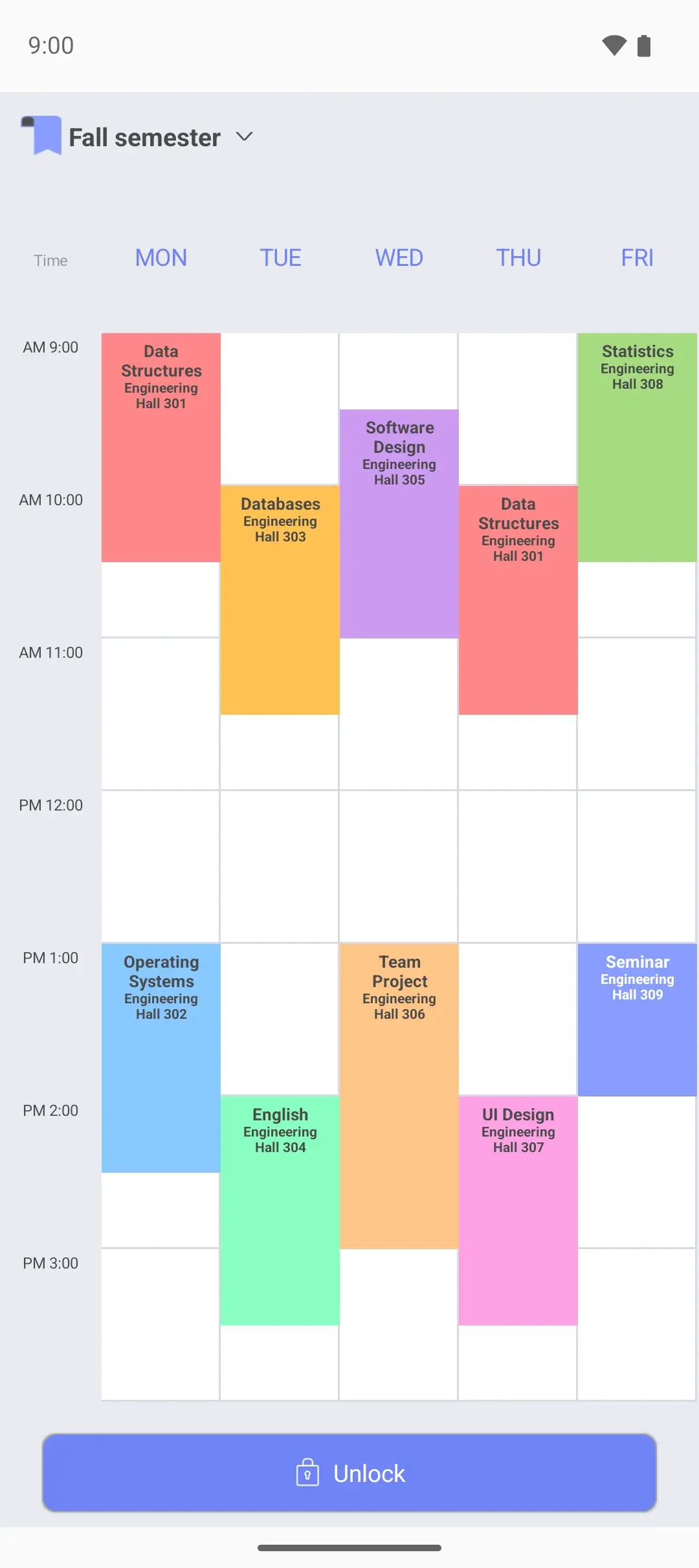
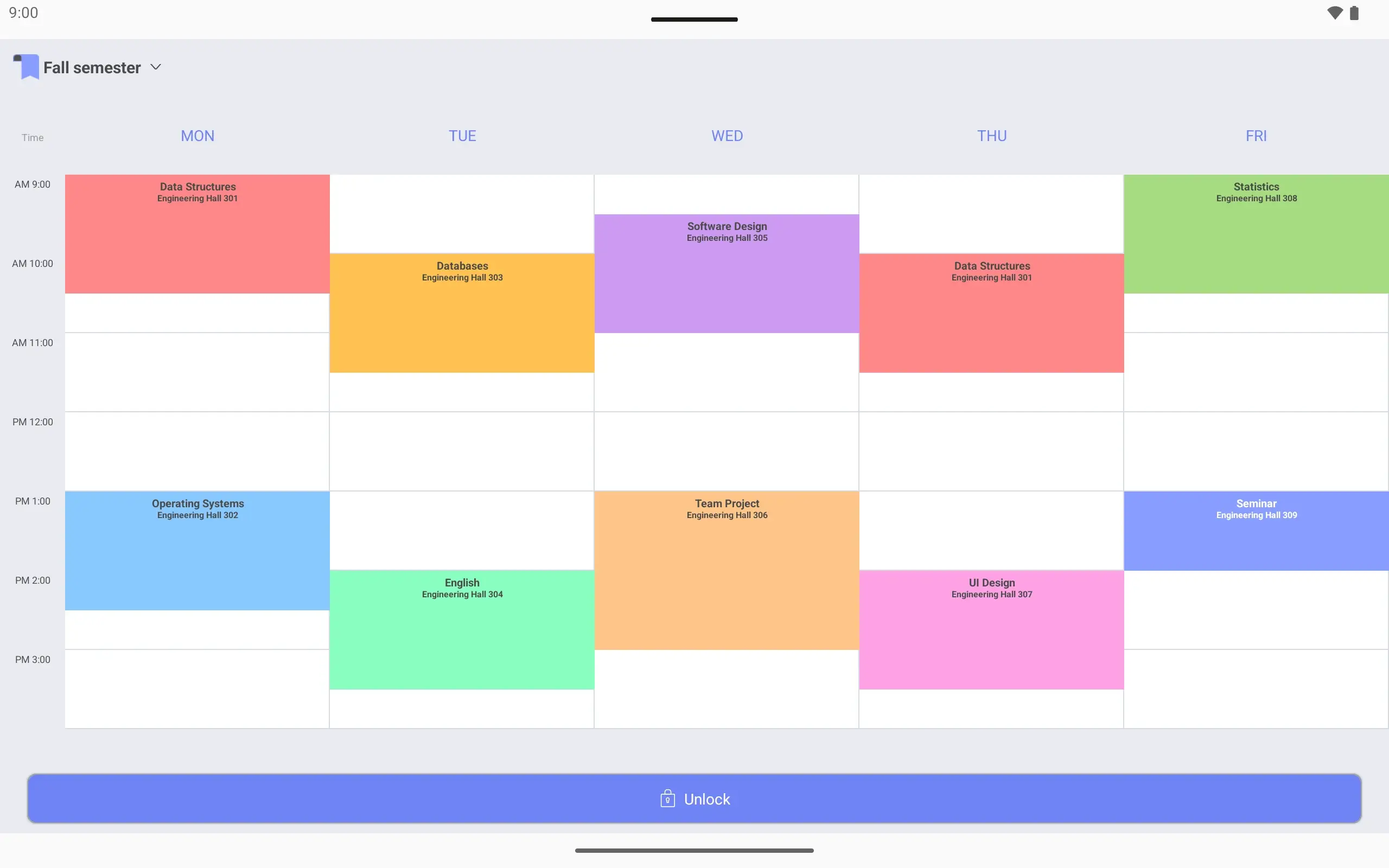
College class scheduleRooms and assignments on one page
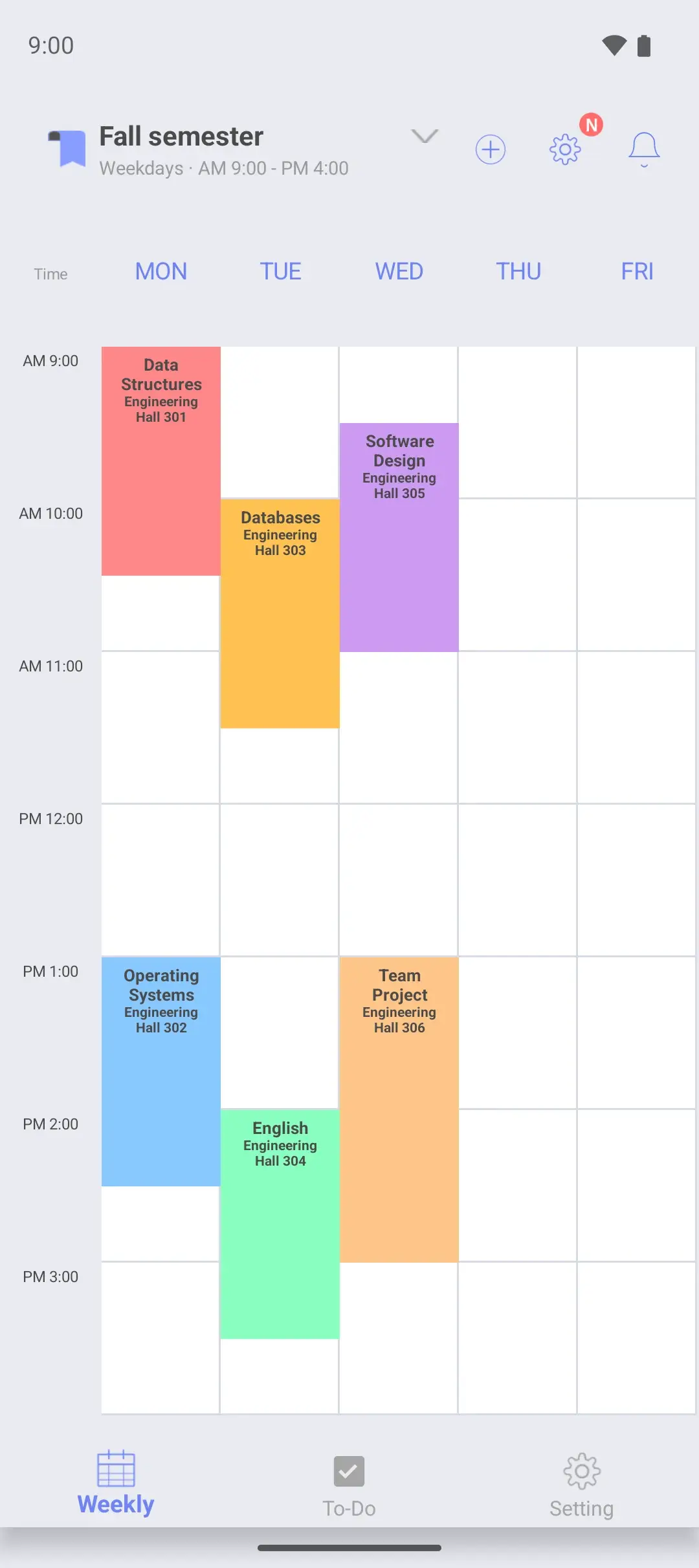
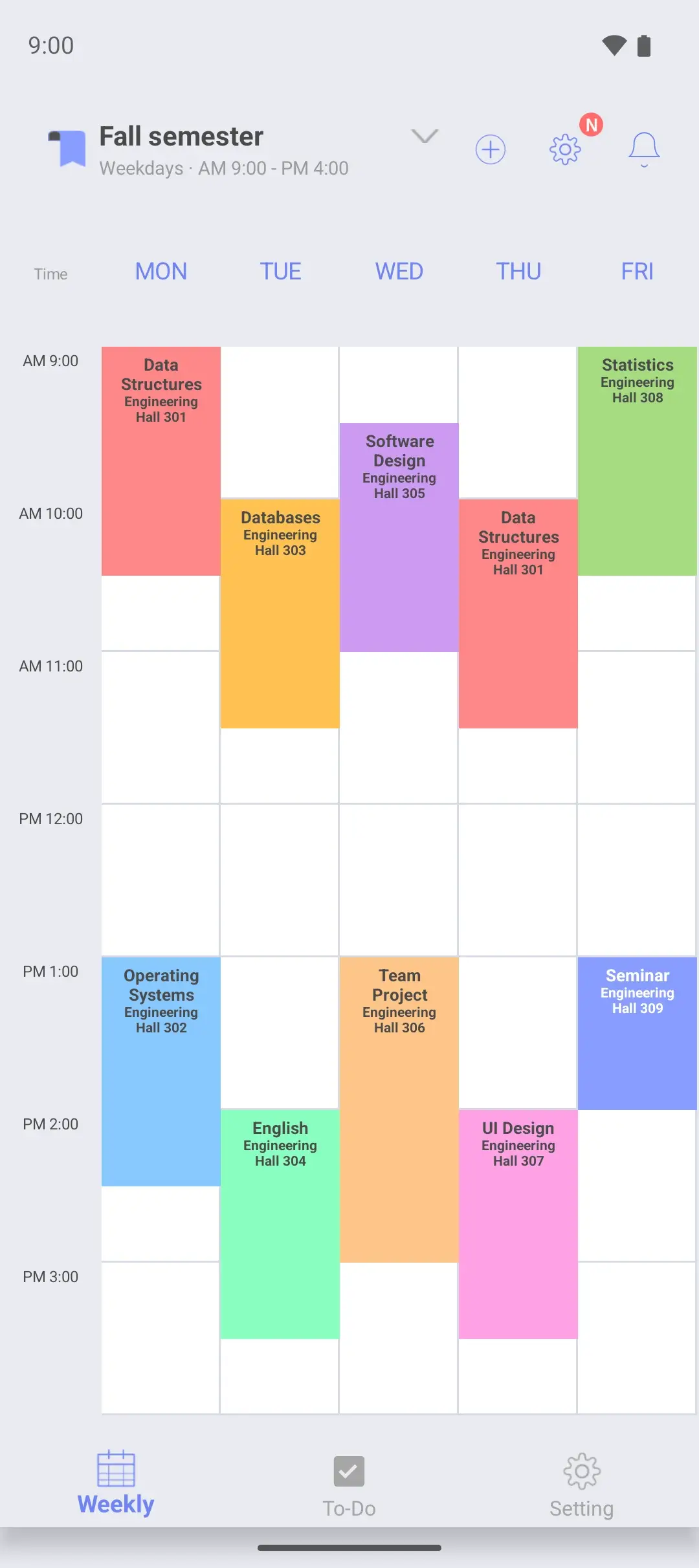
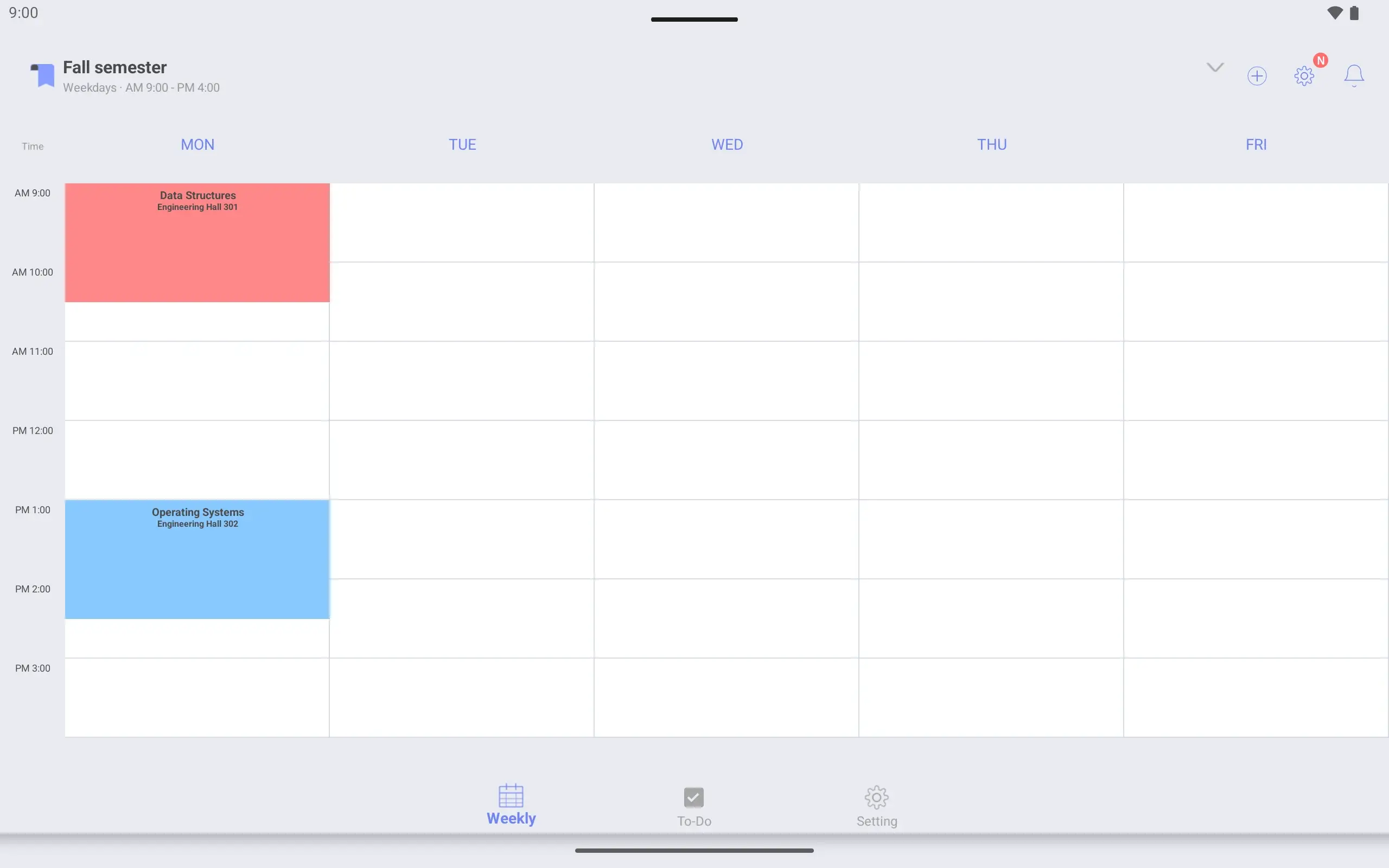
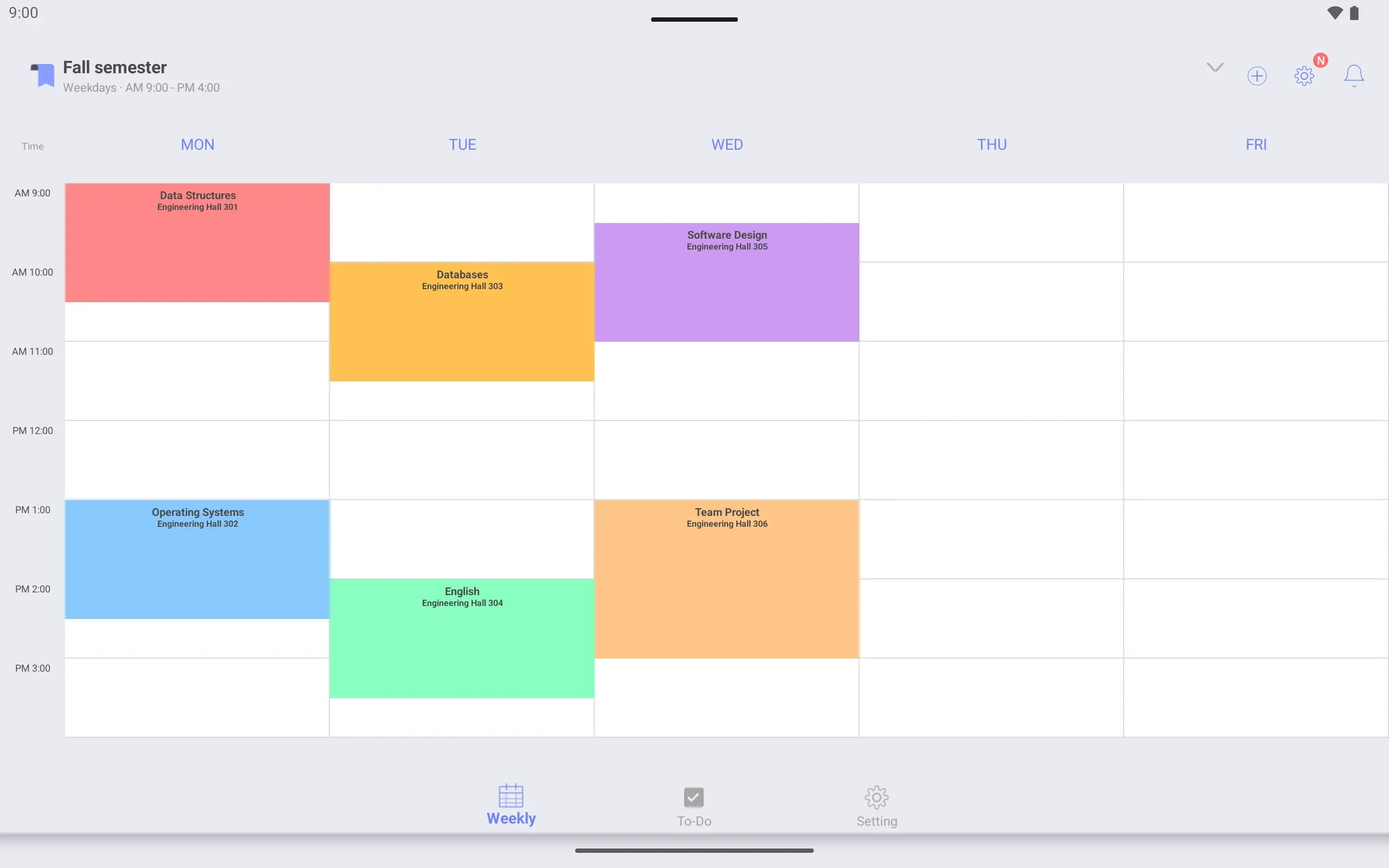
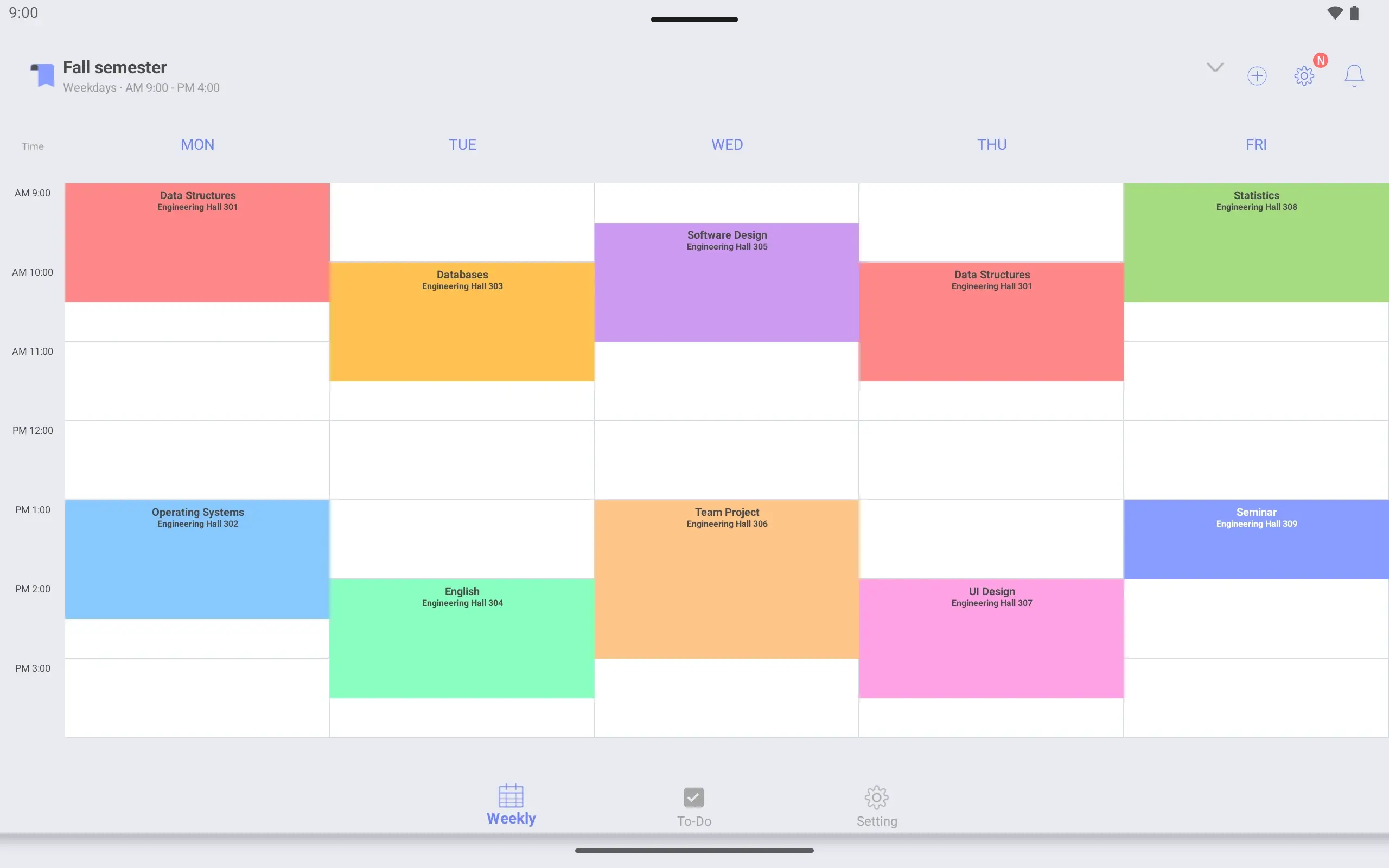
An example of a college student setting up this semester’s classes. Each class has its room and professor, and assignments are linked to the class until they are due.
In eight steps
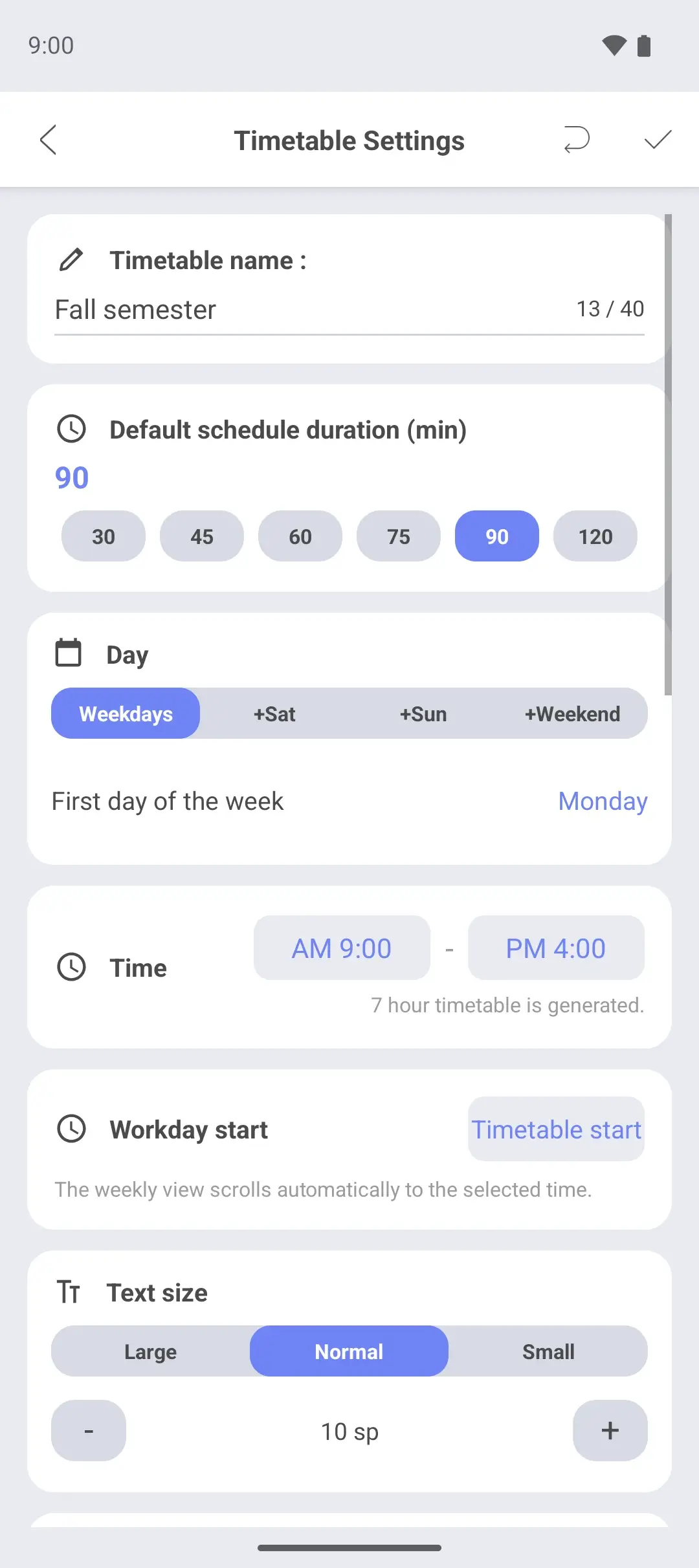
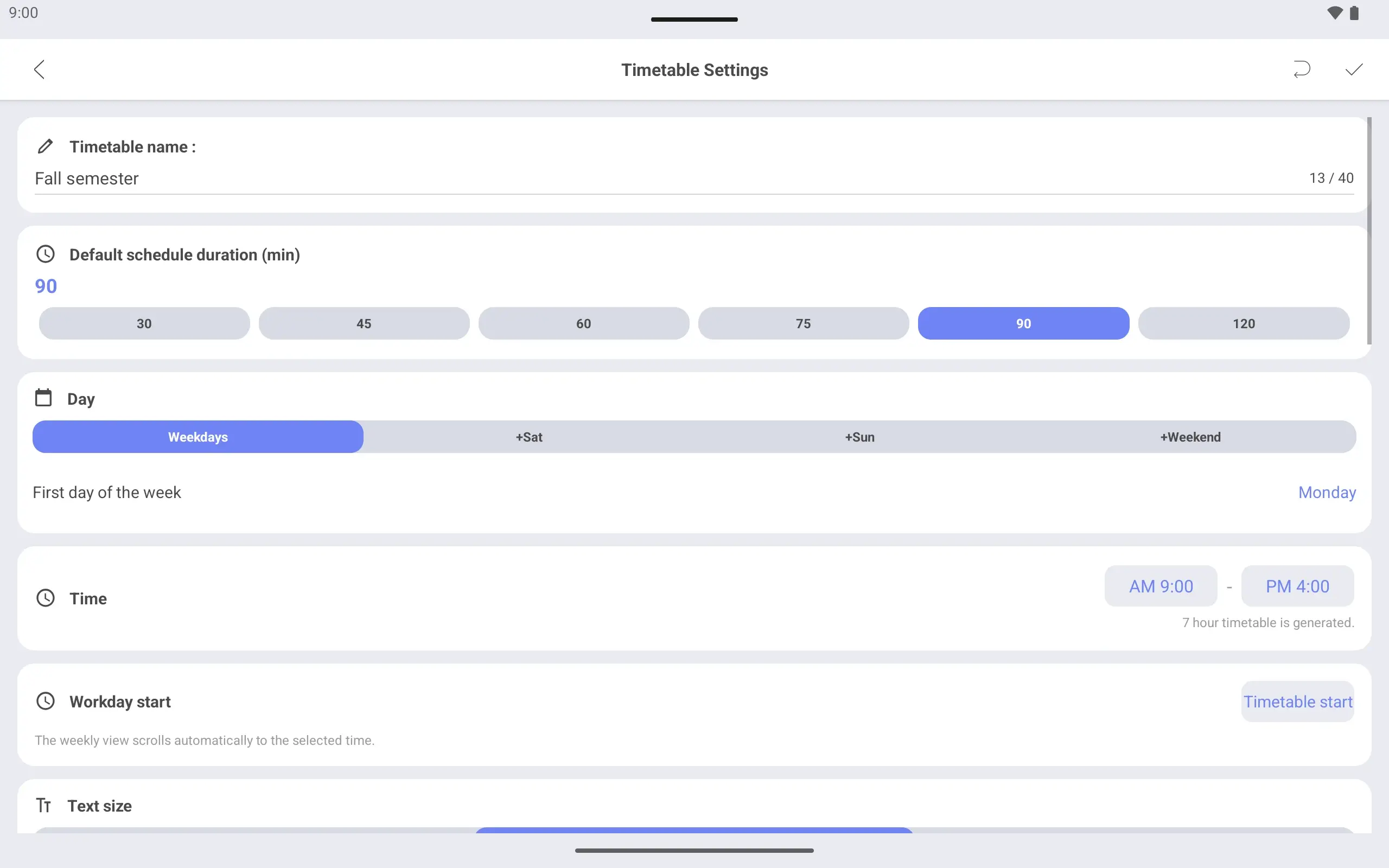
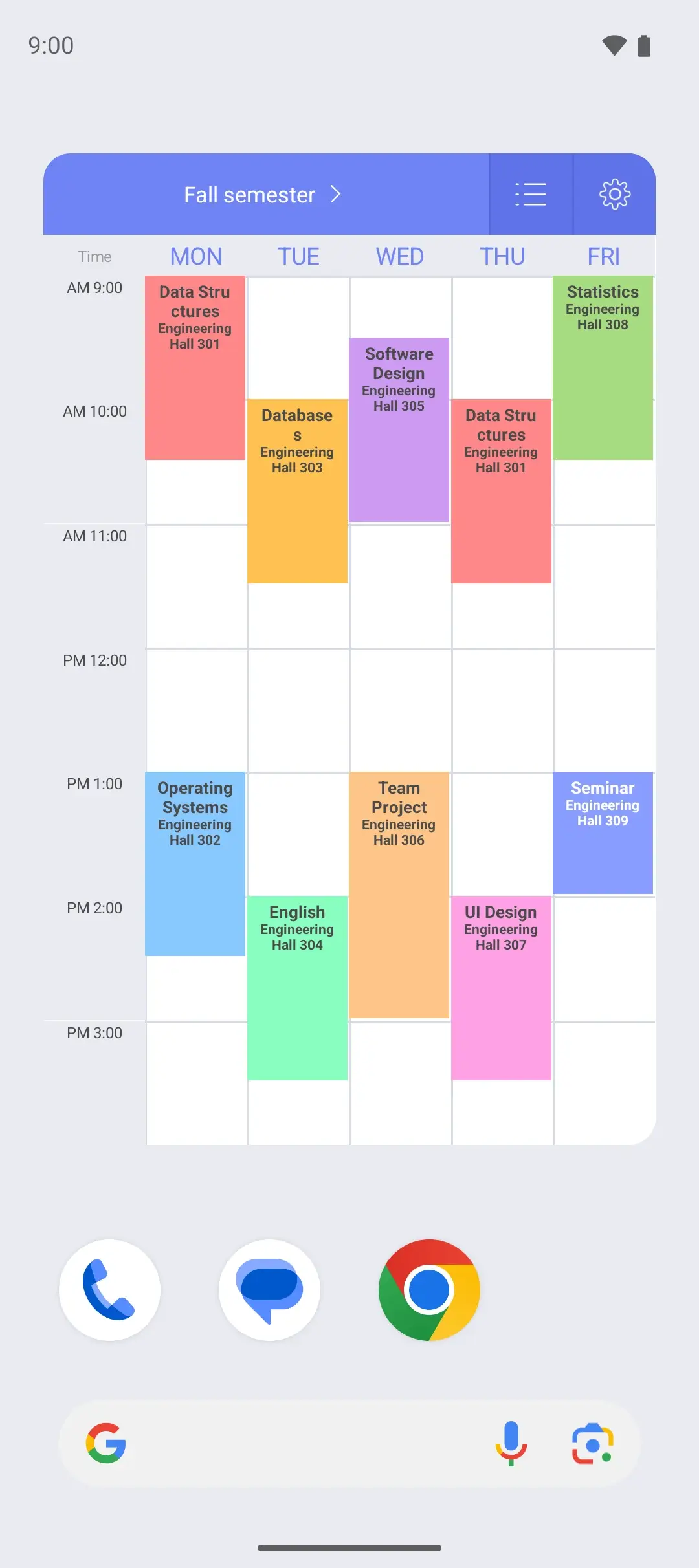
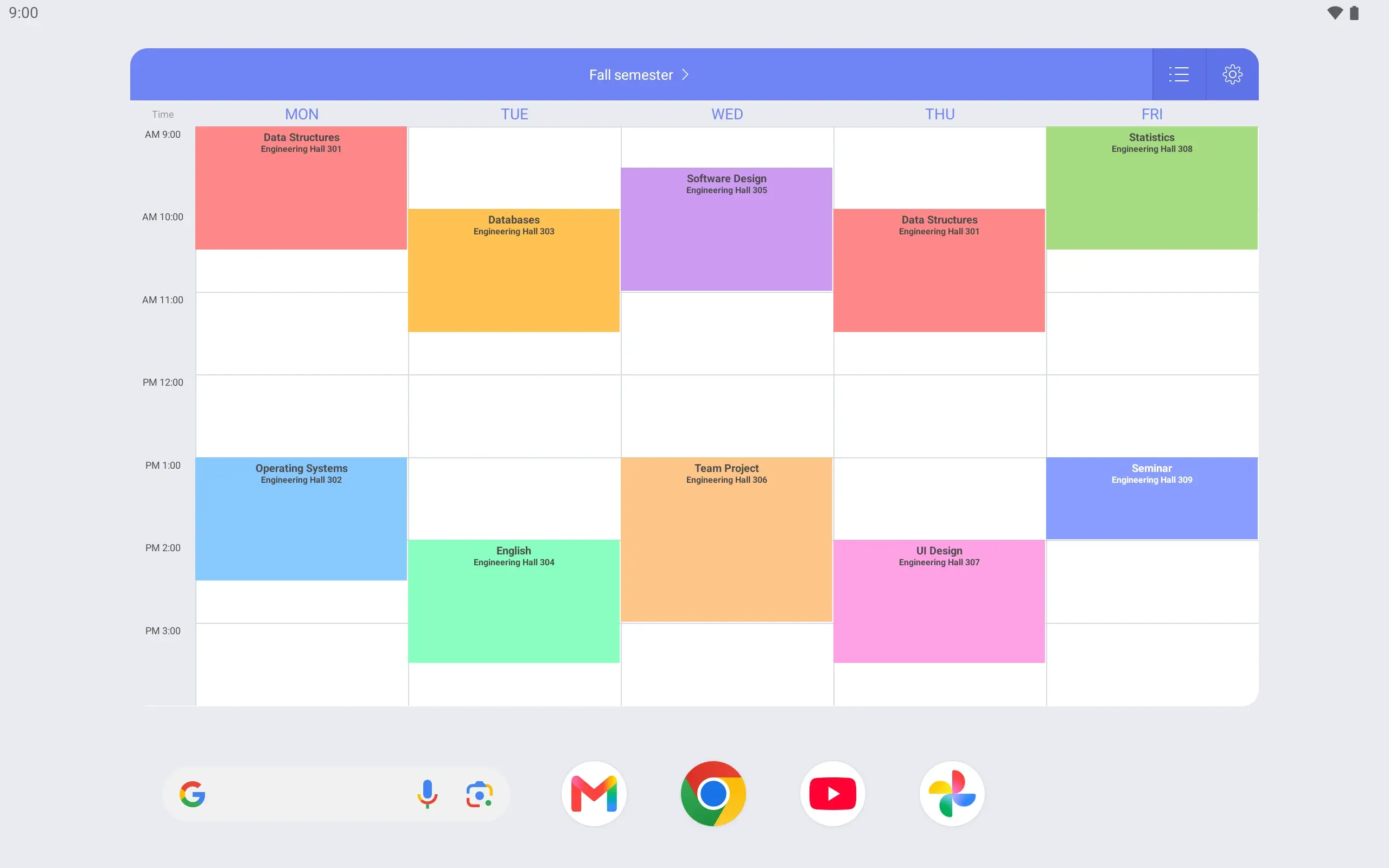
You can make a new timetable every semester. Name this one “Fall semester” and leave out the days and hours when you have no class.
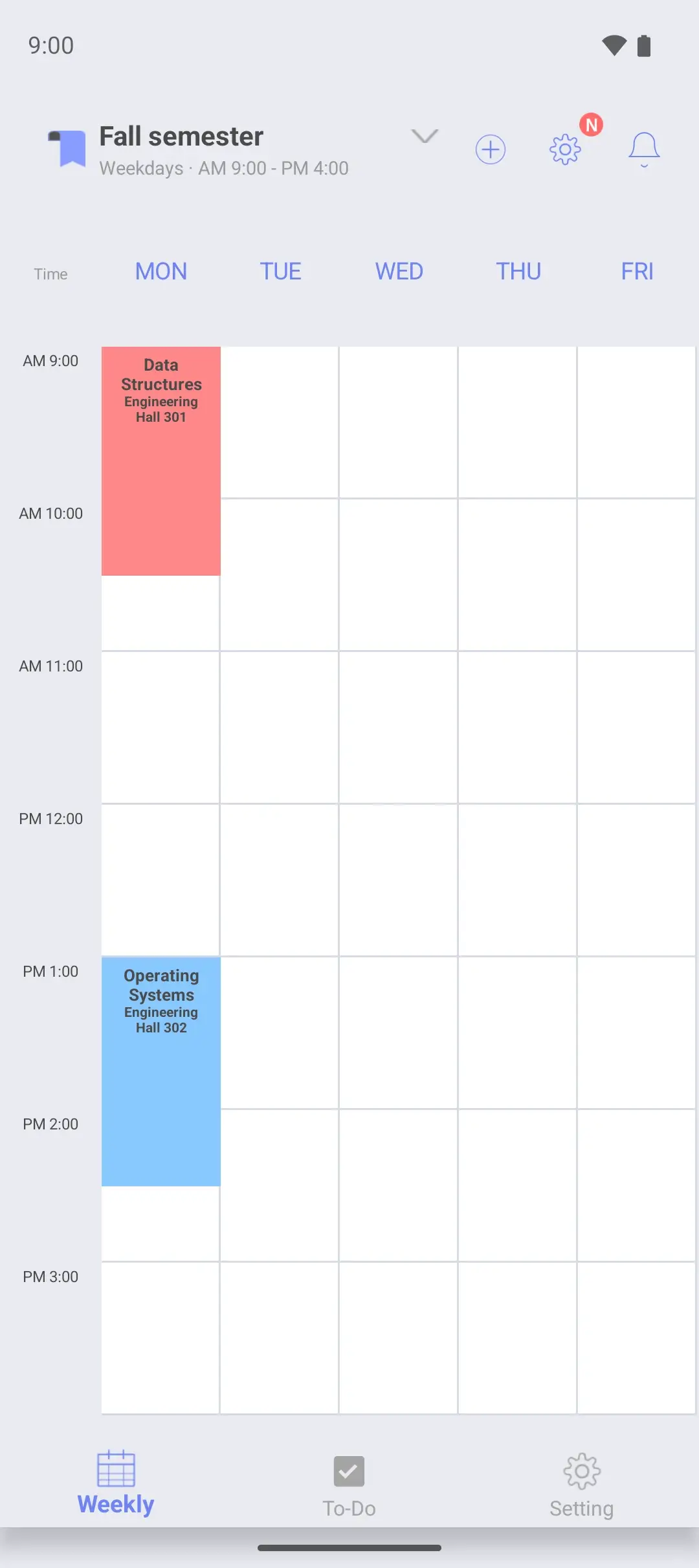
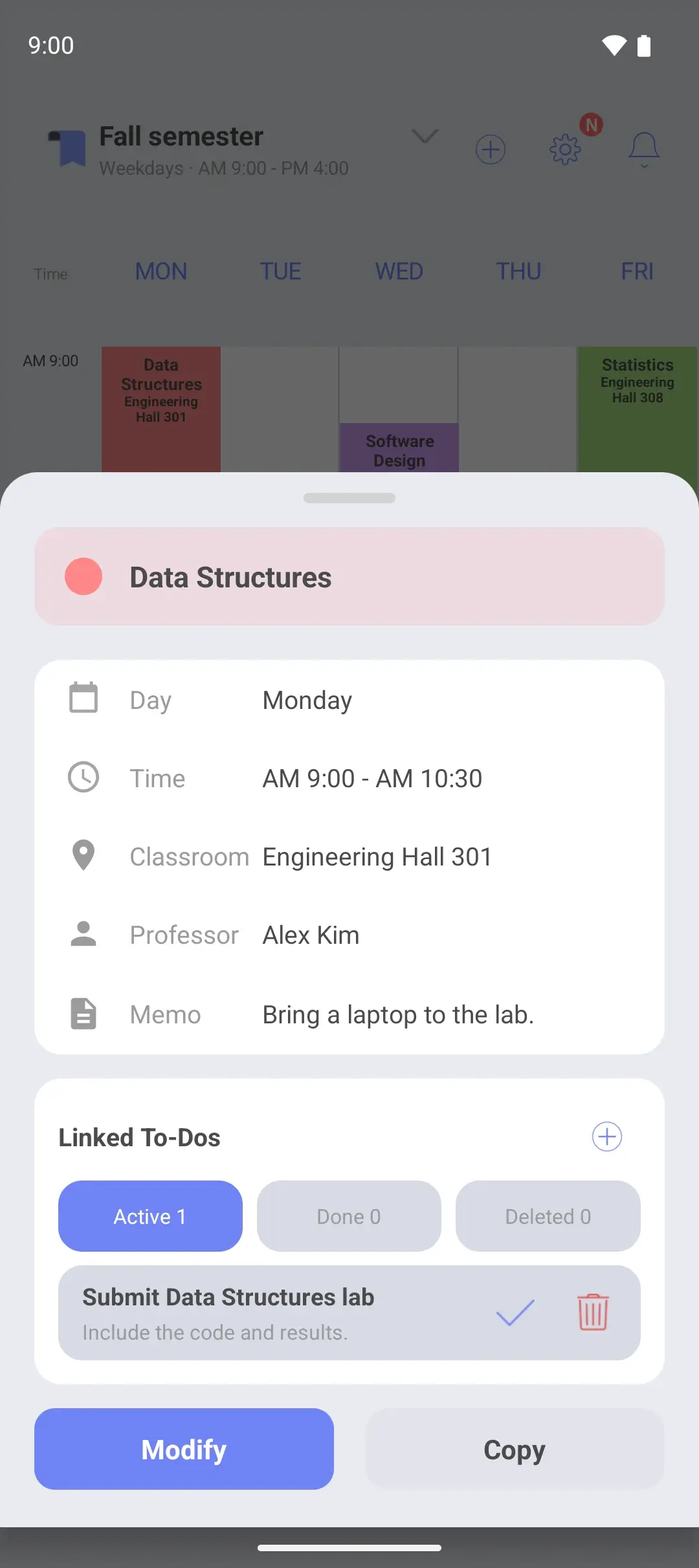
Class times are set to the minute, so a 75-minute or 90-minute class fits as it is. Add the room, the professor and a note to each class and pick a color, and the week is easy to read.
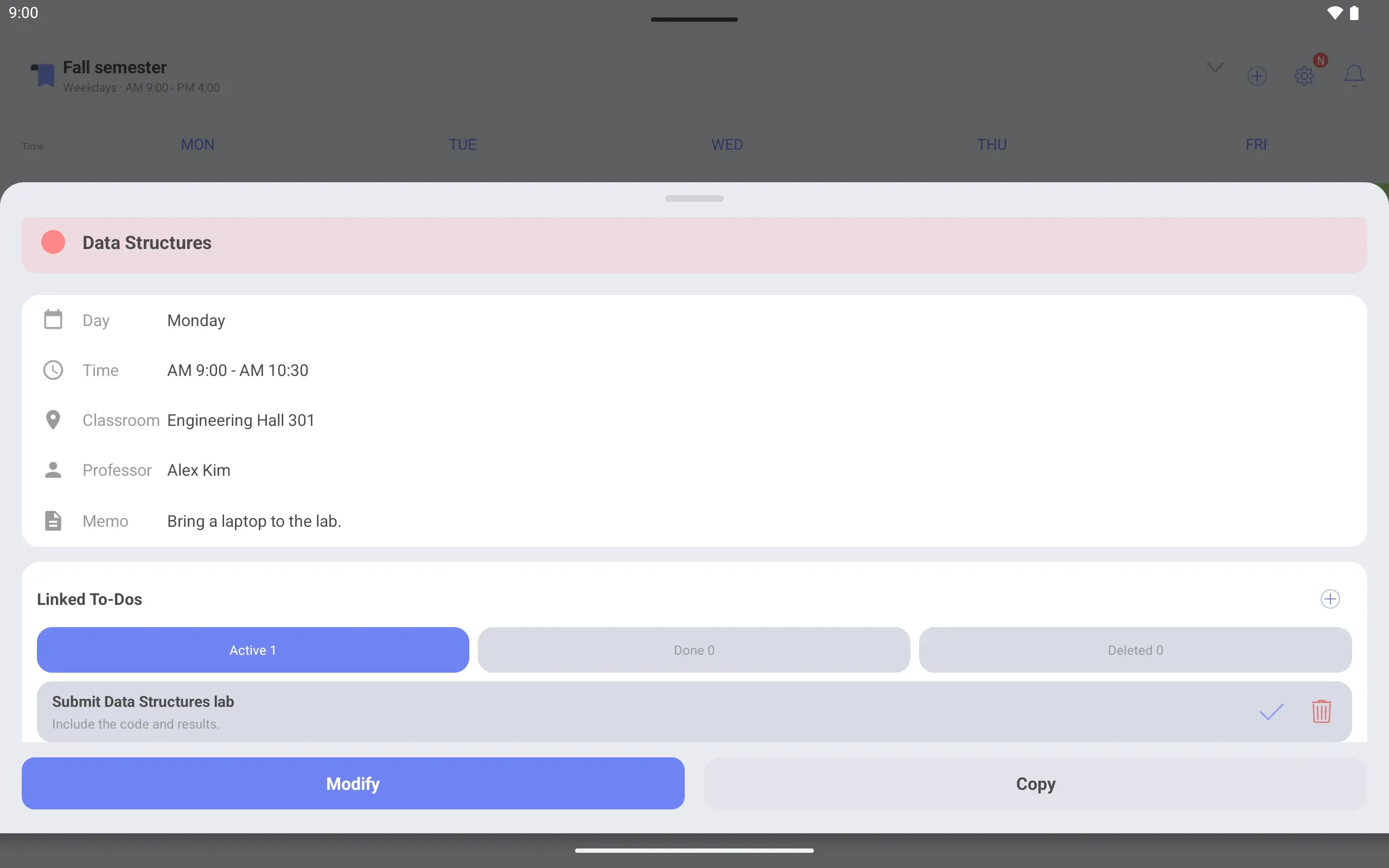
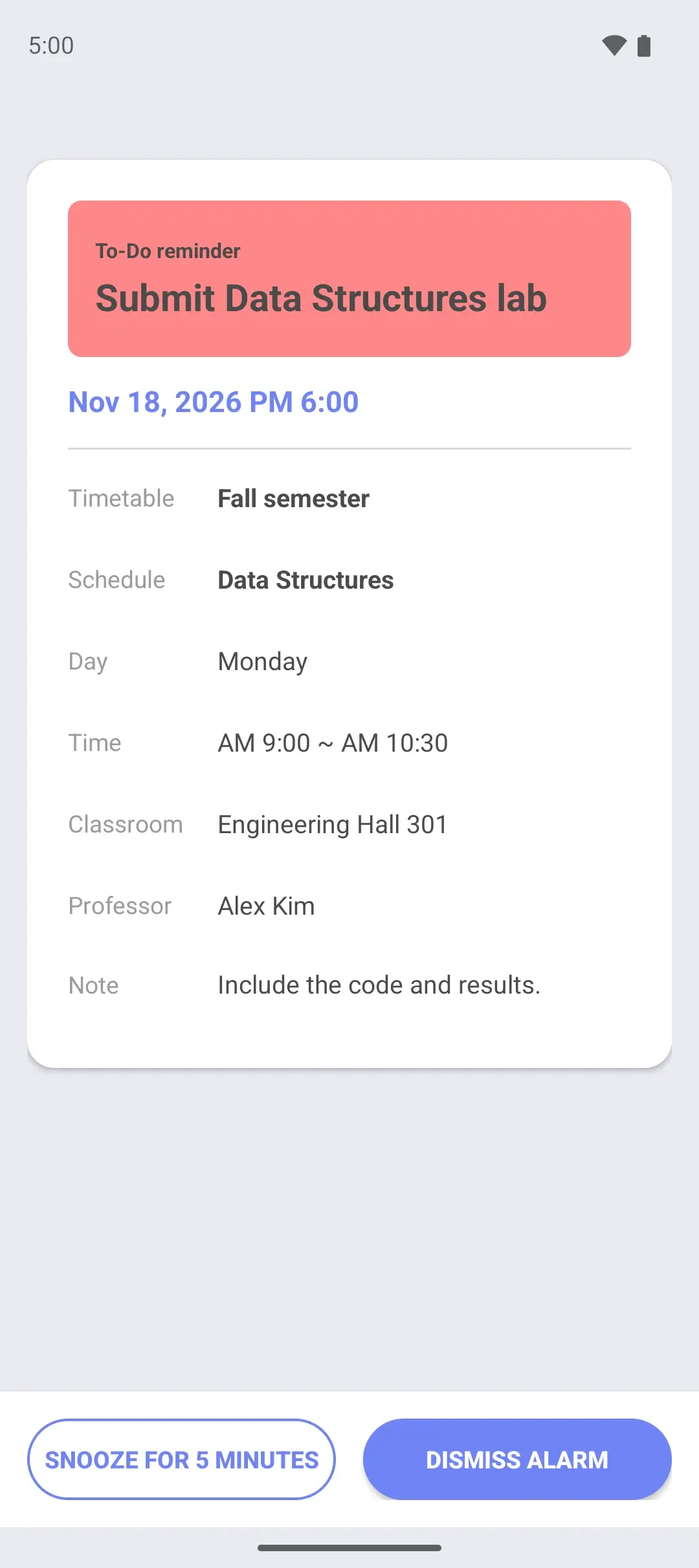
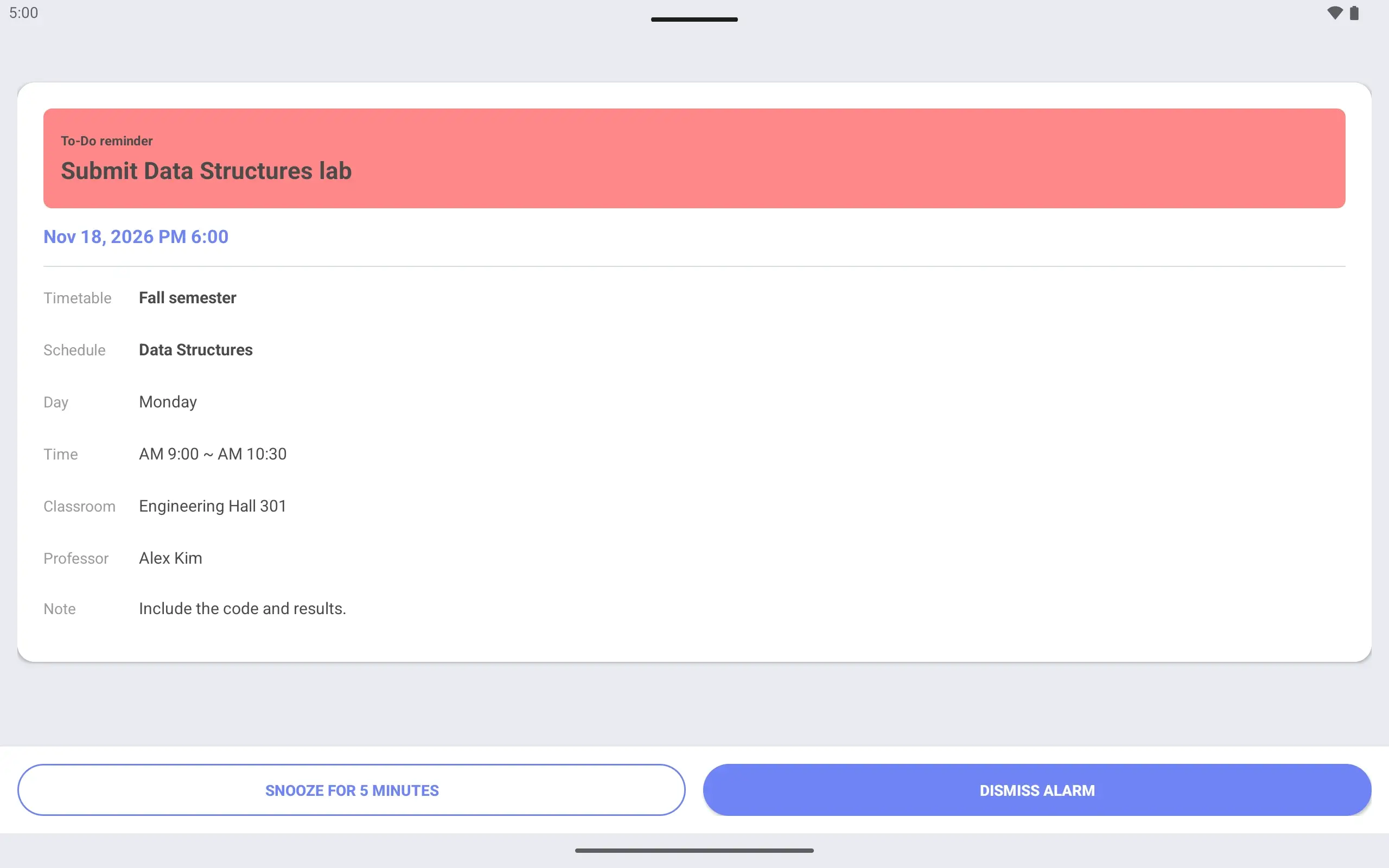
Tap a class on the timetable to see its day and time, room, professor and note. Assignments linked to that class are on the same screen, so there is no need to look for them separately.
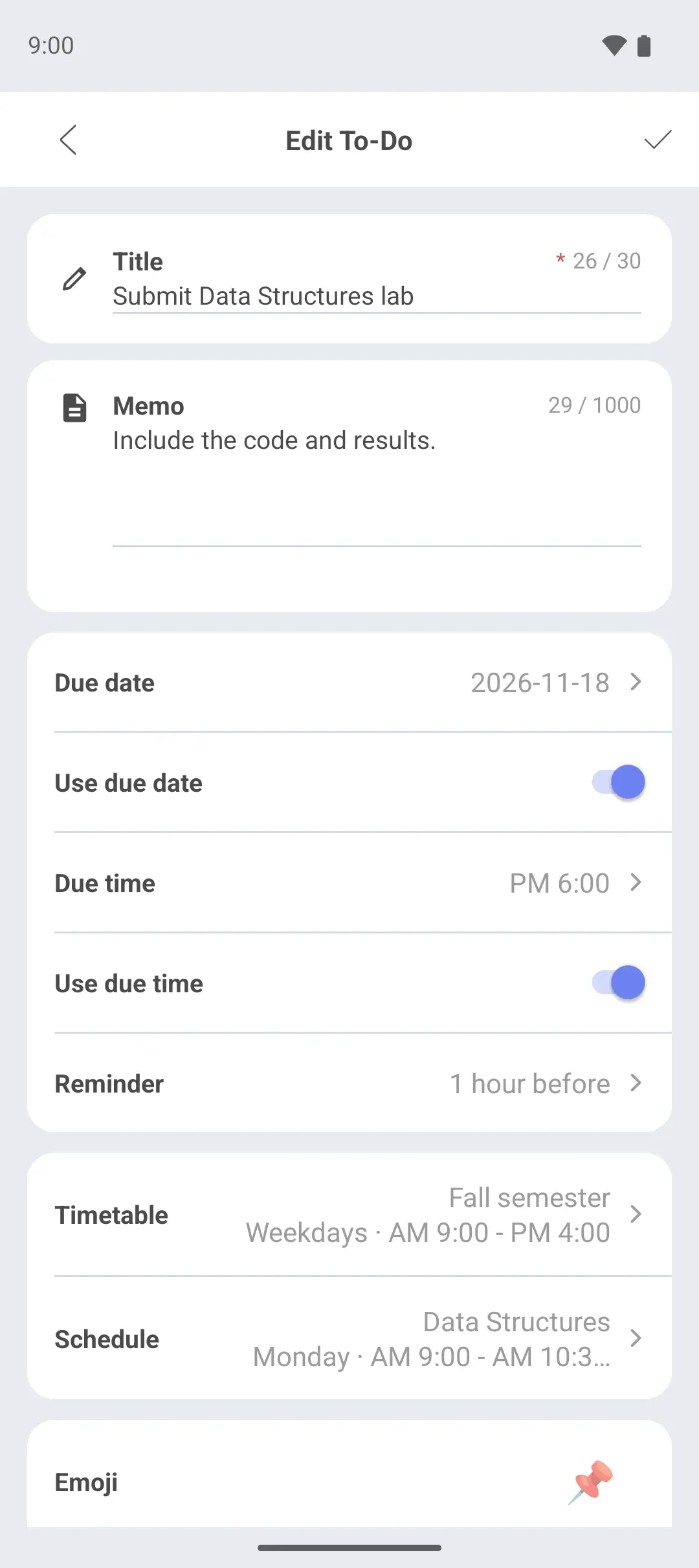
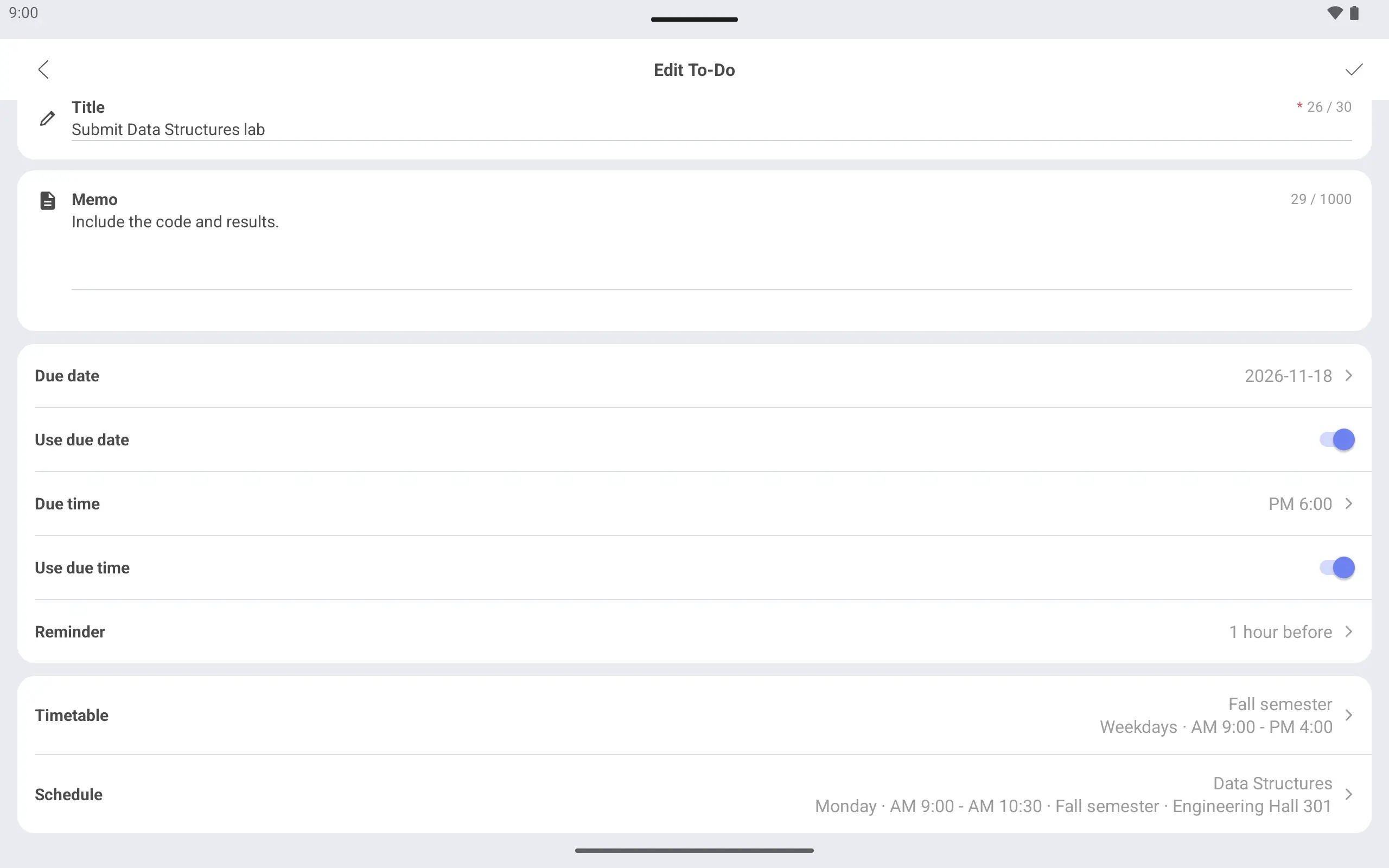
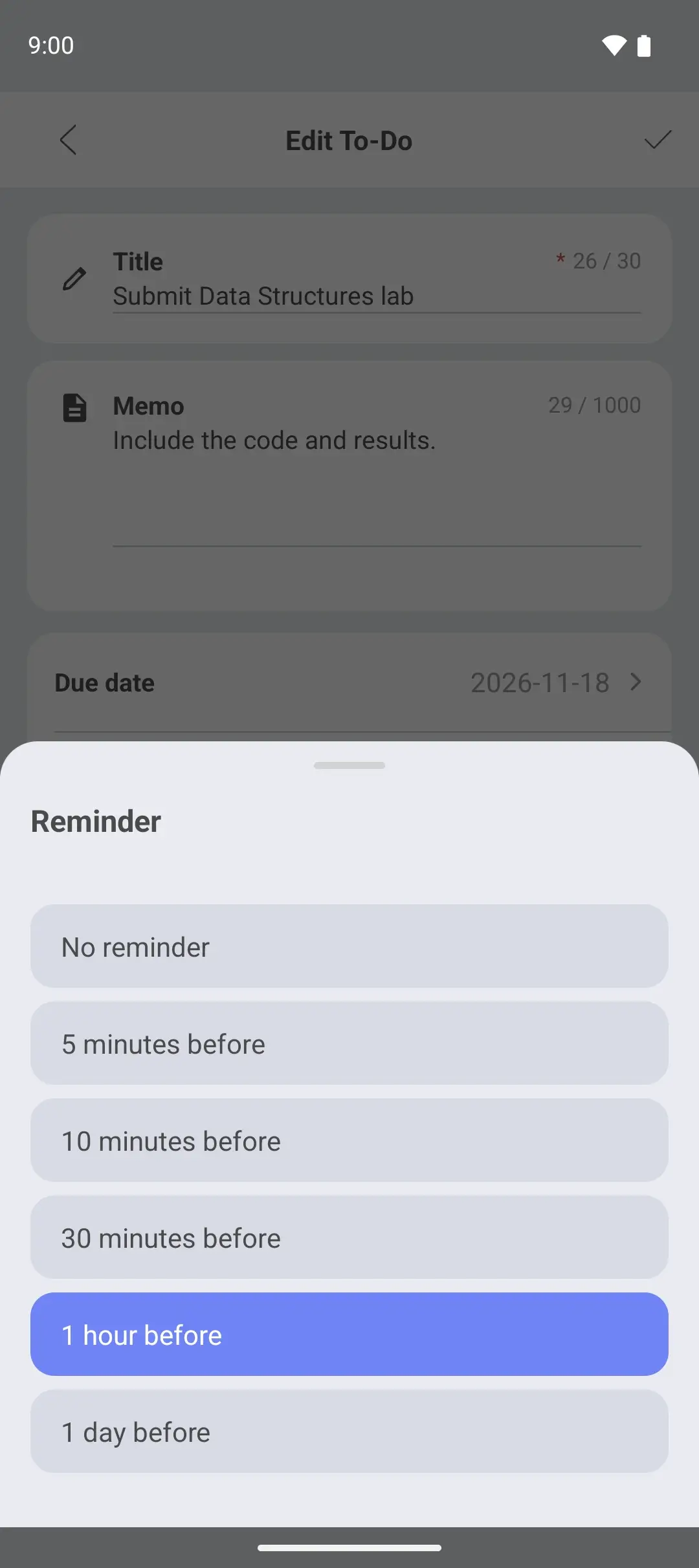
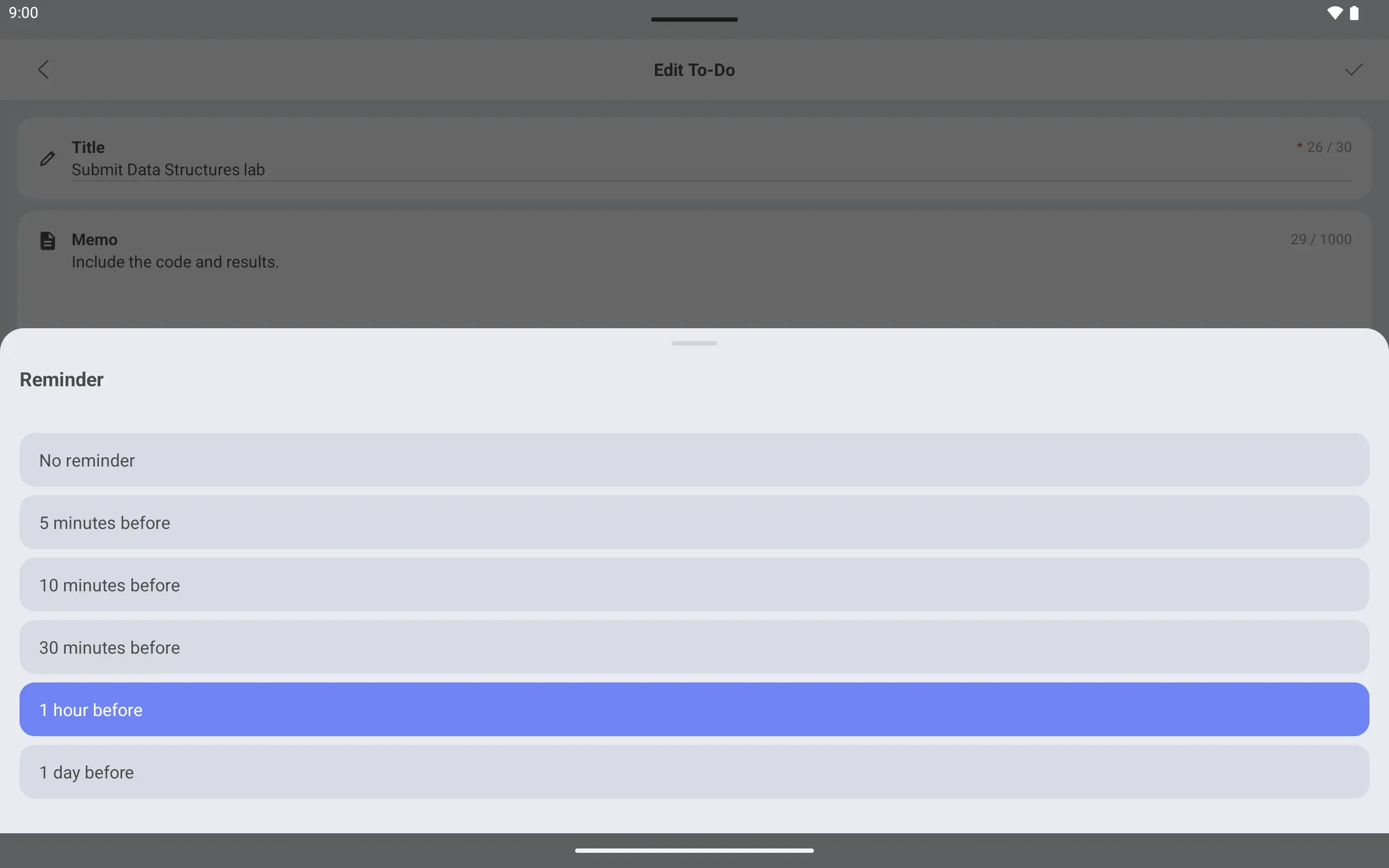
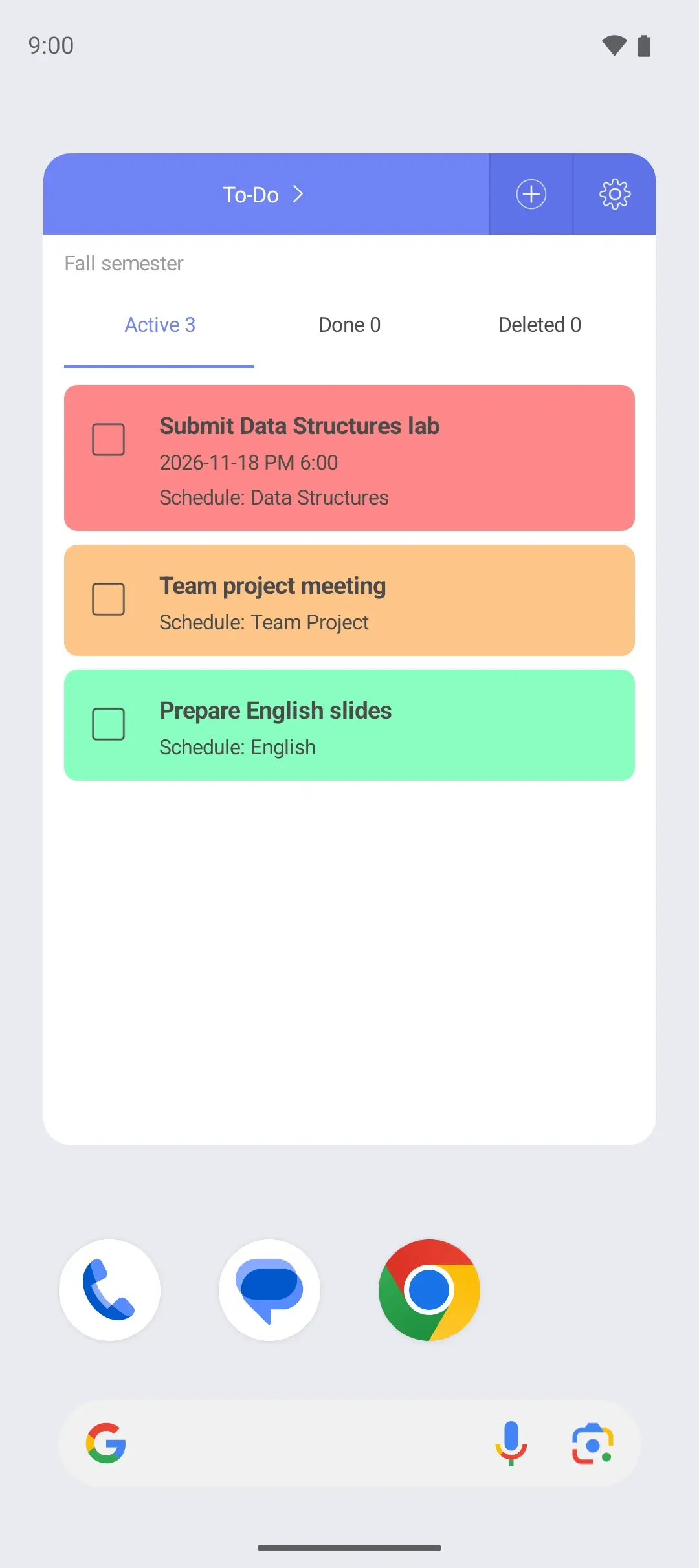
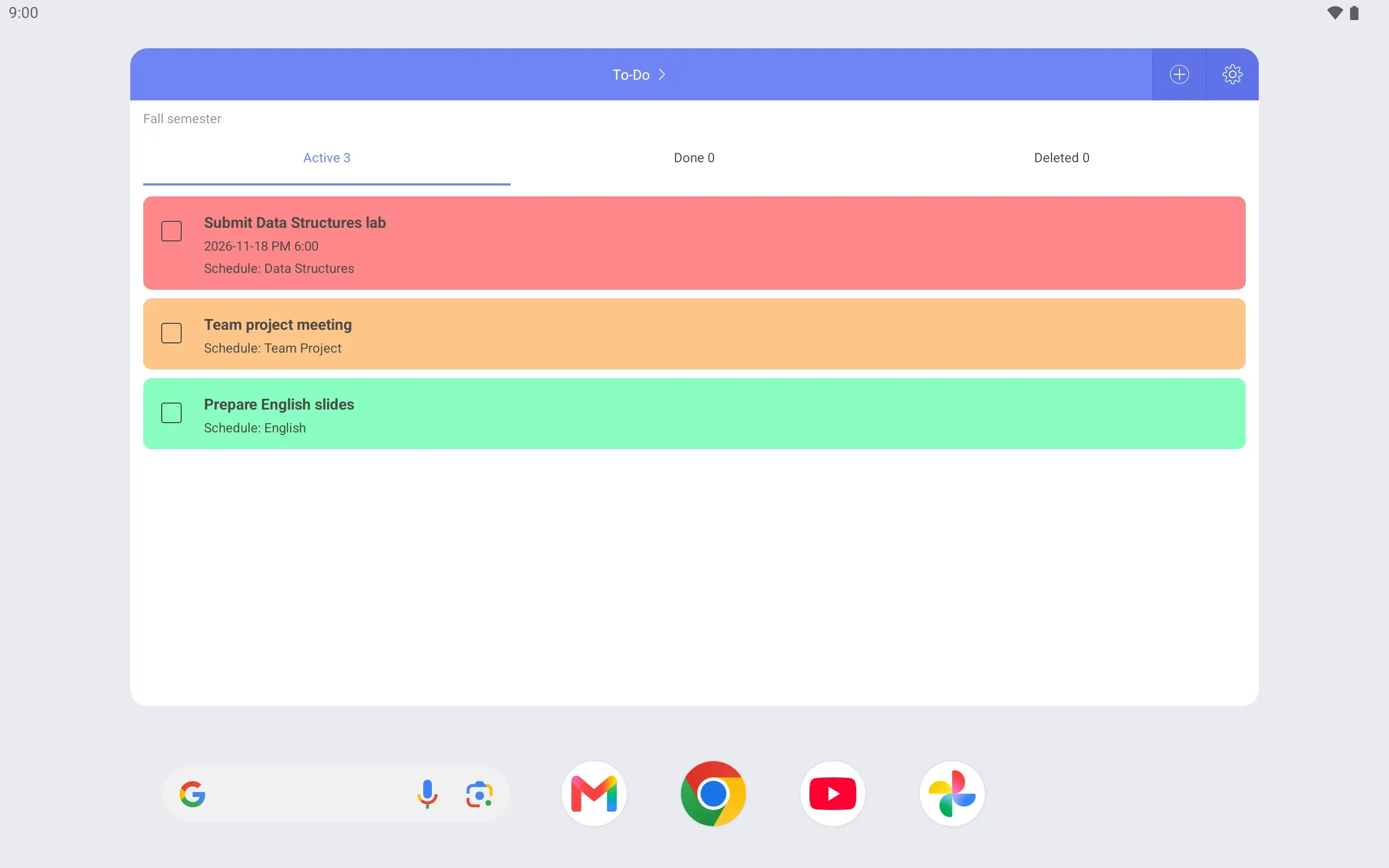
A To-Do has a due date, a due time and a class it is linked to. Once an assignment is linked, it shows up when you tap that class.
The lab is due at 6:00 pm, so “1 hour before” opens an alarm screen at 5:00 pm. Switch to “1 day before” for more room. On the alarm screen you can dismiss it or snooze it for five minutes.
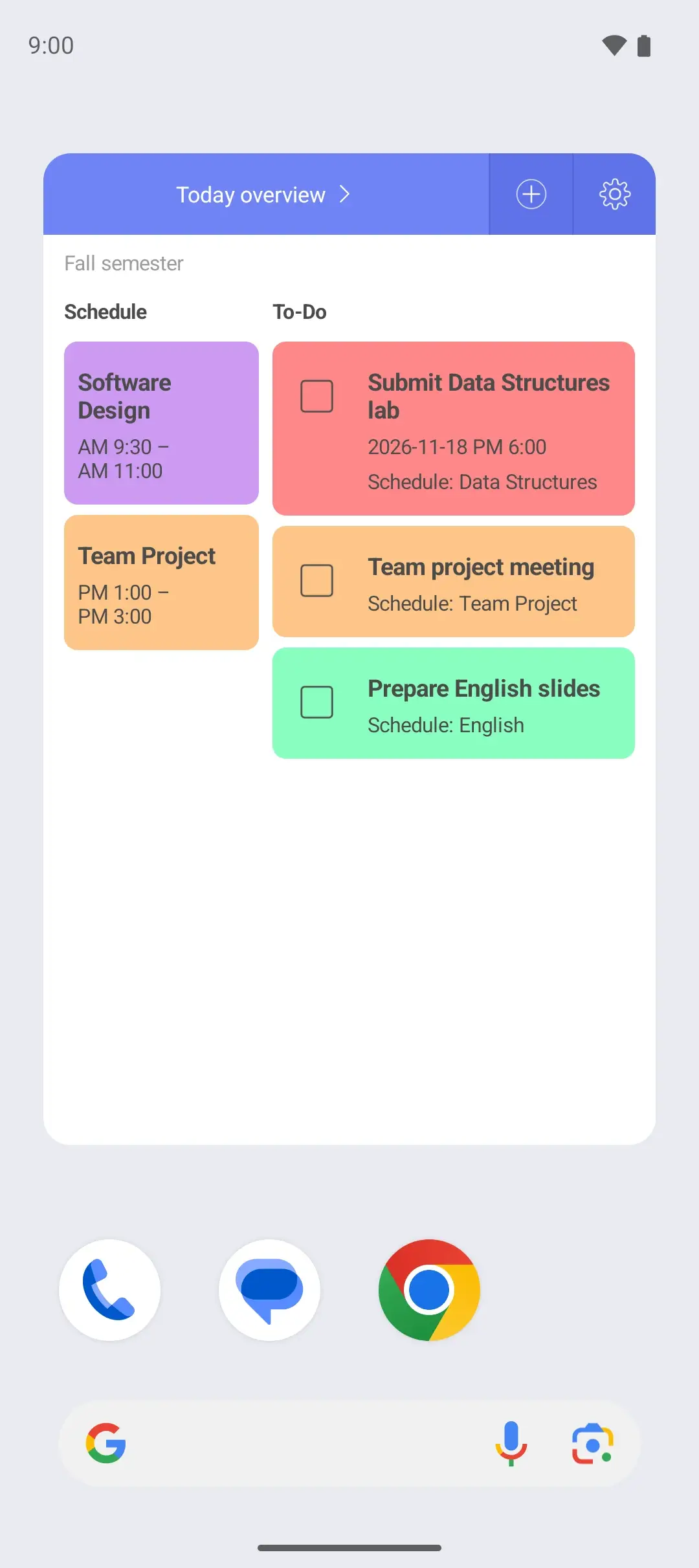
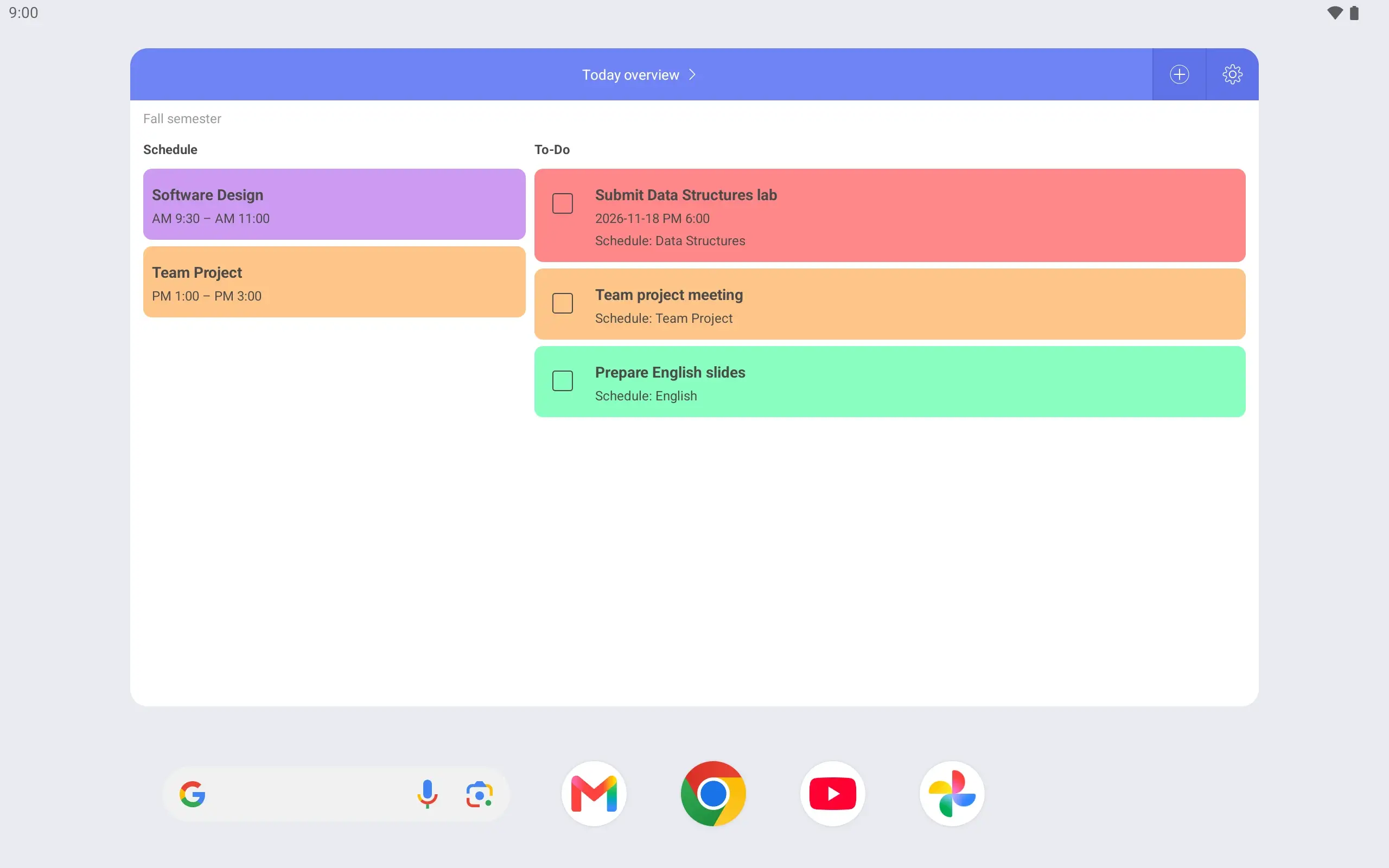
Use the weekly widget for this week’s classes and the To-Do widget for assignments. The Today overview widget alone shows today’s classes and assignments together.
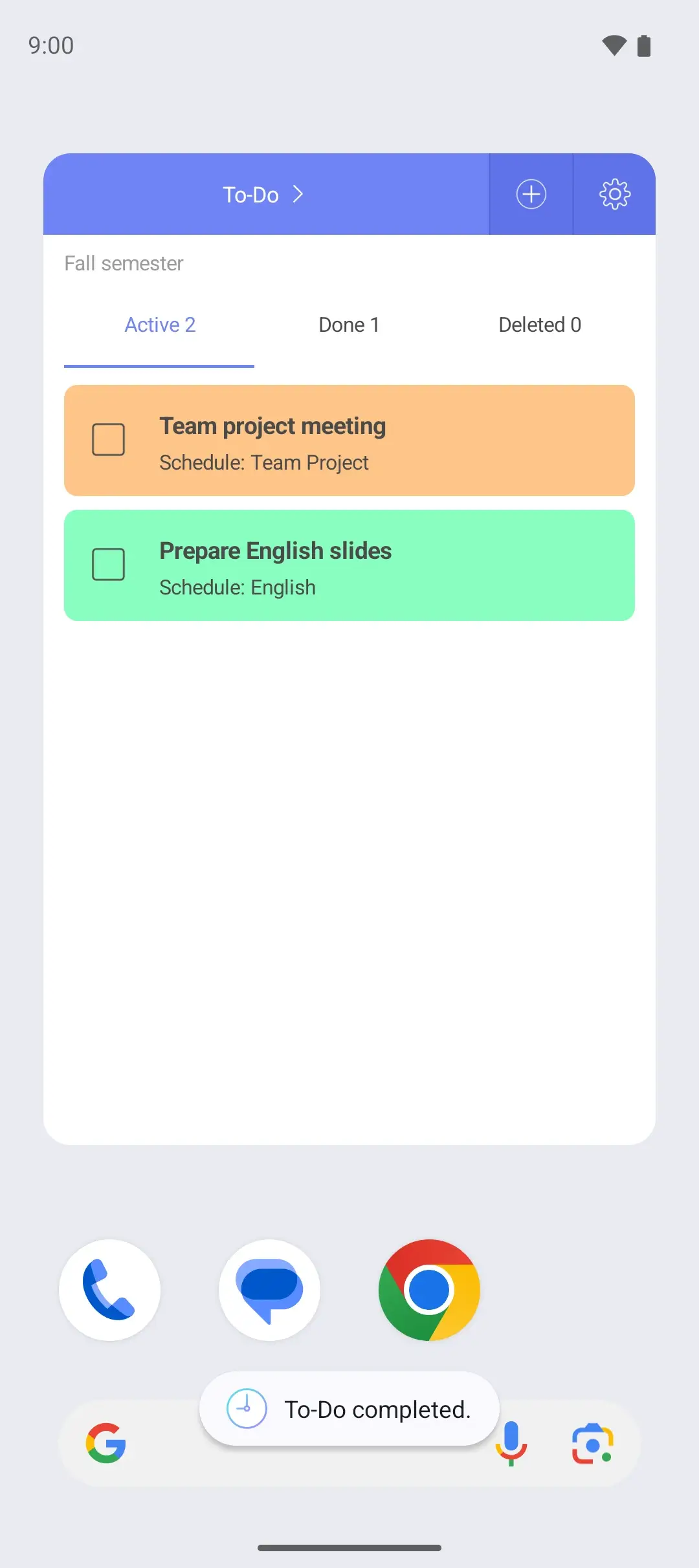
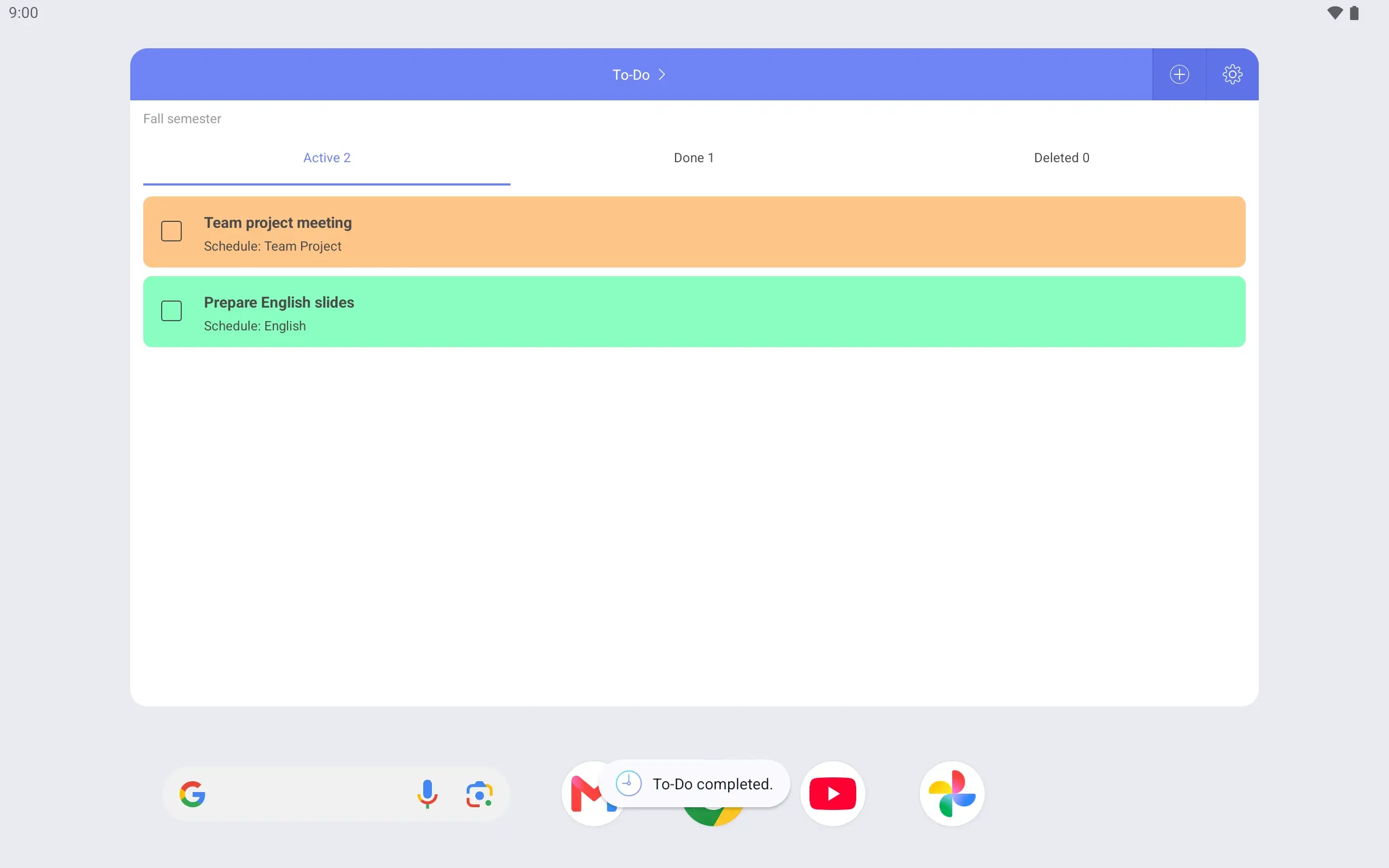
After handing in the lab, mark it complete in the widget. Either widget works: the To-Do widget or the Today overview widget.
With the lock screen timetable on, you can check your next class while walking. It is for viewing only: to change something, unlock the phone and open the app.